1. Preface:
1.1 Overview of ODPM Digital Platform Multi Terminal
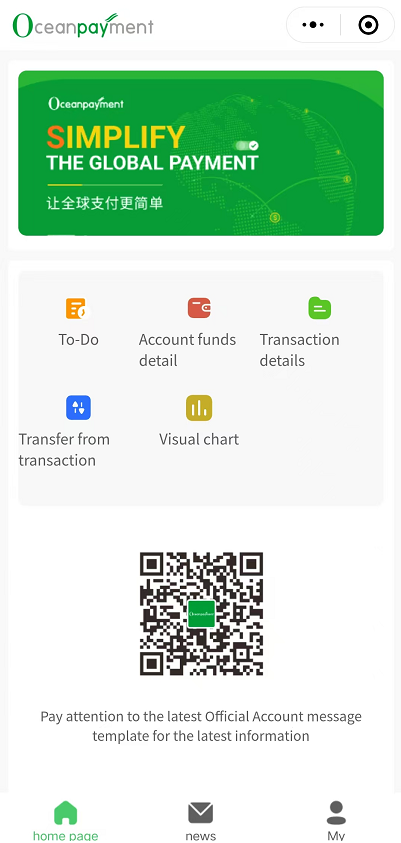
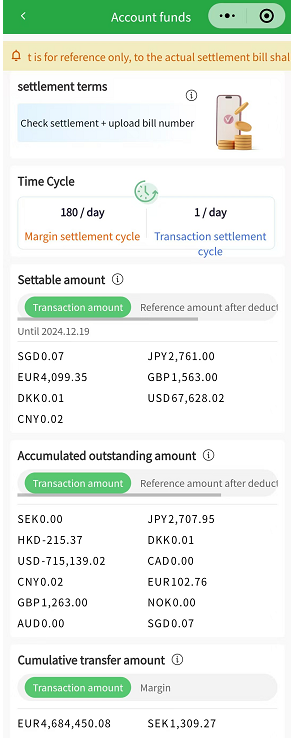
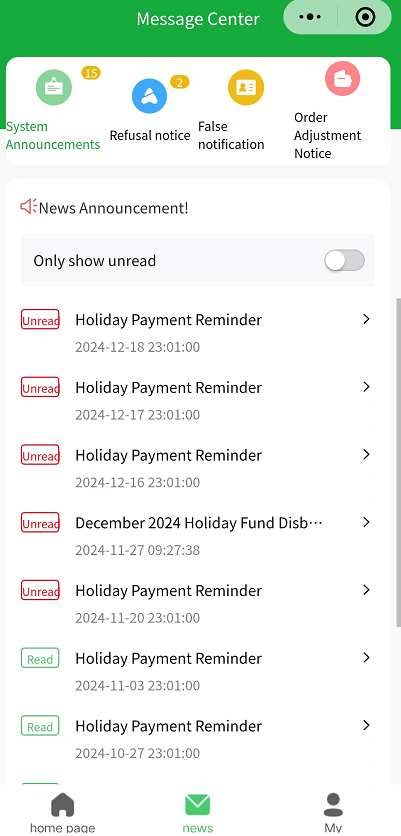
The ODPM digital platform caters to the multi terminal usage scenarios of merchants, launching PC, H5 mobile, and WeChat mini program. The PC end focuses on overall business operation management, the H5 mobile end focuses on business information query, the mini program focuses on the financial section, data analysis, and message notification. Overviews of each terminal page, functional modules, and functional buttons are detailed below:
1.2 Page Overview PC/H5/Mini Program:
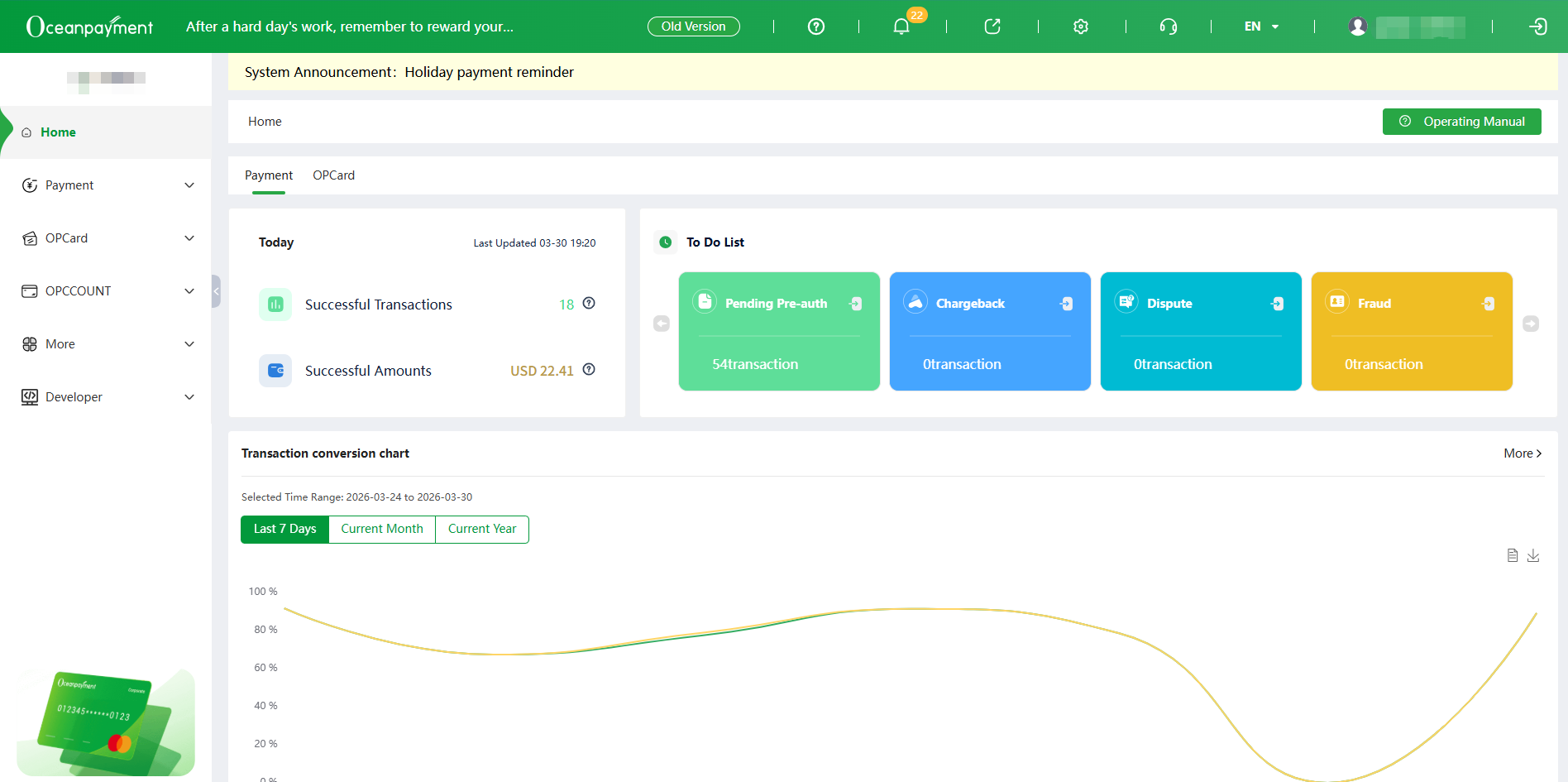
【PC 】 Home Display:
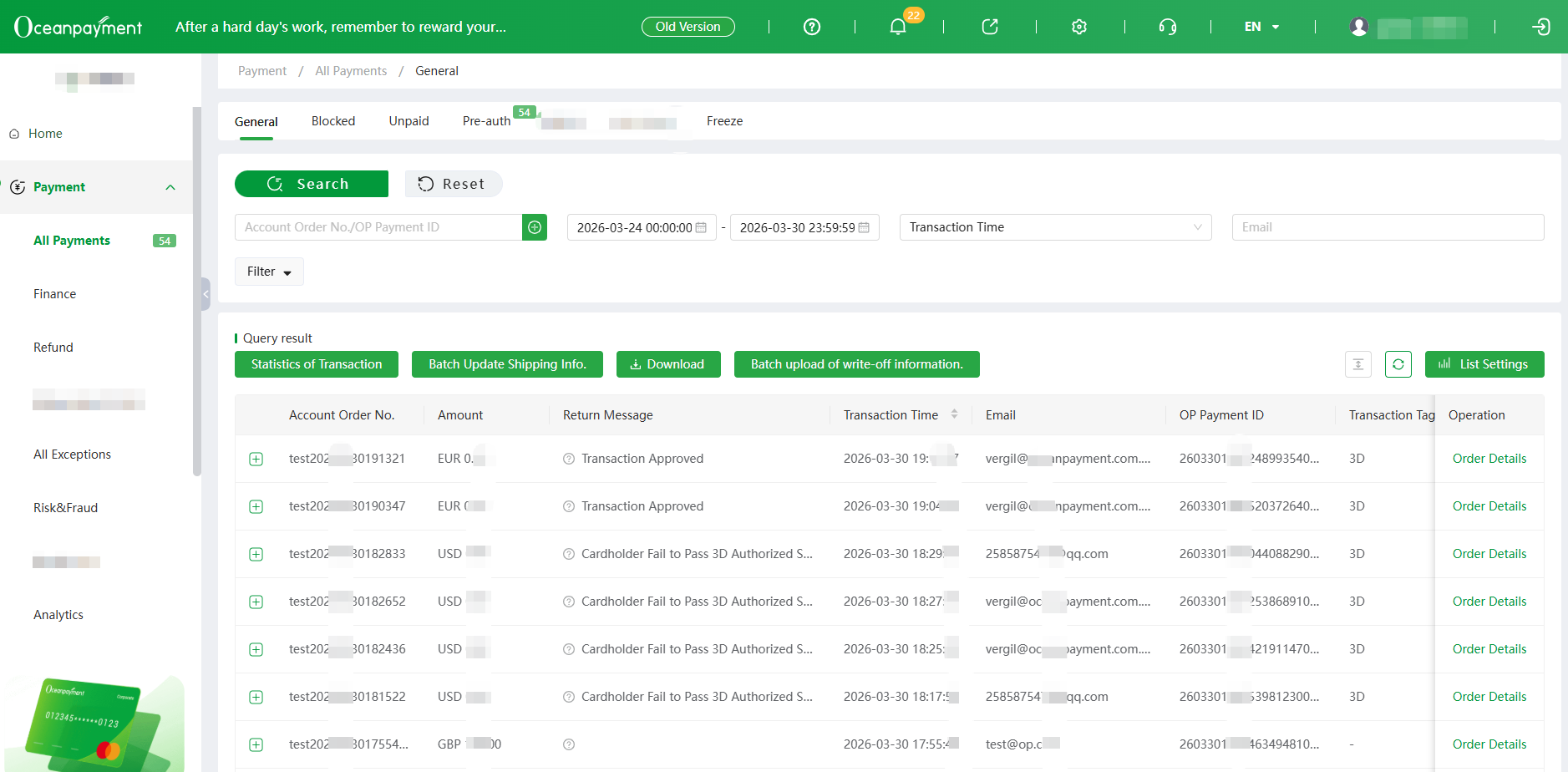
Information Center Section Display:
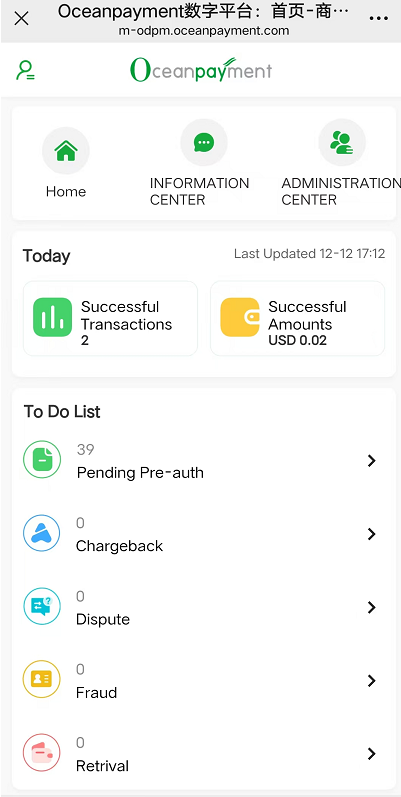
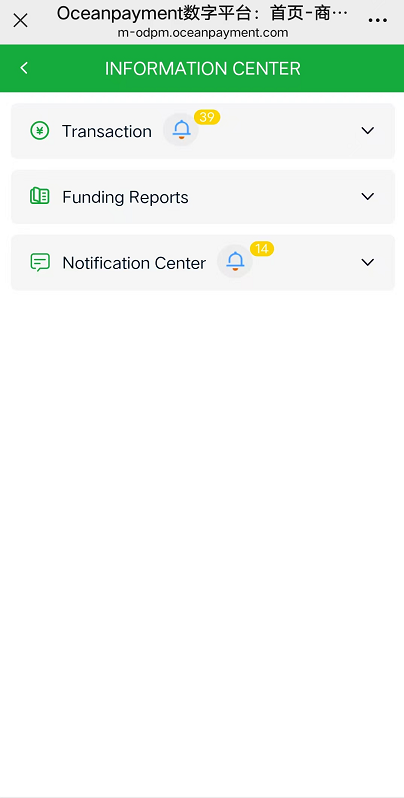
【H5 mobile terminal】
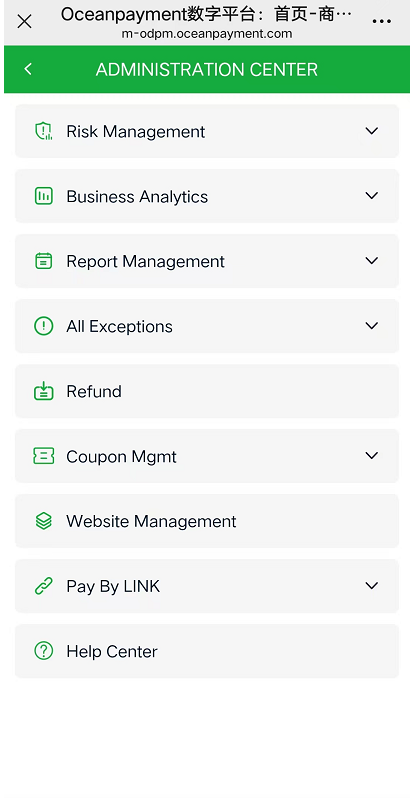
【Mini Program】
1.3 Overview of functional modules at each end:
| Function Module (level 2) | Function Module (level 2) | Function Button | PC | H5 | Mini Program |
|---|---|---|---|---|---|
| Home page | |||||
| Account Setting | Role setting | Add roles | √ | √ | |
| Edit | √ | √ | |||
| Delete | √ | √ | |||
| Data permission setting | Add new group | √ | √ | ||
| Modify | √ | √ | |||
| Delete | √ | √ | |||
| User setting | Adding an Administrator | √ | √ | ||
| Edit | √ | √ | |||
| Delete | √ | √ | |||
| Reset password | √ | √ | |||
| Disable/ Reset | √ | √ | |||
| Security verification reset | √ | √ | |||
| Adding an Administrator | √ | √ | |||
| Change Password | Submit | √ | √ | ||
| Wechat Setting | release | √ | √ | ||
| Transaction Statistics Push | √ | ||||
| Account | √ | √ | |||
| Security Setting | √ | √ | |||
| Mini Program Account Settings | Add account | √ | |||
| Edit | √ | ||||
| Delete | √ | ||||
| Administration Center | |||||
| Transaction | General Transaction | Update shipping Info | √ | √ | |
| Download | √ | ||||
| Batch Update shipping Info | √ | ||||
| Order Details | √ | √ | |||
| Refund | √ | √ | |||
| Statistics of Transaction | √ | √ | |||
| Chargeback Details | √ | ||||
| Retrieval Details | √ | ||||
| Fraud Details | √ | ||||
| Authorization complete | √ | ||||
| Authorization revocation | √ | ||||
| Transaction cancellation | √ | ||||
| Blocked Transaction | Details | √ | √ | ||
| Download | √ | ||||
| Pre-Auth Transaction | Details | √ | √ | ||
| Download | √ | ||||
| Capture | √ | √ | |||
| Void | √ | √ | |||
| Treatment statistics | √ | √ | |||
| Funding Reports | Account Funds | Details | √ | √ | √ |
| Trans Details | Details | √ | √ | √ | |
| Amount statistics | √ | √ | √ | ||
| Download | √ | ||||
| Trans Settlement | Details | √ | √ | √ | |
| Download Statement | √ | ||||
| Export summary | √ | ||||
| Export Details | √ | ||||
| Notification Center | Message notification | Details | √ | √ | √ |
| Chargeback Notice | Details | √ | √ | √ | |
| Fraud Notice | Details | √ | √ | √ | |
| Retrieval Notice | Details | √ | √ | √ | |
| Administration Center | |||||
| Risk Management | High Fraud Risk Alert Notification | Details | √ | √ | |
| Alert Rules update | √ | ||||
| Alert Rules Details | √ | ||||
| Refund Request | √ | ||||
| Capture | √ | ||||
| Void | √ | ||||
| Amount of statistical | √ | ||||
| Blacklist Management | Add | √ | |||
| Edit | √ | ||||
| The blacklist status is updated | √ | ||||
| Business Analytics | Data Analysis Report | Details | √ | √ | |
| Download | √ | ||||
| Visual Analytics | Details | √ | √ | √ | |
| Download | √ | ||||
| Report Management | Transaction Report | Details | √ | √ | |
| Download | √ | √ | |||
| Monthly Report | Details | √ | √ | ||
| √ | √ | ||||
| EXCEL | √ | ||||
| Final Order Details | √ | ||||
| Download Invoice | √ | ||||
| Daily Report | Details | √ | √ | ||
| Download | √ | ||||
| All Exceptions | chargeback | Amount of statistical | √ | ||
| Download | √ | ||||
| accept non-payment | √ | ||||
| appeal | √ | ||||
| Download | √ | ||||
| Details | √ | √ | |||
| Dispute | Download | √ | |||
| Note | √ | ||||
| Accepted | √ | ||||
| Contact consumers | √ | ||||
| Comment | √ | √ | |||
| Download Material of customer | √ | ||||
| Download | √ | ||||
| Details | √ | √ | |||
| Retrieval | Amount of statistical | √ | |||
| Download | √ | ||||
| Accept Refund | √ | ||||
| Retrieval revocation | √ | ||||
| Download credentials | √ | ||||
| Details | √ | √ | |||
| Fraud | Amount of statistical | √ | |||
| Download | √ | ||||
| Accept Refund | √ | ||||
| Details | √ | √ | |||
| Refund | Download | √ | |||
| Refund Request | √ | √ | |||
| Amount of statistical | √ | √ | |||
| Revoke Refund | √ | √ | |||
| Website Management | Download | √ | |||
| Add | √ | ||||
| Suggestion Download | √ | ||||
| Cancel | √ | √ | |||
| Log Management | Login Log | √ | |||
| Operation Log | √ | ||||
| Developer | Terminals Setting | Download | √ | ||
| Edit | √ | ||||
| Details | √ | ||||
| Download Center | Download | √ | |||
| Help Center | √ | √ | |||
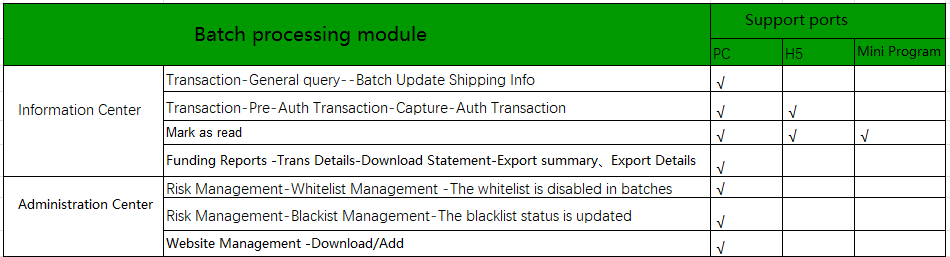
1.4 Overview of Batch Processing Module
Common batch processing options are as follows:
2. Administrator login (PC/H5)
- Oceanpayment-ODPM platform website: https://odpm.oceanpayment.com/
- (This login link is also used for mobile H5 and PC)
- After the account login information is confirmed, the operations support will send the account information email.
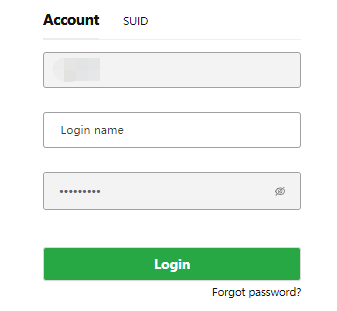
(PC)
-
After login successfully, a security verification pop-up will pop up, and you need to follow the instructions to bind it normally.
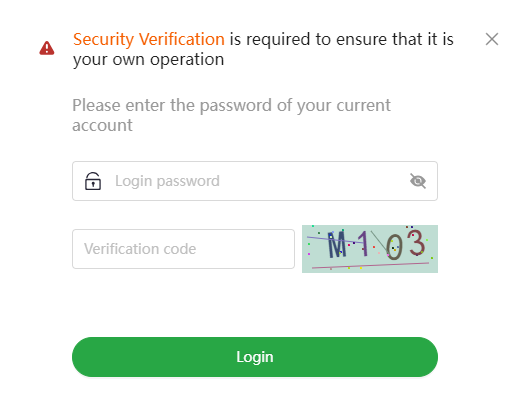
-
(PC)
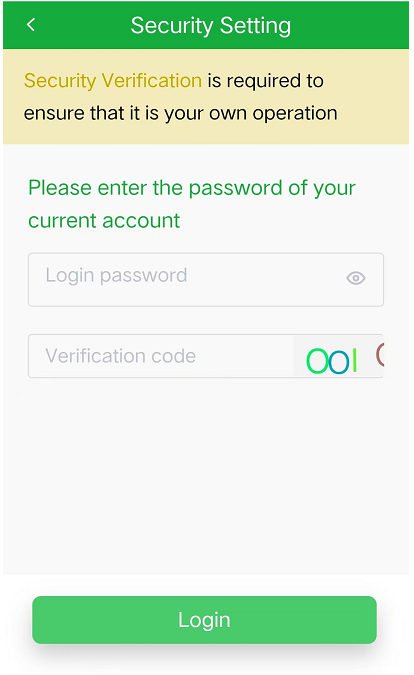
-
(H5)
-
If this account is not tied to an email address , email binding is required first
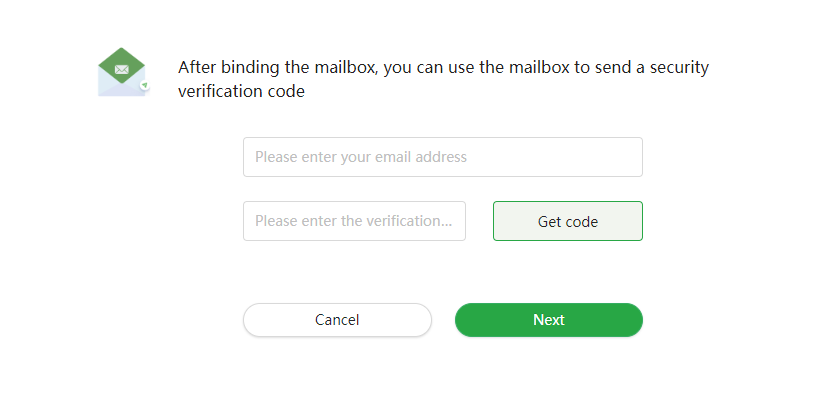
-
(PC)
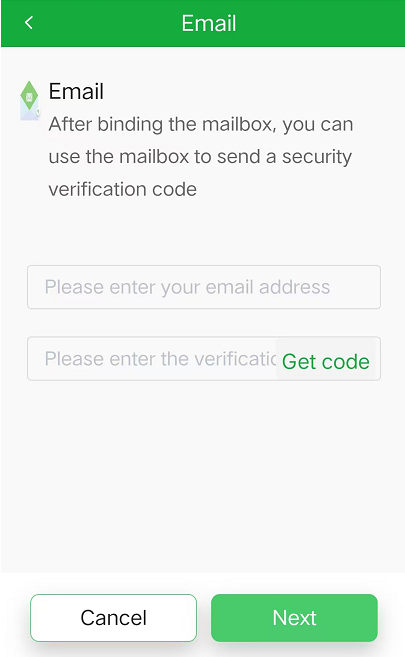
(H5)
- After undergoing a second email verification, the relevant functions of the account backend can be used normally; Both the main account number and sub account number require security verification when logging in.
- If the same company has opened multiple accounts, you can contact your dedicated operations support to log in with SUID information. Login with SUID to switch account numbers freely, as shown in the following:
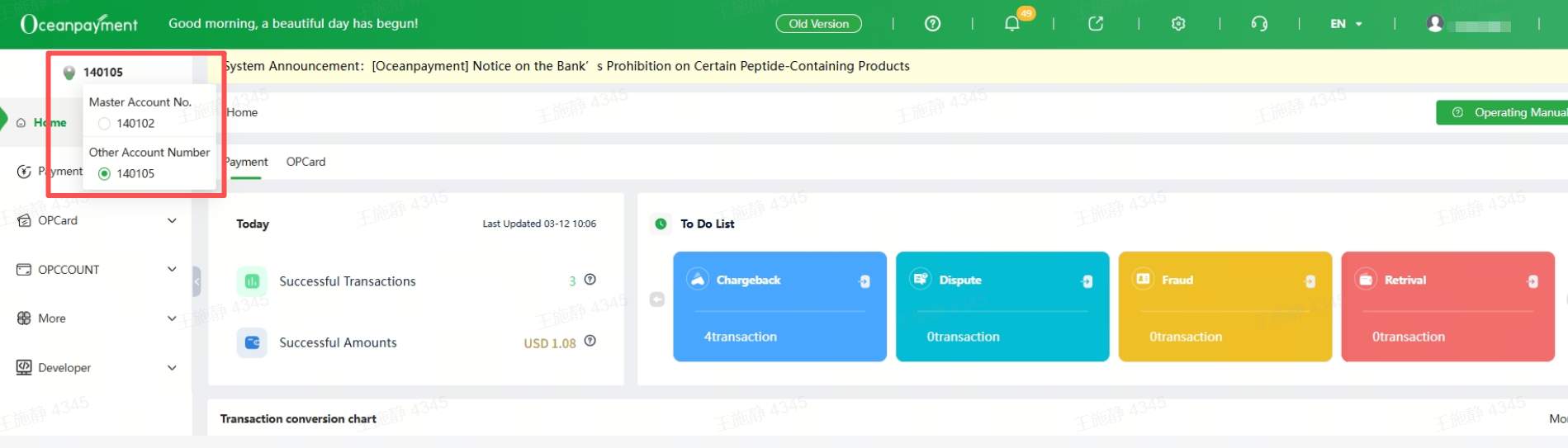
(PC)
3. Account (PC/H5)
After logging into the account, click on "CN" to switch between "Chinese/English" languages. Click on the username in the upper right corner, and the account settings menu will appear, as shown in the following figure:
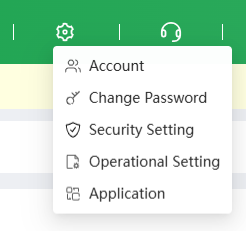
(PC)
3.1 Roles
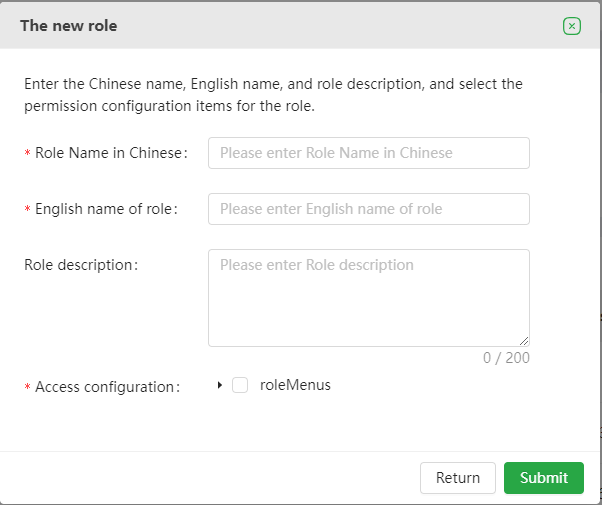
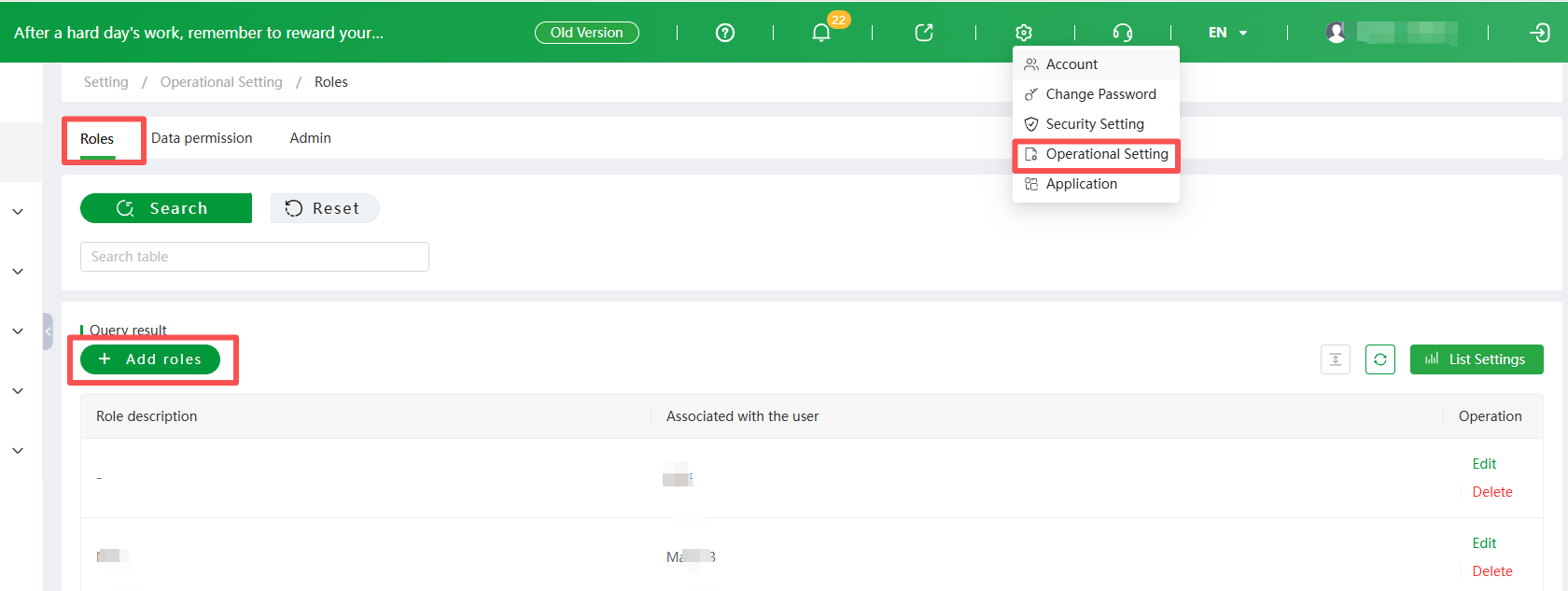
- Click on 【Operational Setting】-【Roles】to set roles based on the account user's role or department function. After entering the corresponding information and checking the corresponding permissions on the settings page, click 【Submit】 to successfully set the role. Then enter the 【Role】 page, where you can view a list of all the roles set for the current account, and modify the information or permissions for a certain role, or delete a certain role.
(PC)
3.2 Data Permission
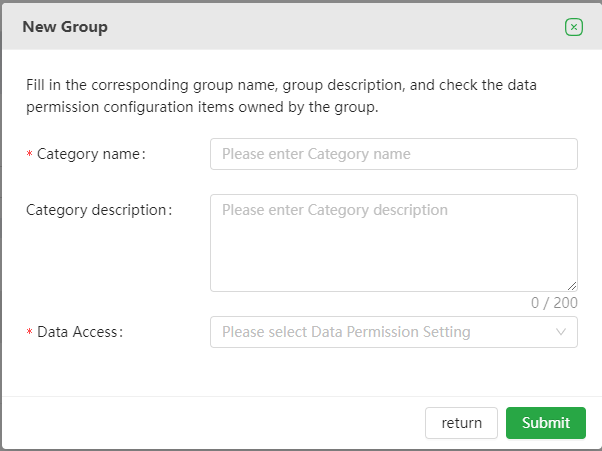
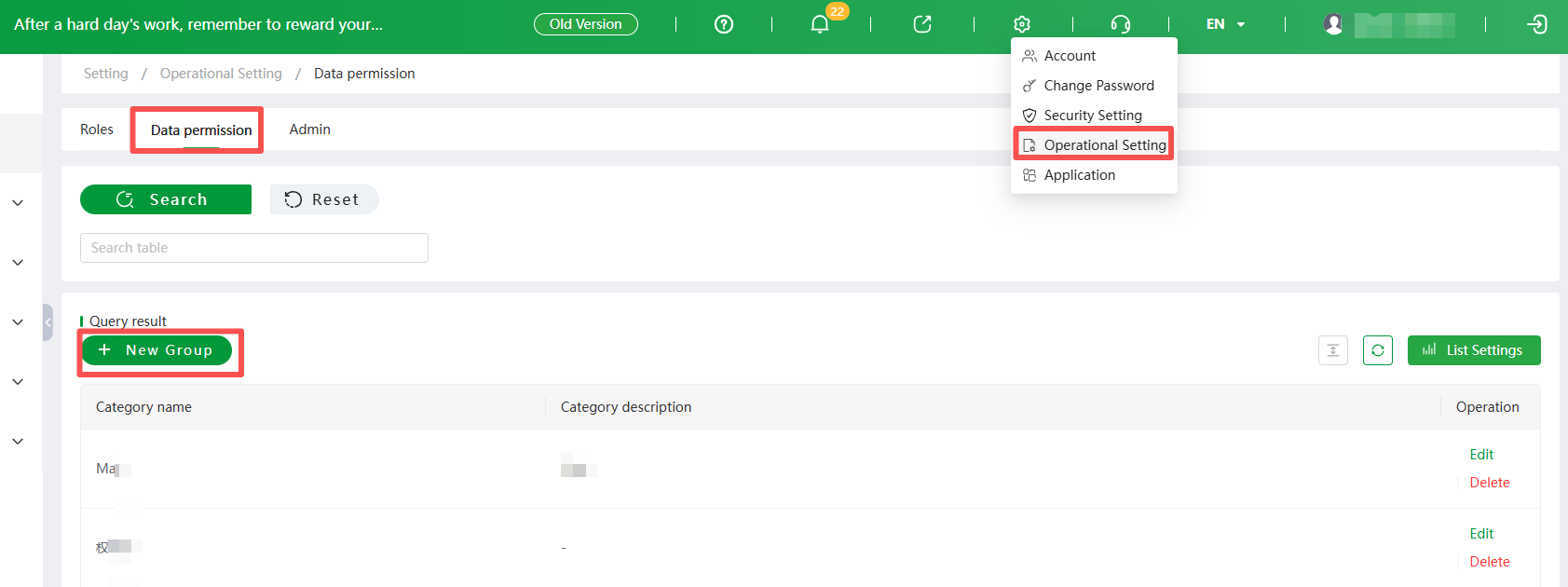
- Click on 【Operational Setting】-【Data Permission】 -【Add New Group】to set different website data management permissions based on the websites managed by different teams. After entering the corresponding information and checking the corresponding terminal number on the new group page, click 【Submit】 to successfully set the group. Then enter the 【Data Permission】 page to view the list of all data groups set for the current account, and modify or delete information for a certain group.
(PC)
3.3 Admin
- Click on【Operational Setting】-【Admin】 to enter the administrator management page. Click on 【Adding an Administrator】to assign an account operator sub account to an employee. For a certain operator sub account, the corresponding roles and data permissions can be selected as a single or multiple choice.
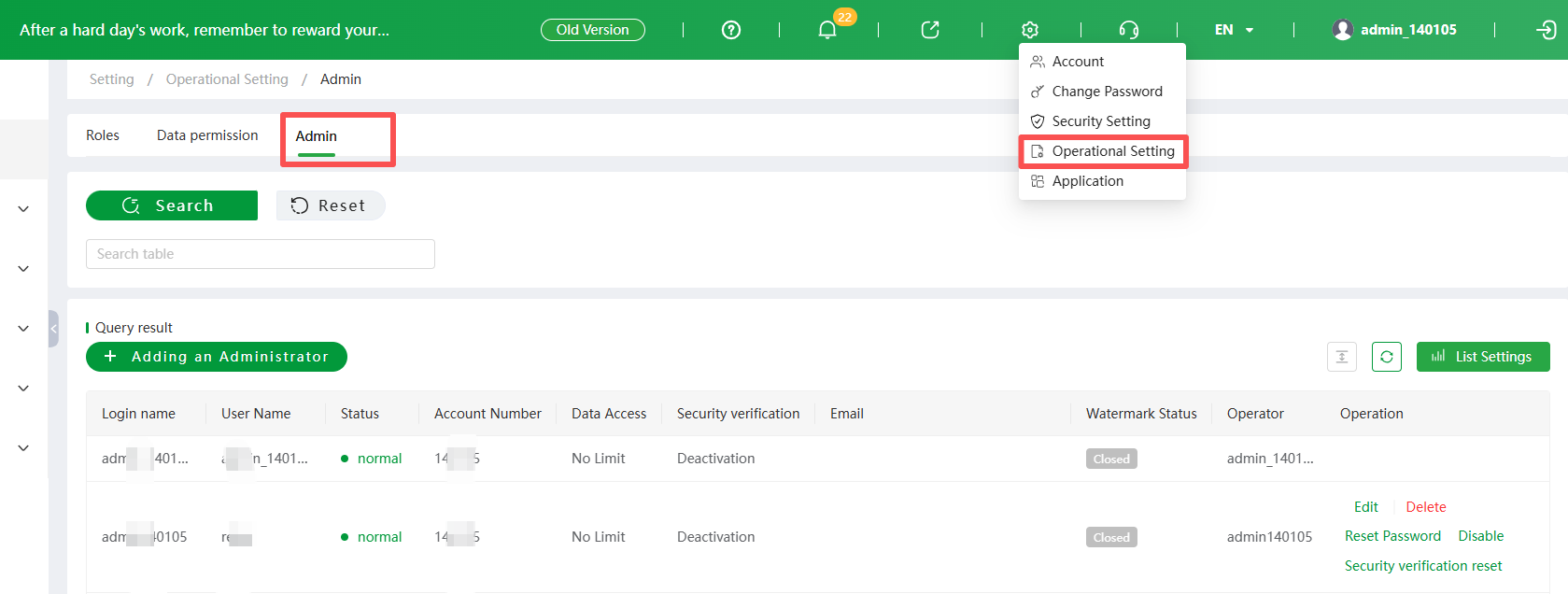
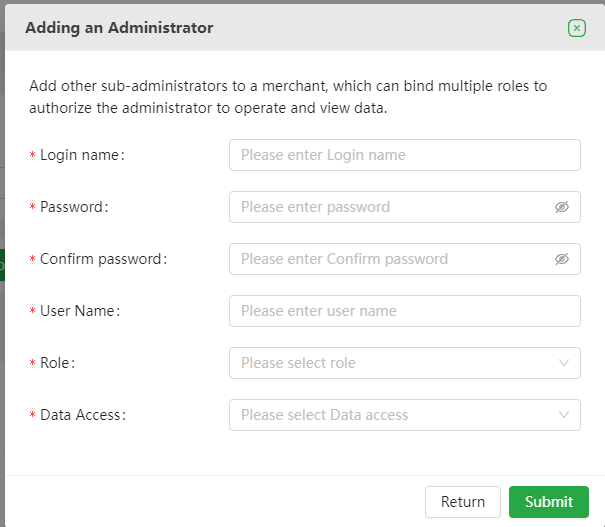
(PC)
- At the same time, it can modify information, delete information, reset passwords, and disable administrator operations.
- Click on the security verification reset and the main account number can be used to unbind the administrator's email. If the main account number needs to change the bound email, contact Oceanpayment operations.
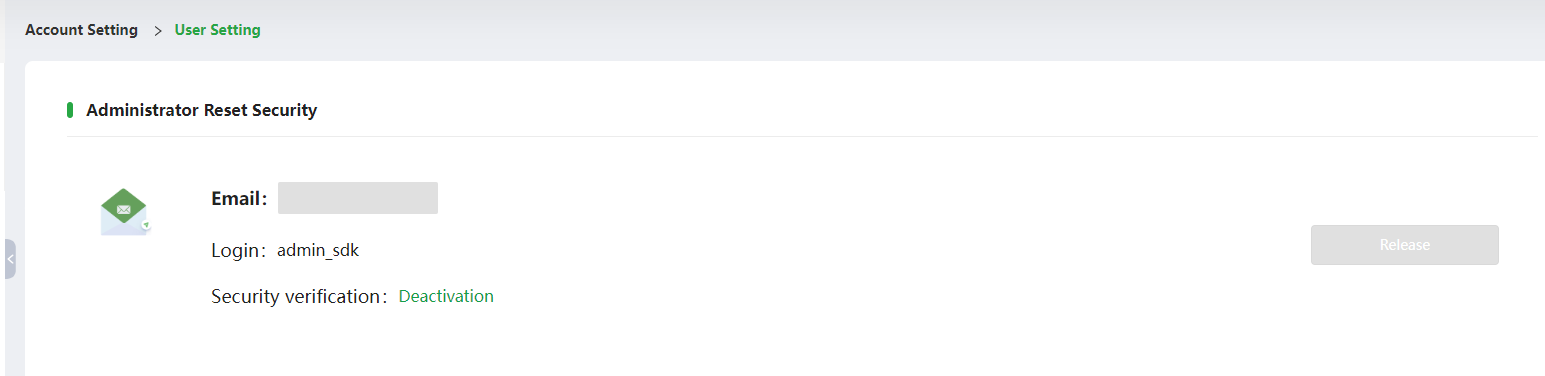
(PC)
3.4 Change Password
- Click on 【Change Password】 to modify the password information of the current operating account. After modification, the system will automatically log out, and the operator needs to log in again with a new password to perform other account operations.
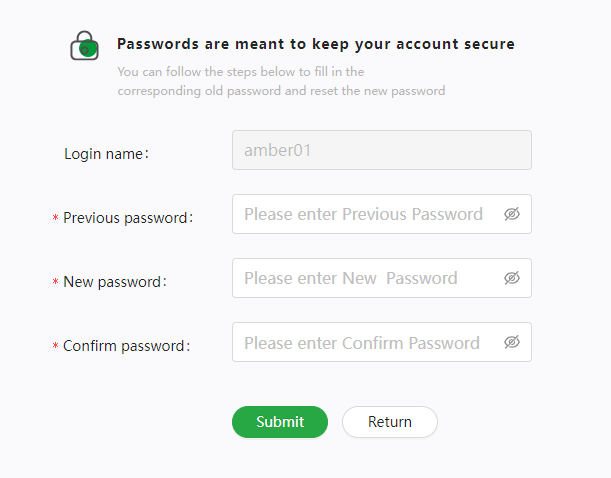
(PC)
3.5 Application
- Click on【Application】to set whether to push WeChat notifications and unbind them for different administrator accounts according to the needs of the merchant's own business operations. Currently, the information pushed by WeChat is only limited to transaction volume statistics.
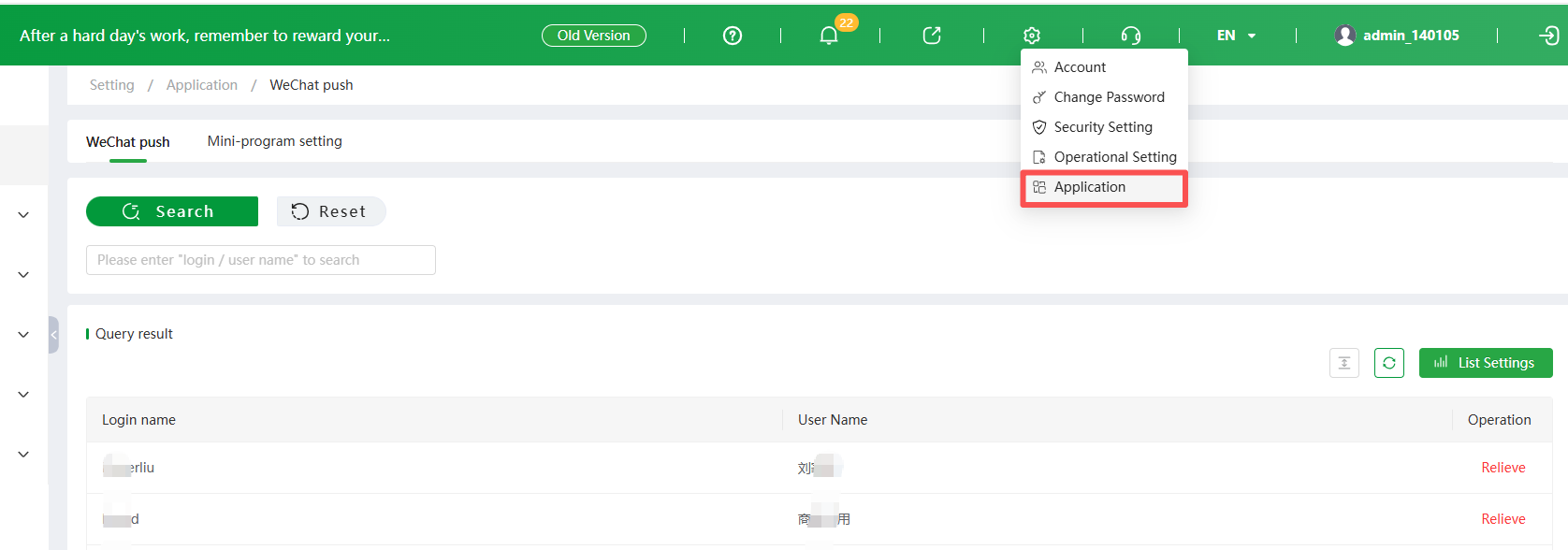
(PC)
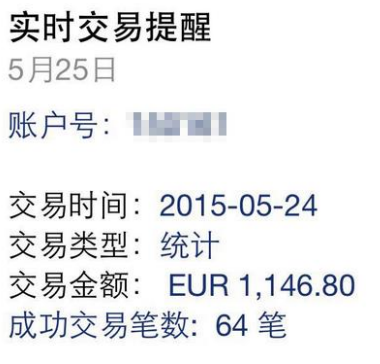
- Follow Oceanpayment's WeChat official account information, click 【More Services】 -【My Account】and bind the operator account according to WeChat prompts. After the binding is successful, the super administrator logs in to Oceanpayment's account background and sets the operator account as【Push】 in 【WeChat Setting】, then the operator account can receive the transaction statistics information of the previous day from the account at 8:00 every day. The example is as follows:
- Positioned as the highest authority manager for merchants, it provides account funds detail, to-do lists, transaction details, visual chart, transfer from transaction, news announcement, and customer service information modules to improve the accessibility of merchant mobile information. After configuring the Oceanpayment Merchant Assistant mini program account setting permissions for the merchant account number in the Oceanpayment management backend, only the main account of the account number can create, enable, disable, edit, and delete mini program accounts on the ODPM digital platform PC end.
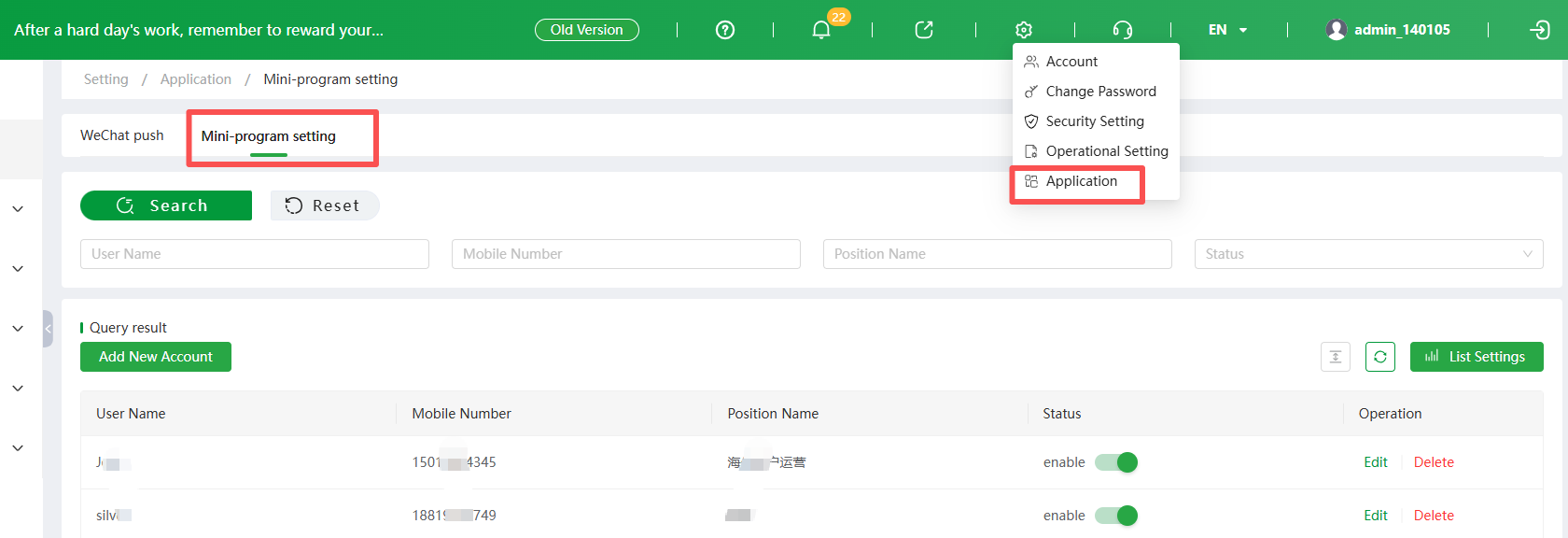
- Enter the mobile phone number bound to WeChat on the PC end, and when the status is enabled, you can log in to the Oceanpayment Merchant Assistant mini program with one click. It supports configuring up to 10 mini program accounts, and one mobile phone number can be bound to multiple account information. The mini program can switch account numbers to view corresponding account information.
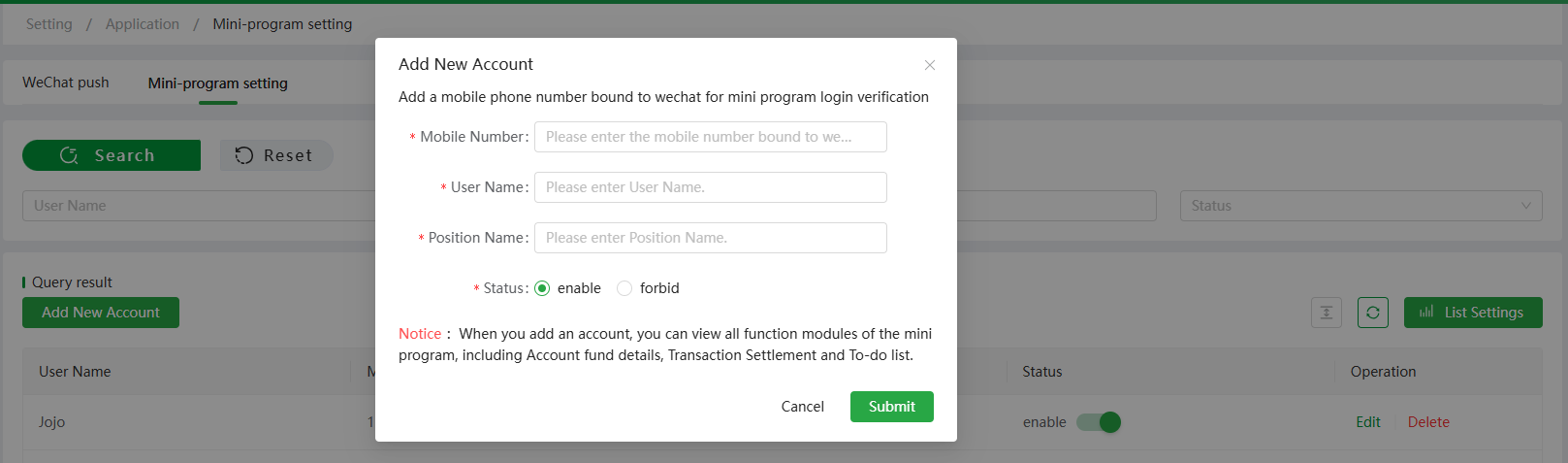
(PC)
- Adding an account allows you to view all functional modules of the mini program, including to-do lists, account funds detail, transfer from transaction, transaction details, visual chart, view customer service information, and message center. Specific operation instructions can be found in the corresponding modules of this operation manual, which are the homepage - To-do list, Funding reports (fund details, transaction settlement, transaction details), Treatment statistics (visual chart), and Notification center. Oceanpayment Merchant Assistant Mini Program Login Method::
- WeChat Mini Program Search: Oceanpayment Merchant Assistant
- Scan the Oceanpayment merchant assistant QR code to log in
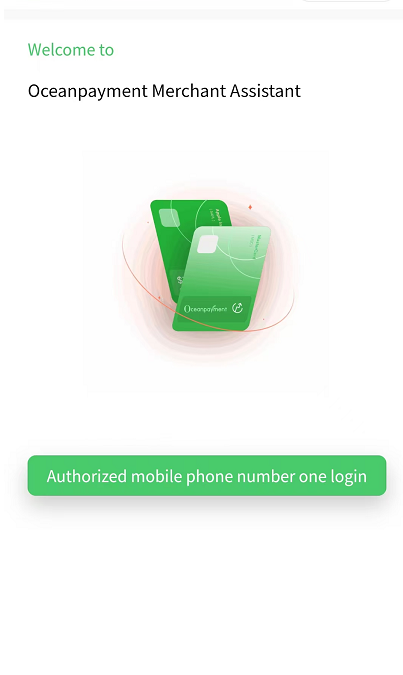
The login page can be accessed with one click using a WeChat authorized phone number bound to the PC:
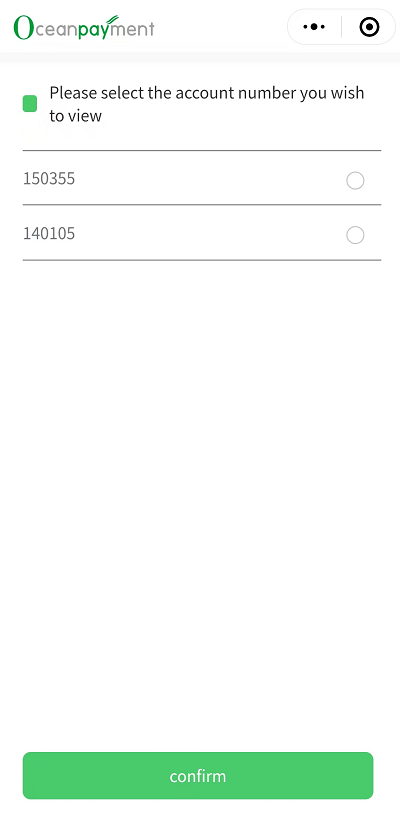
(Mini Program) If multiple account numbers are bound to the phone number, the account selection page will be entered.
(Mini Program)
- The navigation bar on the homepage of Oceanpayment Merchant Assistant allows access to the To-do list, Account funds detail, Transaction details, Transfer from transaction and Visual chart, as shown in the following:
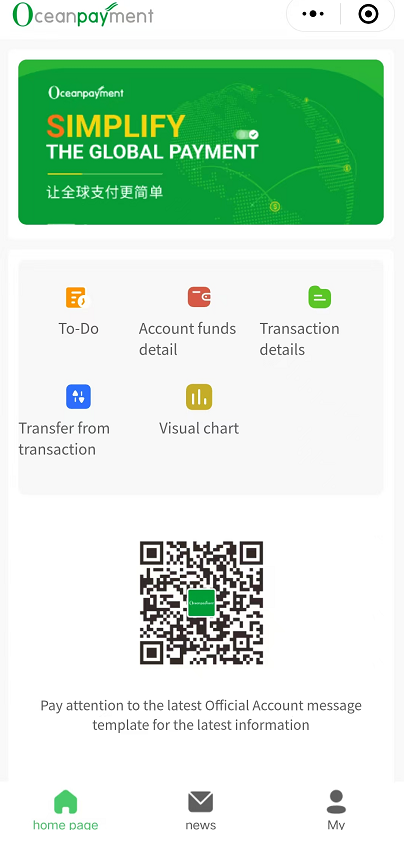
(Mini Program)
Visual chart(eight in total): Overall Transaction Analysis Distribution of transactions by issuing country Overall Success Rate Analysis Reasons for Overall Failure Reasons for Chargeback Total Chargeback, Fraud and Refund(Distinguish card types) Overall Chargeback, Fraud and Refund Analysis Overall logistics situation
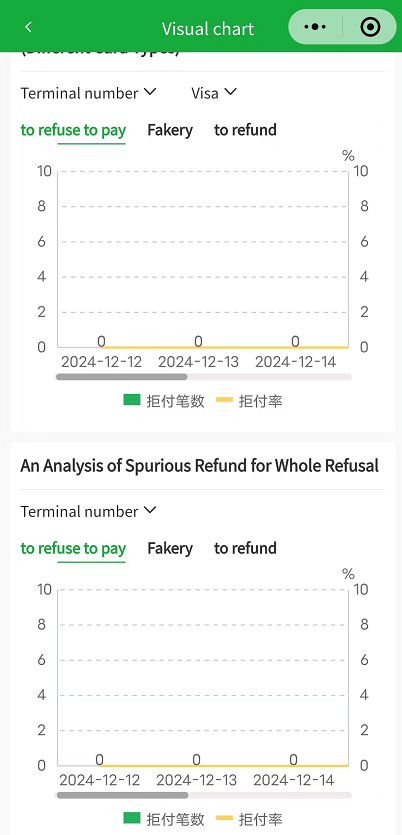
(Mini Program)
Account funds detail
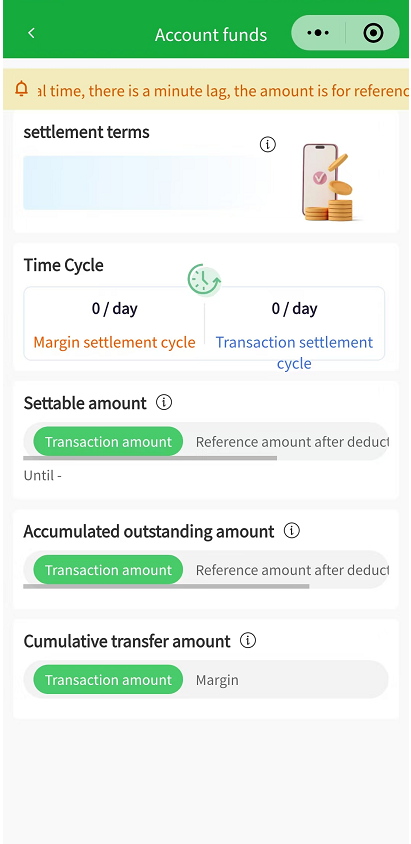
(Mini Program)
News center (System Announcements, Chargeback Notice, Fraud Notice, Retrieval Notice)
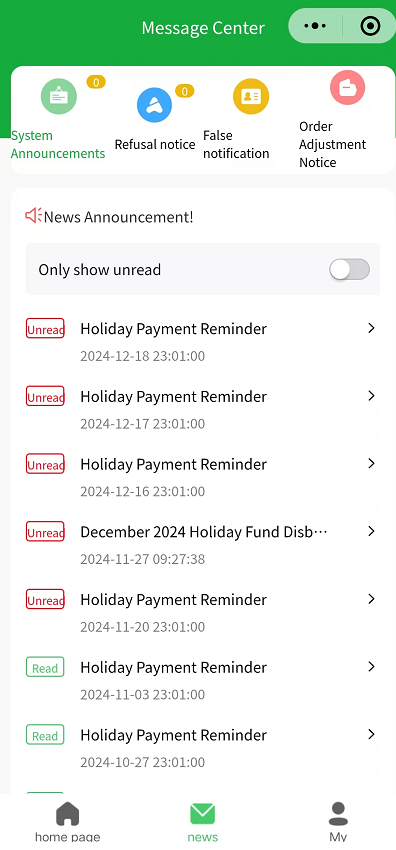
(Mini Program)
My (customer service information can be viewed) If multiple account numbers are bound to a mobile phone number, the account number will be the information of the currently logged in account number.
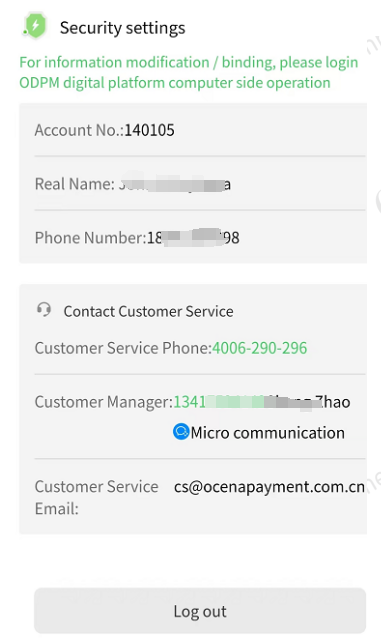
(Mini Program)
3.6 Account
- Click on 【Account】 to view the basic information of the account. Basic account information can only be viewed and cannot be edited. If you need to modify it, you can contact your operational support for information modification.
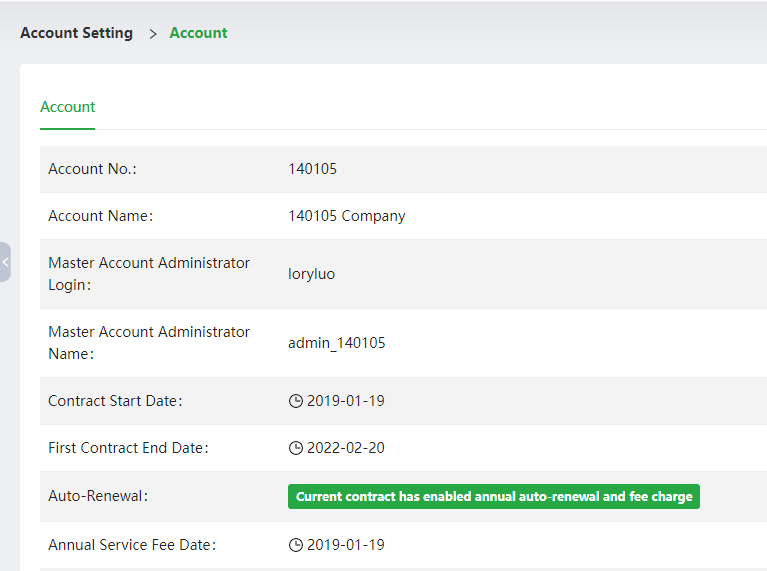
(PC)
3.7 Security Setting
- Click on 【Security Setting】 to enter the security settings page, where you can change the verification email address.
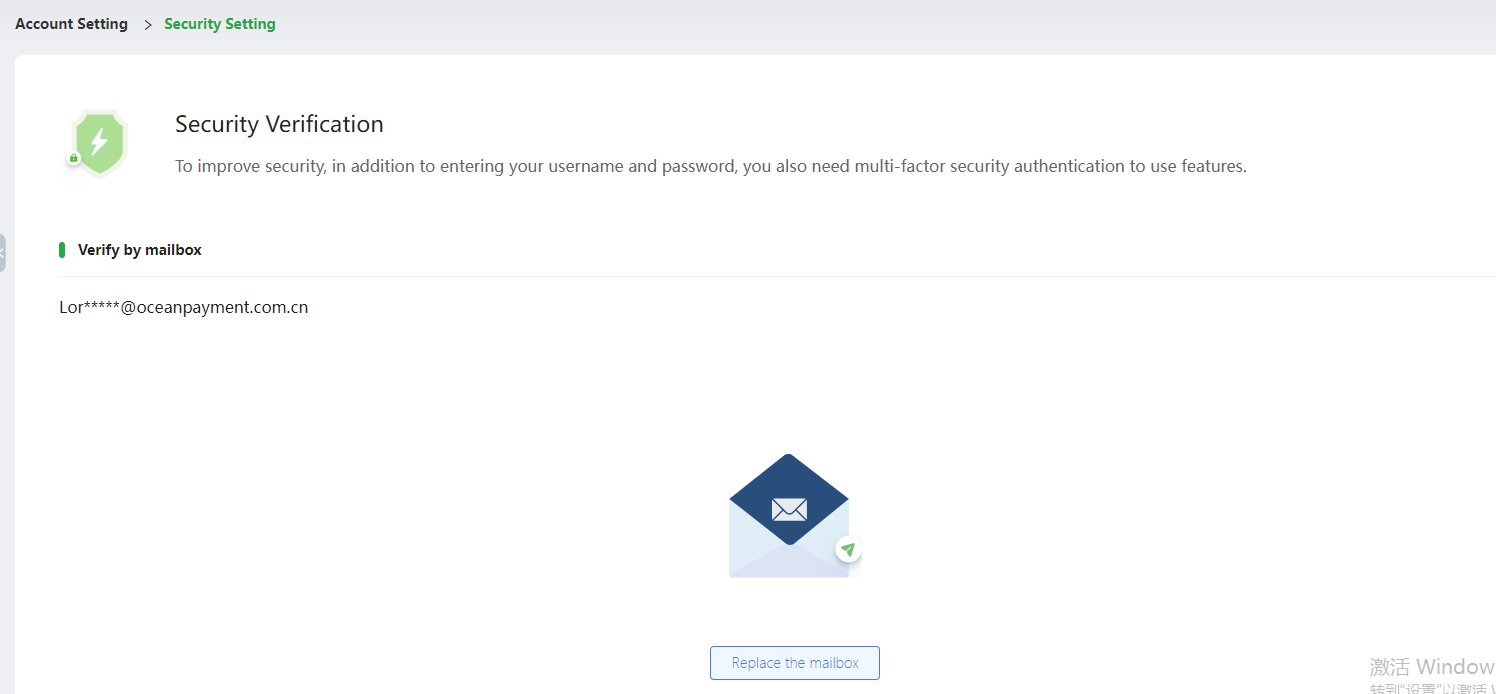
(PC)
4. Home(PC/H5)
Login to the Oceanpayment account management backend, and the homepage of the account management backend will be opened by default.
4.1 Overview of Main Menu
The main menu consists of 【Home】, 【Information Center】, 【Management Center】,【Help Center】,【Message Notification】, and【Account Setting】.
Click on

, you can redirect to the【Help Center】and search for some answers.
Click on

, you can redirect to system announcement messages.
Click on

, you can redirect to 【Account Setting】for administrator, role, and other settings.
Information Center consists of the following: Transaction – General query, Blocked Transaction, Pre-Auth Transaction Funding Reports – Account Funds, Trans Details, Trans Settlement Notification Center – Notification Center, Chargeback Notice, Fraud Notice, Retrieval Notice Bank Settlement Model Administration Center consists of the following components: Risk Management - High Fraud Risk Alert Notification, Blacklist Management Business Analytics -Visual Analytics, Data Analysis Report Report Management -Transaction Report, Monthly Report, Daily Report All Exceptions-Dispute, Chargeback, Retrieval, Fraud Refund Website Management Developer - Terminals Setting Log Management--Login Log, Operation Log, Download Center
4.2 Home
- Statistics of successful transactions and amounts
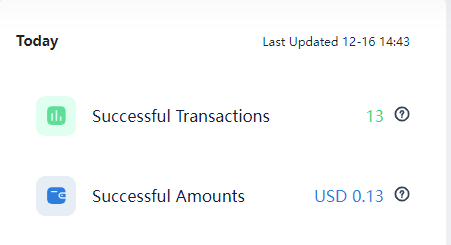
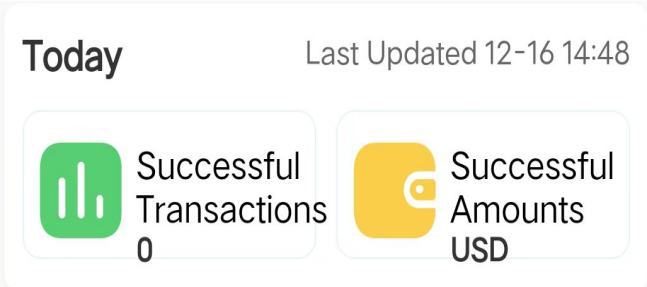
(PC) (H5) Click on the prompt icon to view the corresponding prompt
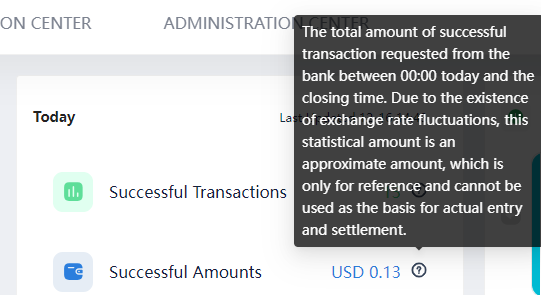
(PC) This statistical amount is an approximate amount for reference only and cannot be used as the basis for actual recording and settlement.
- To Do List
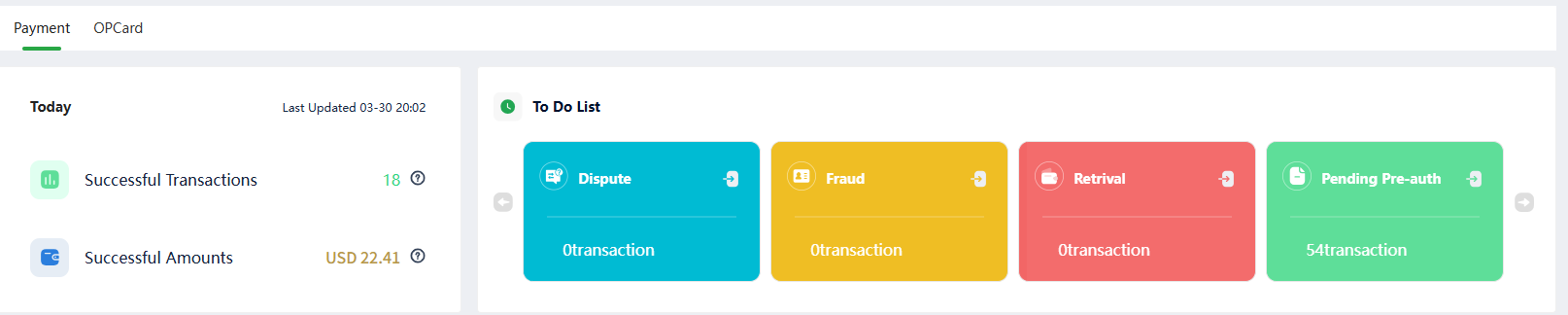
(PC)
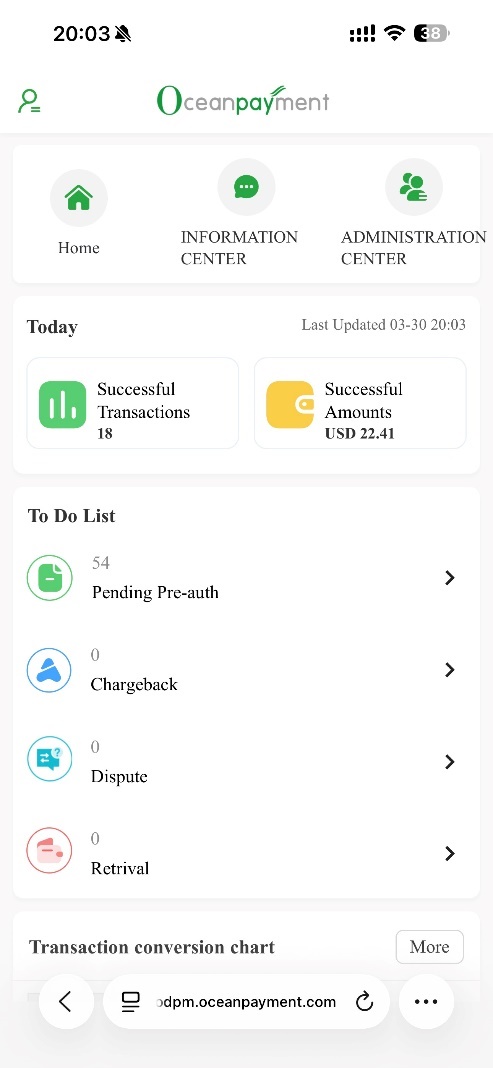
(H5)
PC can rotating displays the number of pending transactions for five types of transactions: authorization, chargeback, dispute, fraud, and order adjustment. Clicking on it can easily redirect to the corresponding abnormal transaction management module and query the detailed information of the corresponding pending transactions.
- Transaction conversion chart
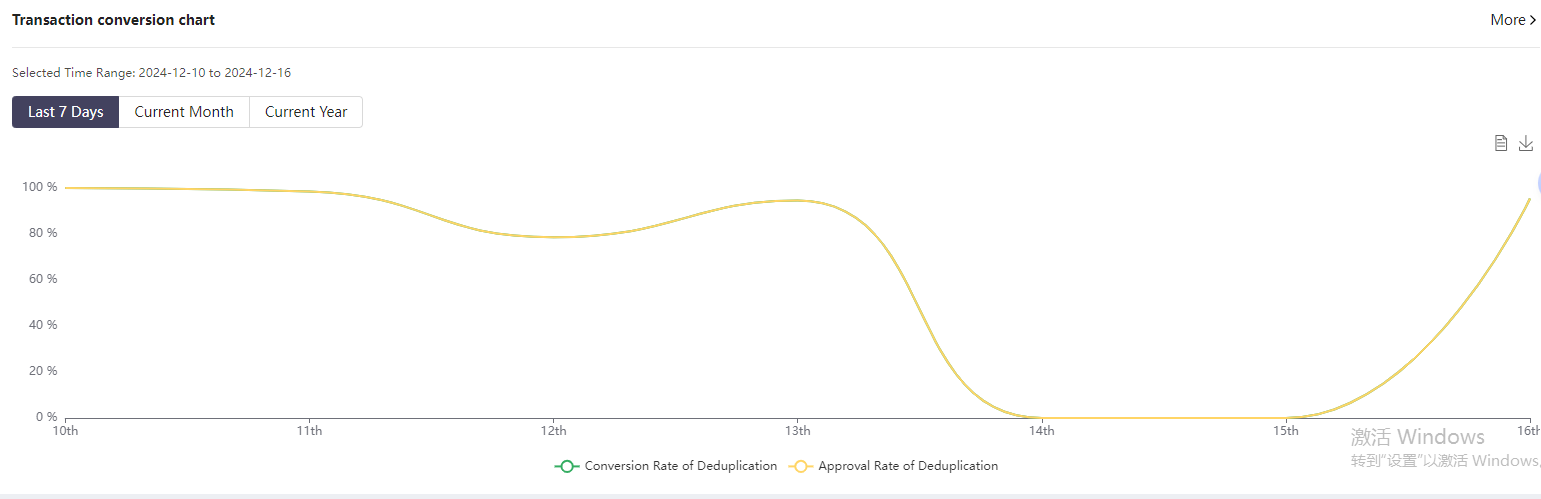
-
(PC)
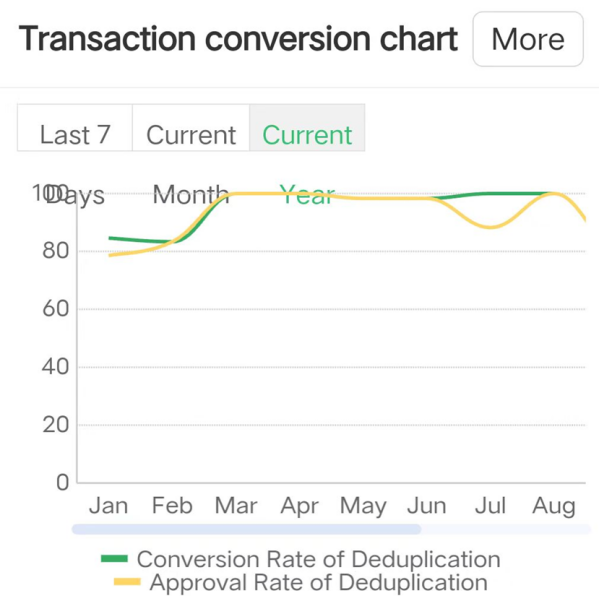
- (H5) Transaction conversion chart can display the de duplication conversion rate and success rate of a certain period of time (the past 7 days, this month, this year) up to the query day, and the trading conversion trend can be switched between statistical time periods through date tags. Click on 'More Data' to jump to the data analysis - Visual Analytics.
5. Payment (PC/H5)
| Name | Interpretation |
|---|---|
| Account | Trading account on the Oceanpayment payment platform with 6 digits |
| Terminal | The same account can be configured with multiple terminal |
| Account Order No. | The order number sent to Oceanpayment by the merchant's website |
| Payment ID | The unique payment ID generated by each transaction on the Oceanpayment platform, and the payment ID is not duplicated |
5.1 All Payment
- All Payment - General
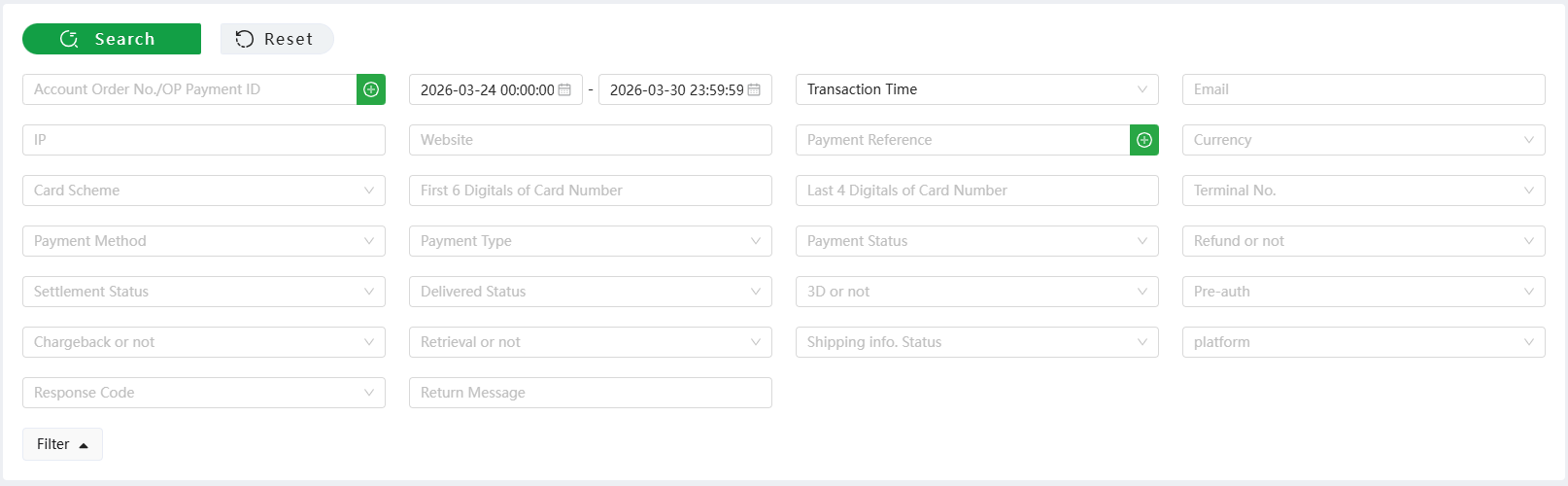
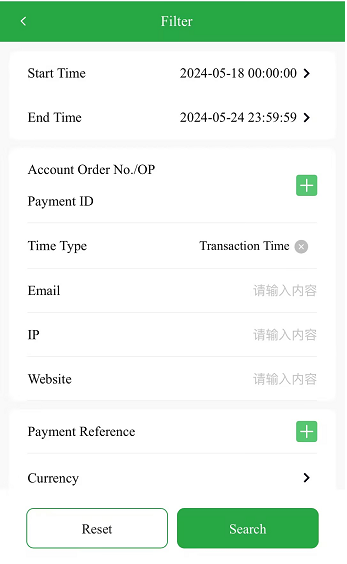
- Click the menu [Payment] - [All Payments] -[General] to filter according to different conditions to query all successful, failed and pending transactions, and the default time is the transaction time of the past 7 days, from 2024-05-18 00:00:00 to 2024-05-24 23:59:59. Click the Filter button on the left to expand more filters.
(PC)
(H5)
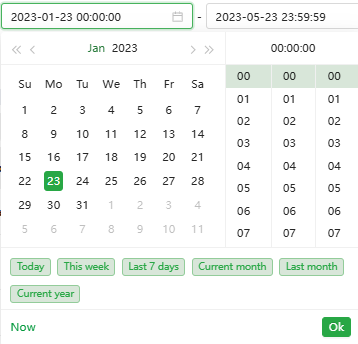
- As shown in the picture above, Oceanpayment's transaction query function provides more than 20 filter conditions, the most commonly used method is to search by transaction date, and the convenient time query items include this week, last 7 days, this month, last month, and this year, and can be accurate to the hour, minute and second for query, also the query time period is up to one year.For example, you need to query all transactions that occurred from January 23, 2023 to May 23, 2023 as follows:
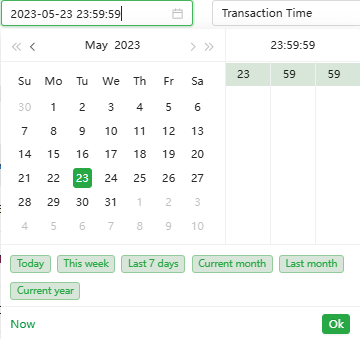
(PC)
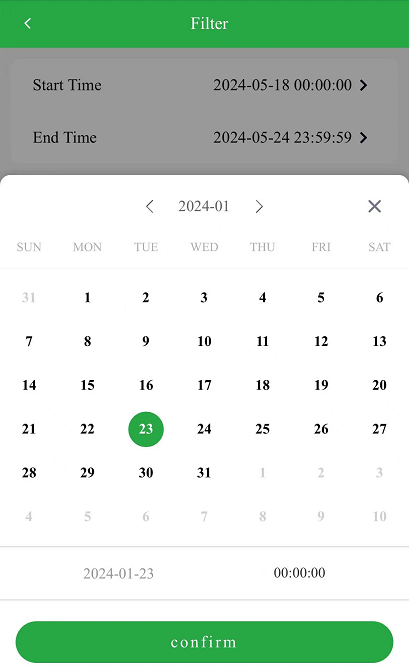
(H5)
- After clicking to enter the general transaction, if you do not change any query conditions, click search, the default trading time is all transactions in the past 7 days. It is shown below:
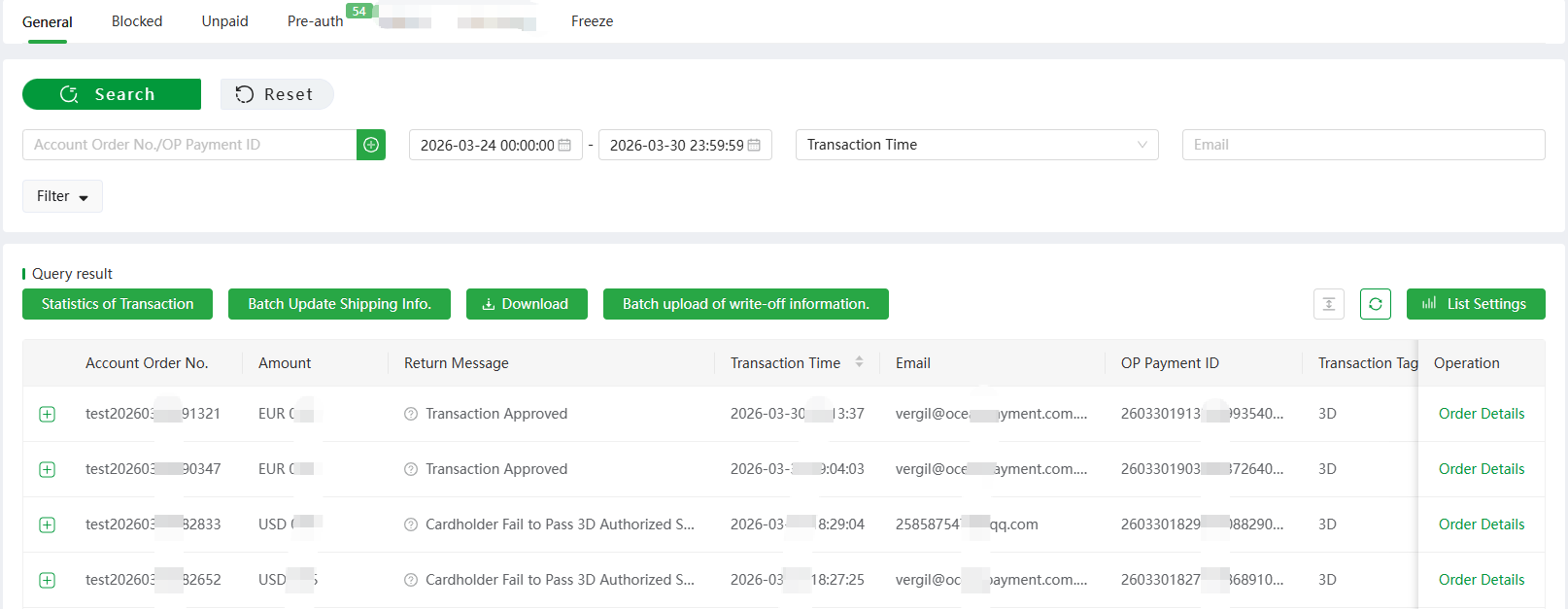
(PC)
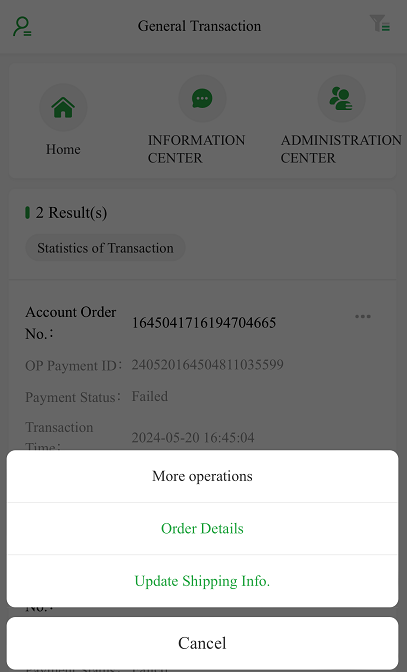
(H5)
- Click "Download" to download all the transaction records that are currently queried.Click "Statistics of Transaction" to distinguish the transaction currency and count the total amount and number of orders that are currently queried. This is shown in the picture below.
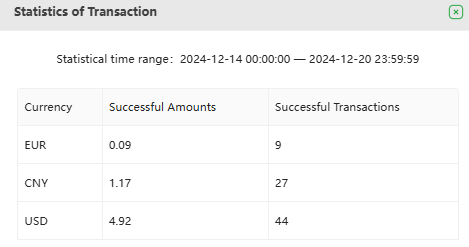
(PC)
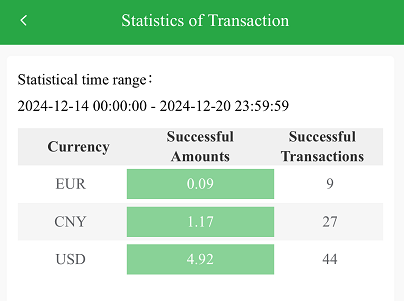
(H5)
- Click "Batch Update Shipping Info.", the following window will pop up, for merchants in physical trade, you can download all transactions without logistics tracking numbers, or you can download the logistics templates uploaded in batches, fill in the corresponding logistics information and upload them in batches.
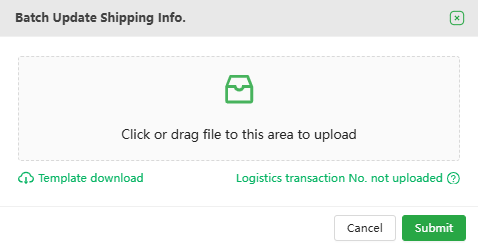
(PC)
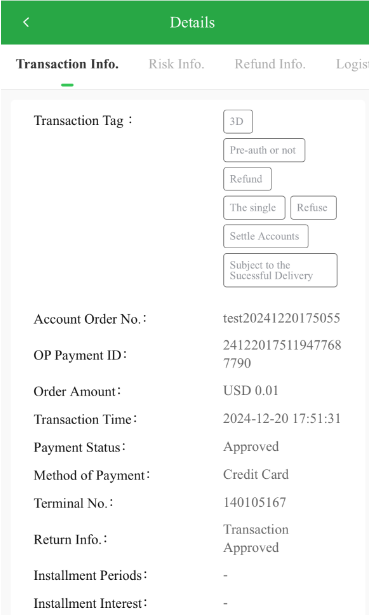
- Click on a transaction record to display some transaction details, such as card number, transaction URL and other information.
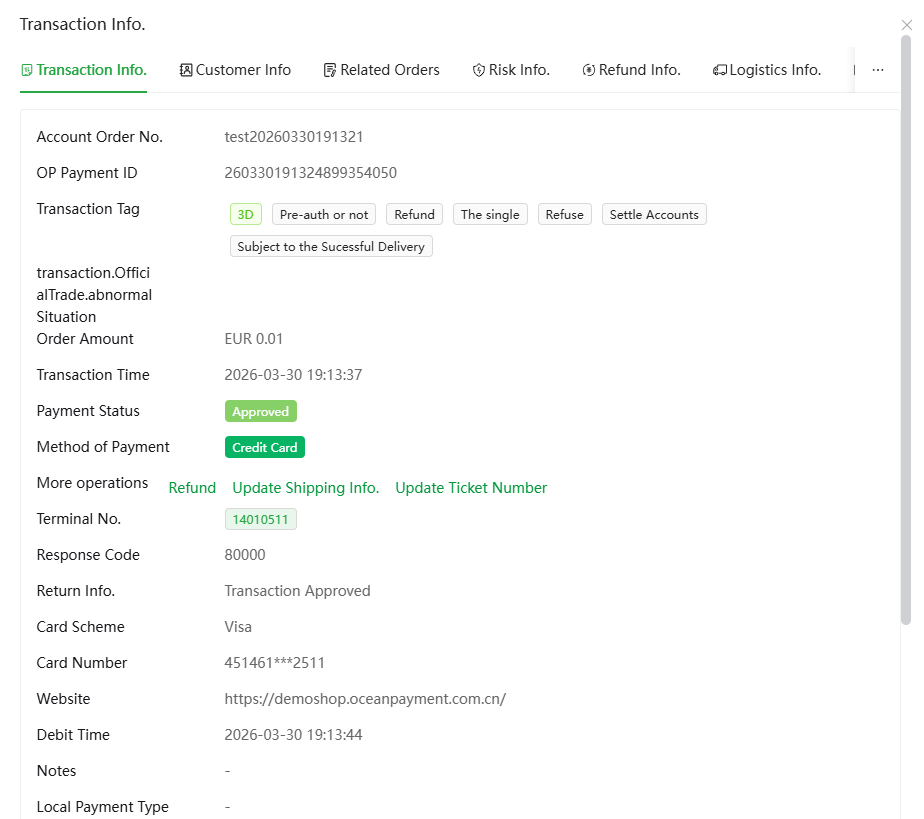
(PC)
(H5)
-
In the corresponding operations of the display list of each transaction, you can apply for a refund, complete the authorization, revoke the authorization, upload the logistics voucher, cancel the transaction, etc.
-
Click "Refund Request", the following page will pop up, where the user can initiate a refund request for the current transaction. The refund amount is a full refund by default, and the user can modify the amount by themselves, also the modified amount must be less than or equal to the original transaction amount.
-
"Capture" and "Void" are mainly for pre-auth transaction. "Capture": Agree that the bank will continue to debit the money and complete the transaction. "Void": Refuse the bank to continue the deduction and reverse the transaction. Pre-authorization advantages: When a merchant believes that a transaction is risky, or finds that the transaction cannot be completed due to some objective factors, he can choose to "Void" without refunding the operation. Merchants who choose to conduct transactions in the pre-authorization mode should note that the default validity period of international credit card pre-authorization transactions is 7 natural days, and a shorter period can also be set according to the needs of the merchant. If the pre-authorization time limit is exceeded, the system operation is "Void" by default.
-
Click "Update Shipping Info.", then merchants can submit the tracking number and other information corresponding to the transaction to the system on this page.
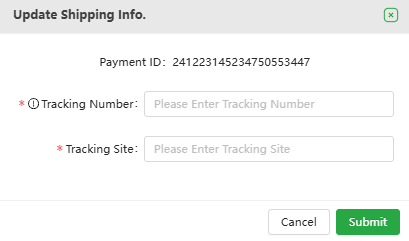
(PC)
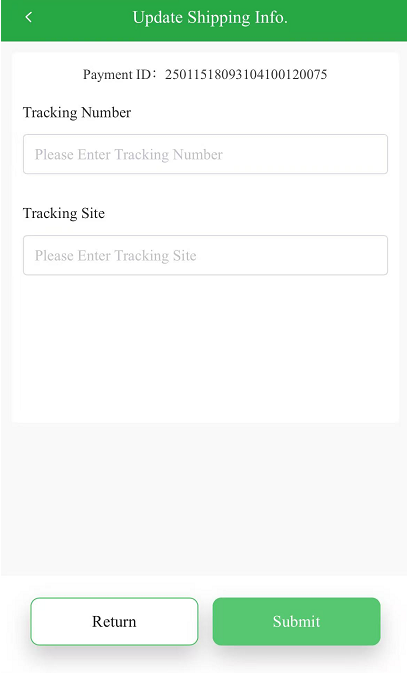
(H5)
- At the same time, it supports batch upload of logistics vouchers, there's no need to select a transaction, directly click "Batch Update Shipping Info." in the upper left corner of the display list.
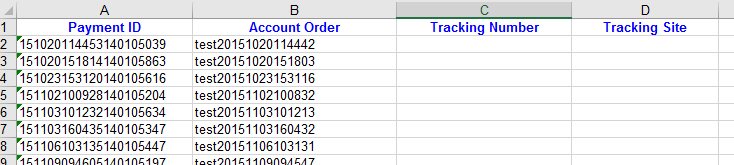
- Export the transaction without uploading the delivery certificate, fill in the corresponding tracking number and query URL according to the order number, and delete the relevant records if the order has not been shipped. You can download up to 5,000 orders at a time, and you can redownload remaining orders in the second time. (Note: For downloading transactions without uploading the tracking number, the background can only download orders within two months. such as the order before two months, you can filter through the general transaction search: Transaction time: nearly half a year, payment status - "success", Shipping info. Status - "Non-uploaded", refund or not- "NO", Chargeback or not - "NO" transaction order download, upload according to the batch upload template to supplement the corresponding information) It can also be connected to the logistics API to automatically transmit logistics information without uploading.
- Click on the details to view more transaction information, risk information, attachment information, and timeline. It looks like this:
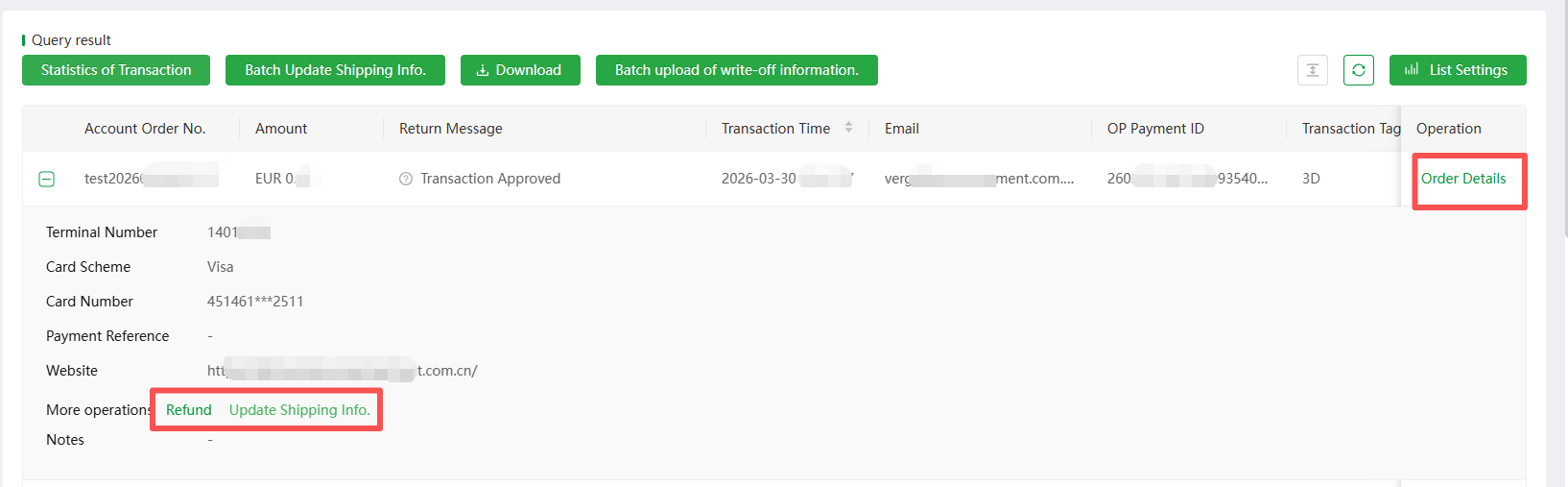
(PC)
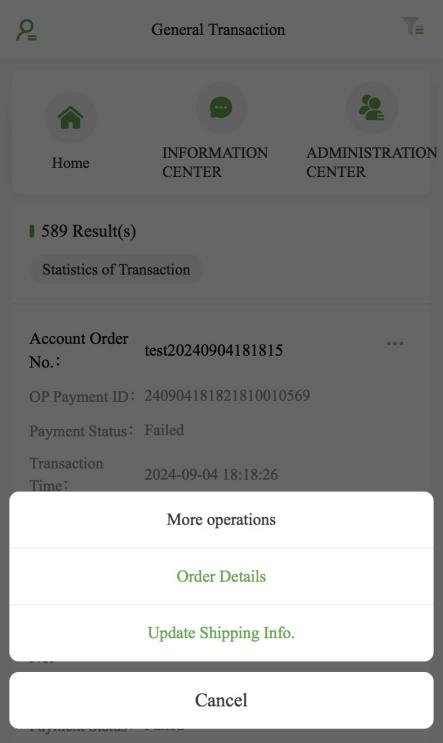
(H5)
The transaction information is as follows:
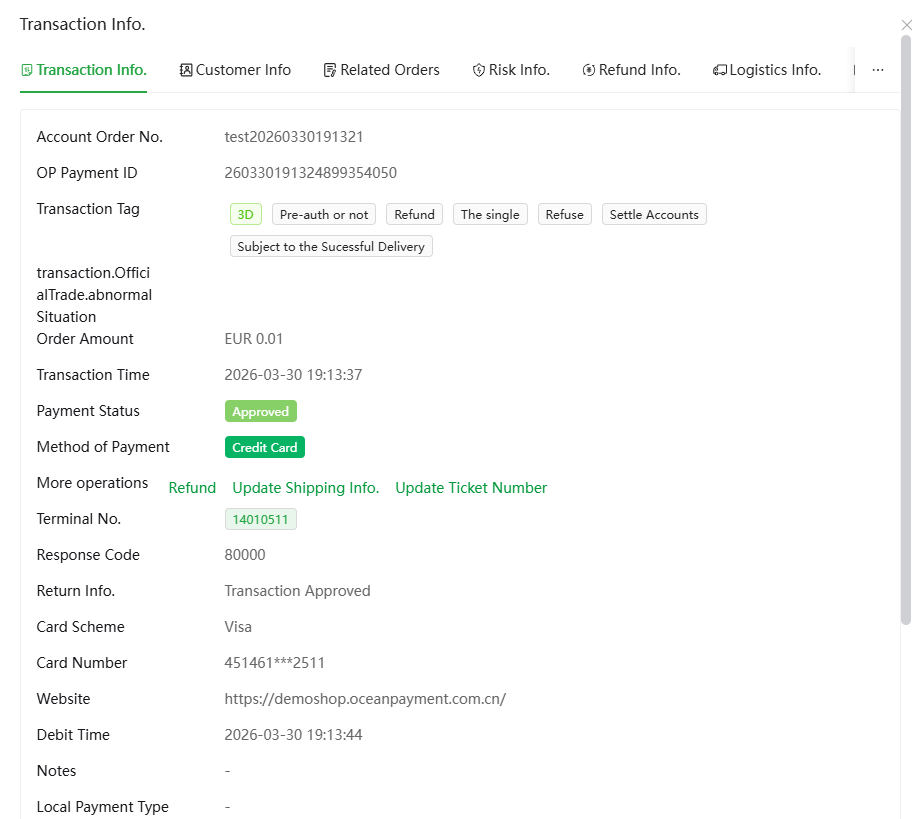
(PC)
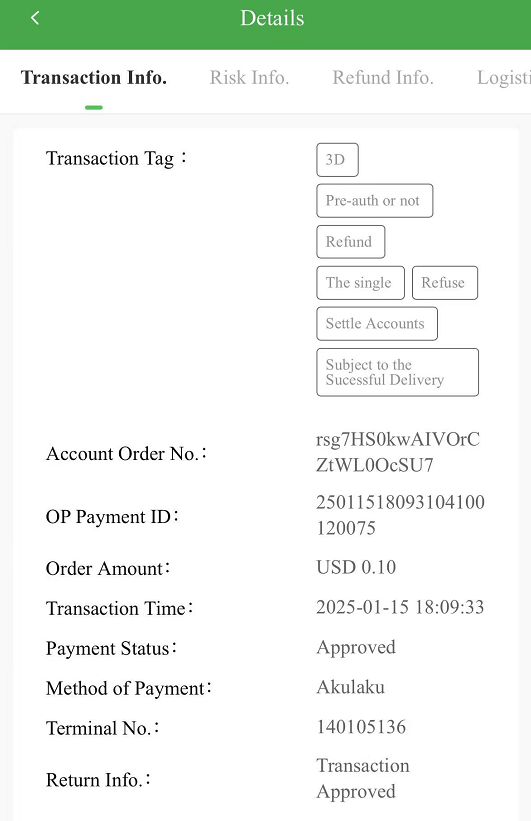
(H5) The risk information is as follows:
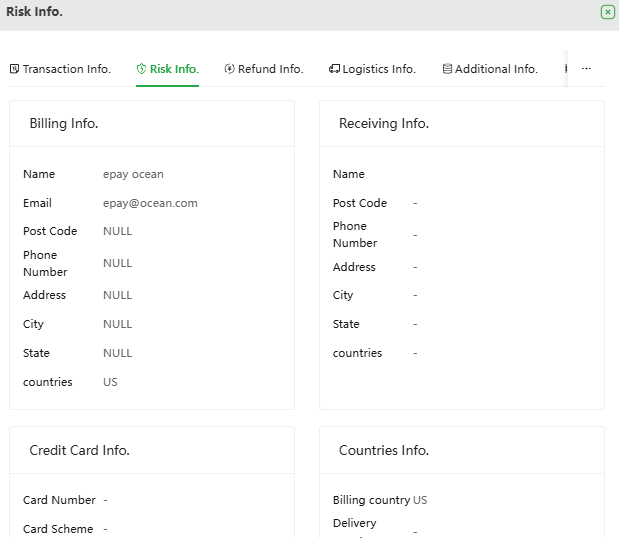
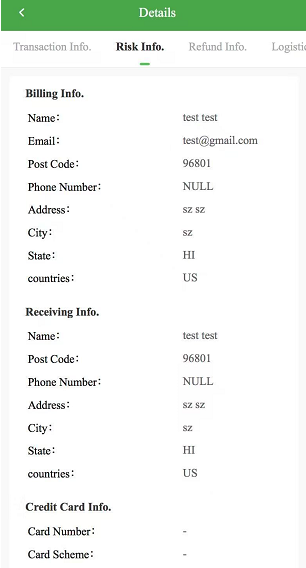
(PC) (H5) The additional information is shown in the image below:
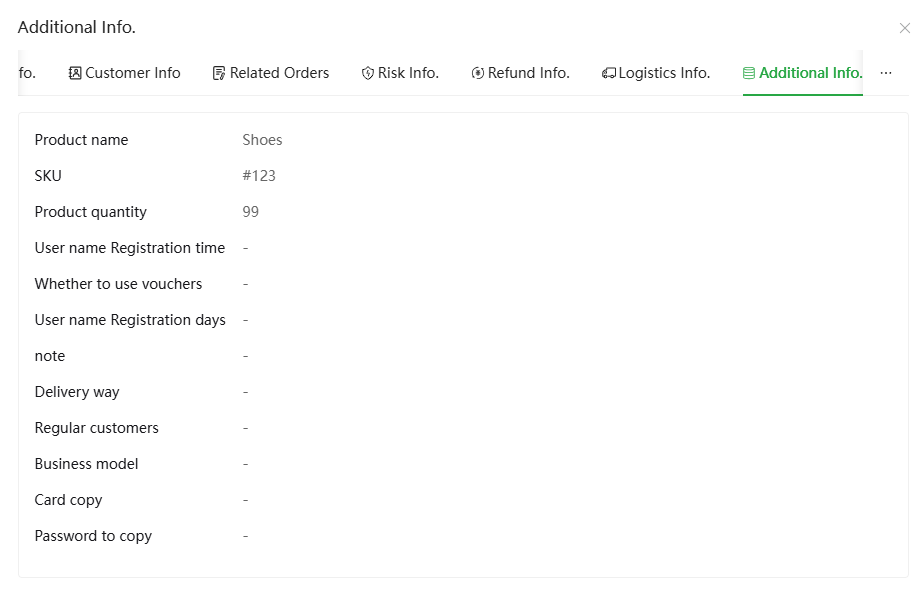
(PC)
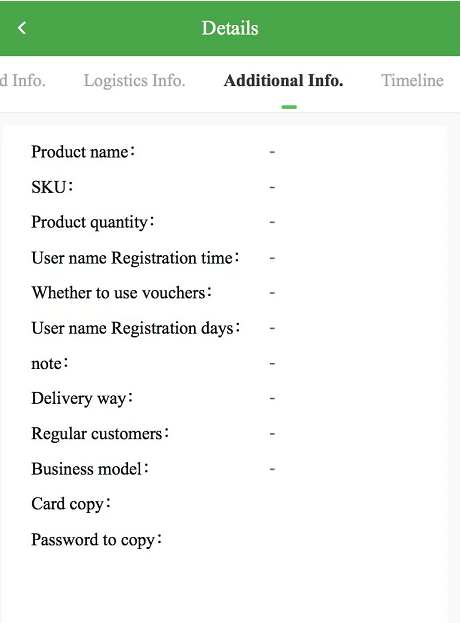
(H5)
- The timeline is shown in the image below:
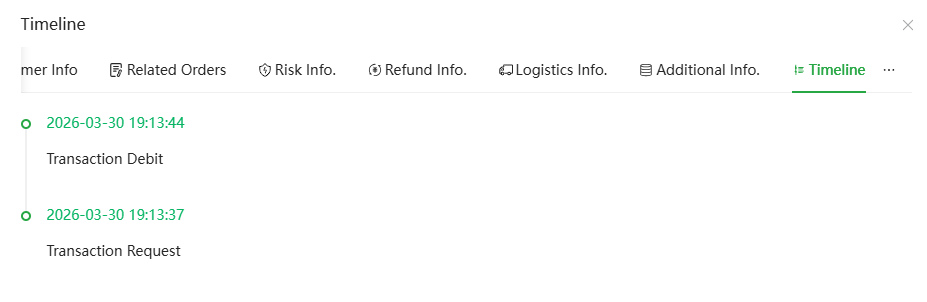
(PC)
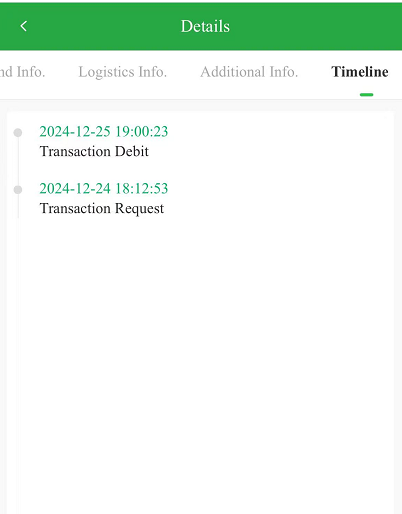
(H5)
- All Payment -Blocked
- Click [Payment] - [All Payment] -[Blocked] to filter according to different conditions and query transactions that have been blocked by Oceanpayment due to risk management, interface issue, etc. You can click "Filter", and the filter conditions include terminal number, blocked reason, payment method, payment card scheme, transaction currency, and traffic source. The reasons for blocking are generally divided into interface issue and risk management:
- Interface Issue: Generally, the transaction is blocked because the interface parameters transmitted by the merchant do not meet the rules required by the API document, in this case, the merchant's technical staff is generally required to check the interface parameter settings to fix the problem.
- Risk Management: Generally, the transaction triggers a risk control rule configured by Oceanpayment for the merchant to be blocked, in this case, the merchant can verify the corresponding transaction information as needed, such as IP addresses or email addresses from high-risk countries, etc., and pull the corresponding order information into the blacklist. In addition to interface issue and risk management, there are also other uncommon situations that cannot be judged, and merchants can contact your exclusive operation supporter to consult the specific reasons. It should be noted that the "traffic source" information is provided, provided that the merchant has passed the value of this parameter to Oceanpayment, so that Oceanpayment can distinguish whether the transaction is from the web or wap/app from this filter condition.
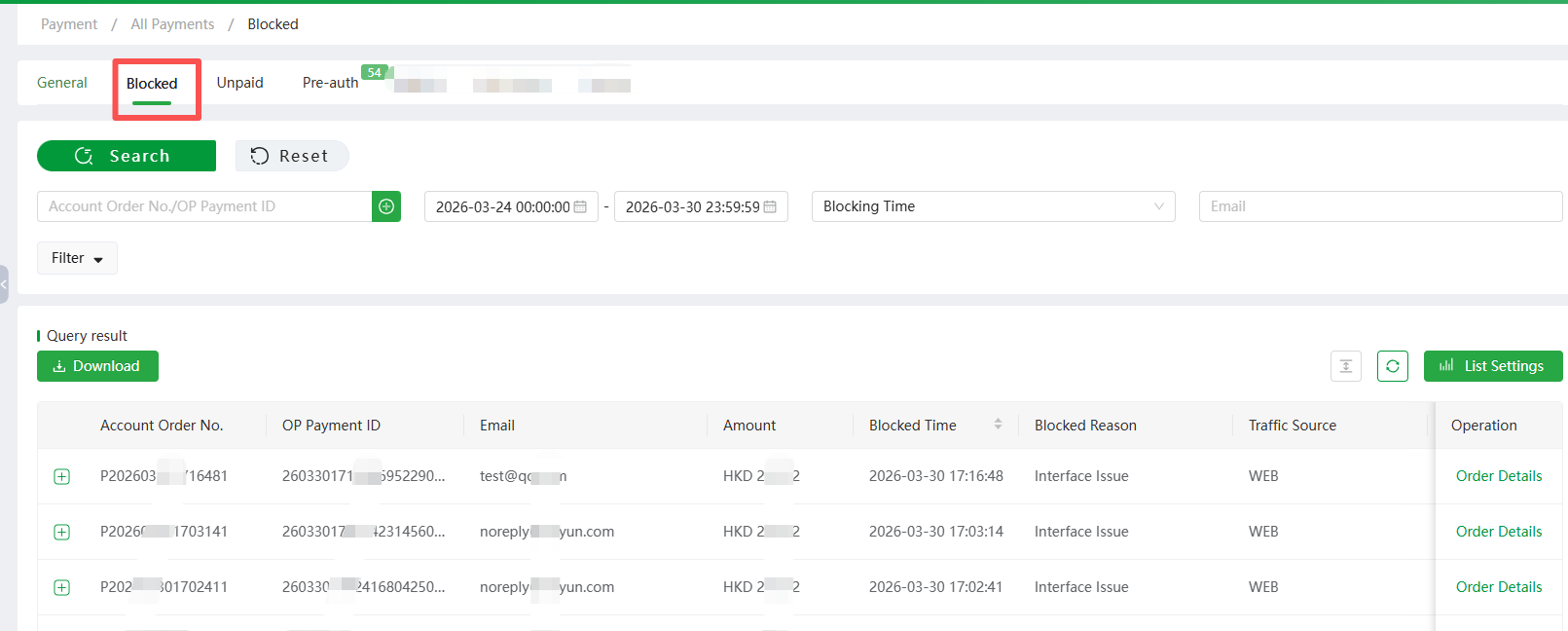
(PC)
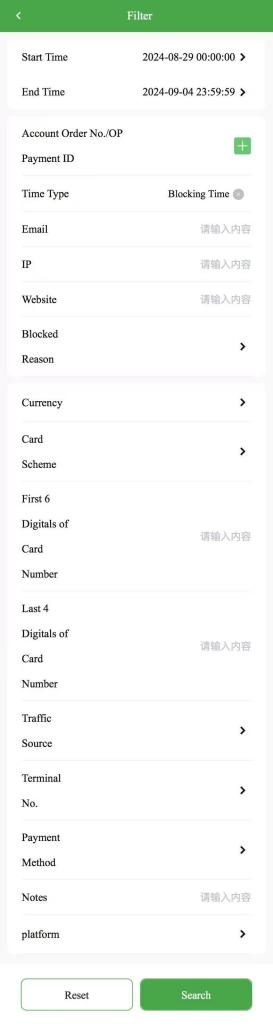
(H5)
- All Payment -Pre-auth
- Click [Payment] - [All-Payment]-[Pre-auth] in the menu to search the transaction details of all order types as pre-authorized. By default, a transaction with a payment status of "Pending" is selected, and the search displays all pending orders for the transaction date of the current query. Click on a pending transaction to expand and display some details, and merchants can click "Capture" or "Void" on this page.
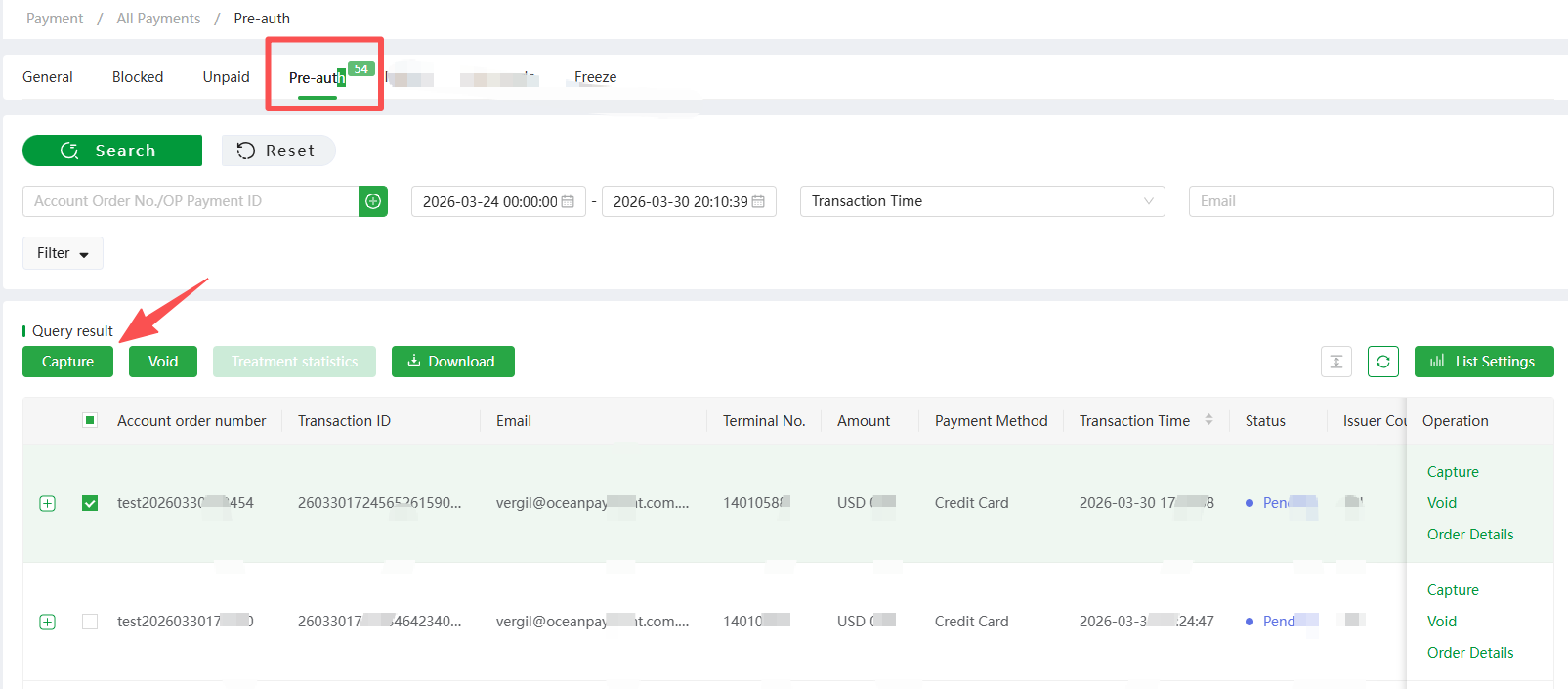
(PC)
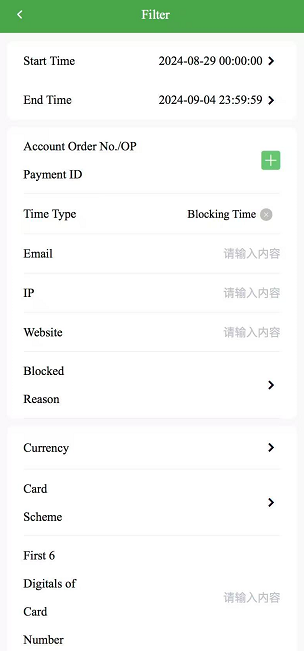
(H5)
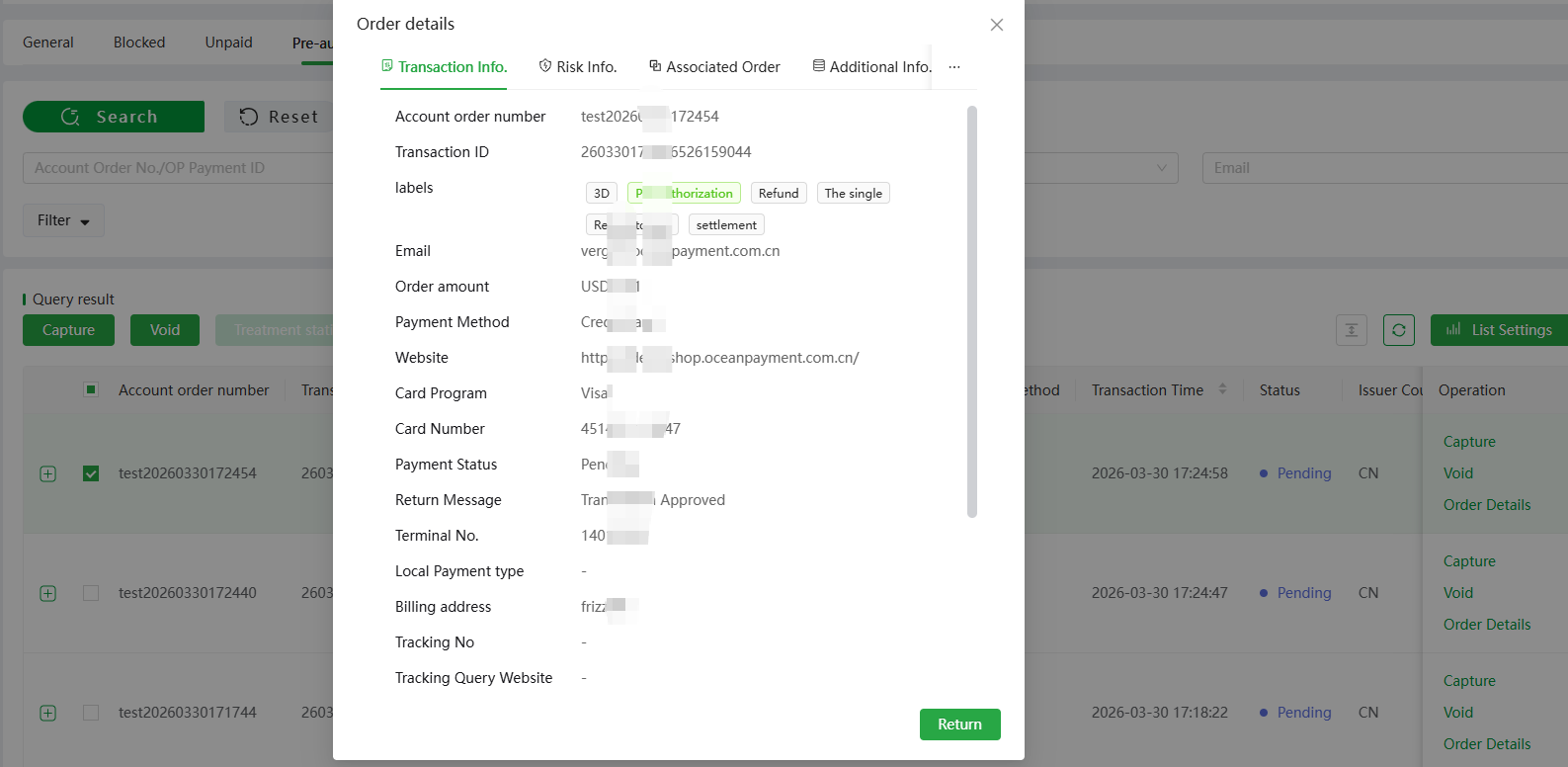
(PC) Click on the order details of the pre-auth transaction, and the order information will be expanded as follows: Treatment Statistics Only when the payment status is Capture or Void, you can click the button of Treatment statistics.

(PC)
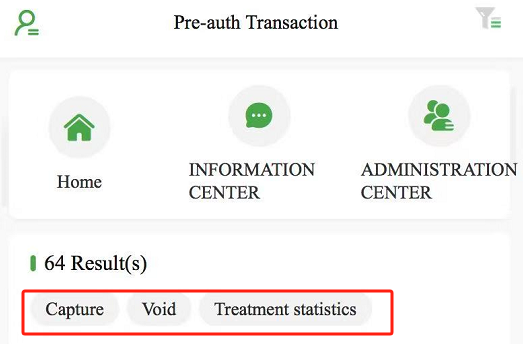
(H5) The following table describes the fields for displaying the statistics of authorized transaction processing:

(PC)
6. Finance (PC/H5/Mini program)
6.1 Account Funds
Click [Payment] - [Finance] -to view the current settlement method, settlement cycle, able to be settled amount, total unsettled amount and total settled amount of the account. Among them, the able to be settled amount and total unsettled amount will be divided according to the transaction amount, Estimated amount (Fees/Reserve deducted) and reserve. At the same time, it will be split and displayed according to the currency.
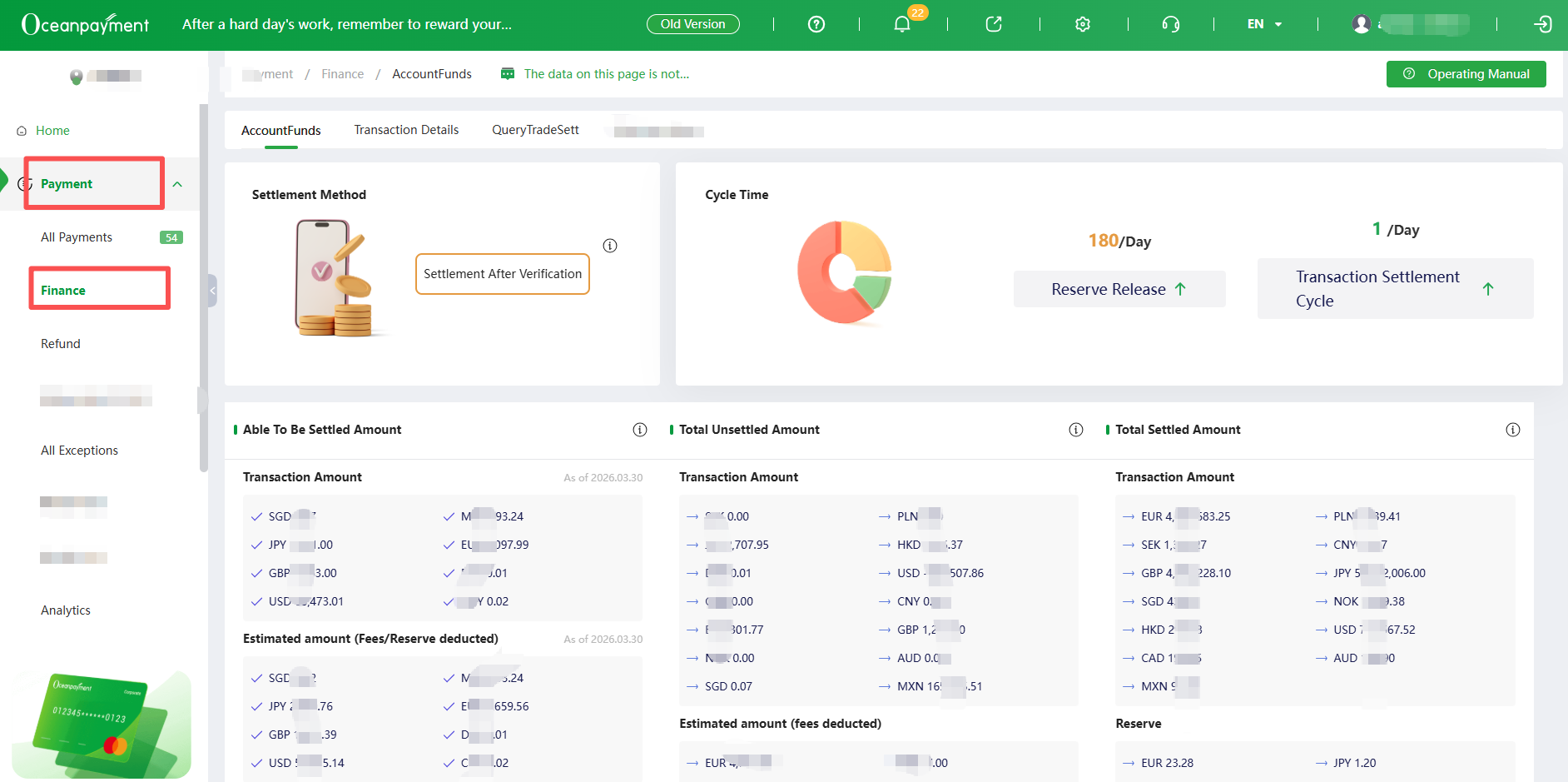
(PC)
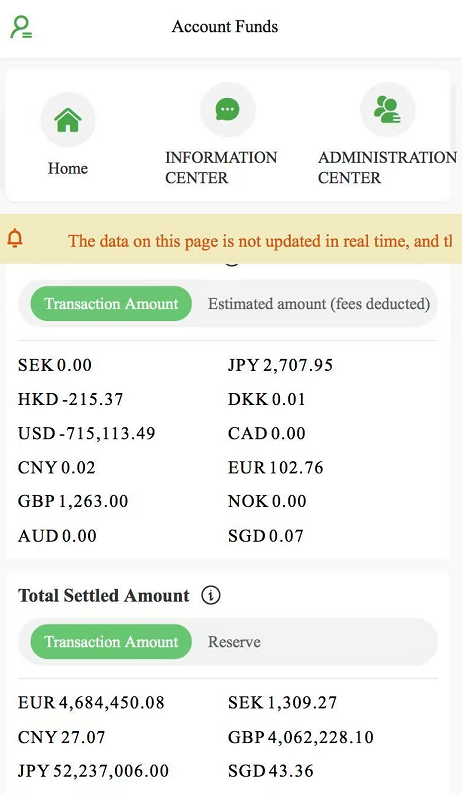
(H5/Mini Program)
6.2 Transaction Details
Click [Payment] - [Finance] - [Transaction Details] to query the corresponding transaction details by setting different filter conditions. The filter conditions include payment method, transaction type, terminal number, card scheme, tracking number, etc., and merchants can also search specific transaction details by entering the corresponding transaction settled batch number, OP payment ID, and account order number. The types of transactions that can be queried are Approved, Refund, Chargeback, Retrieval, Retrieval Void, Chargeback Reversed, and Failed.
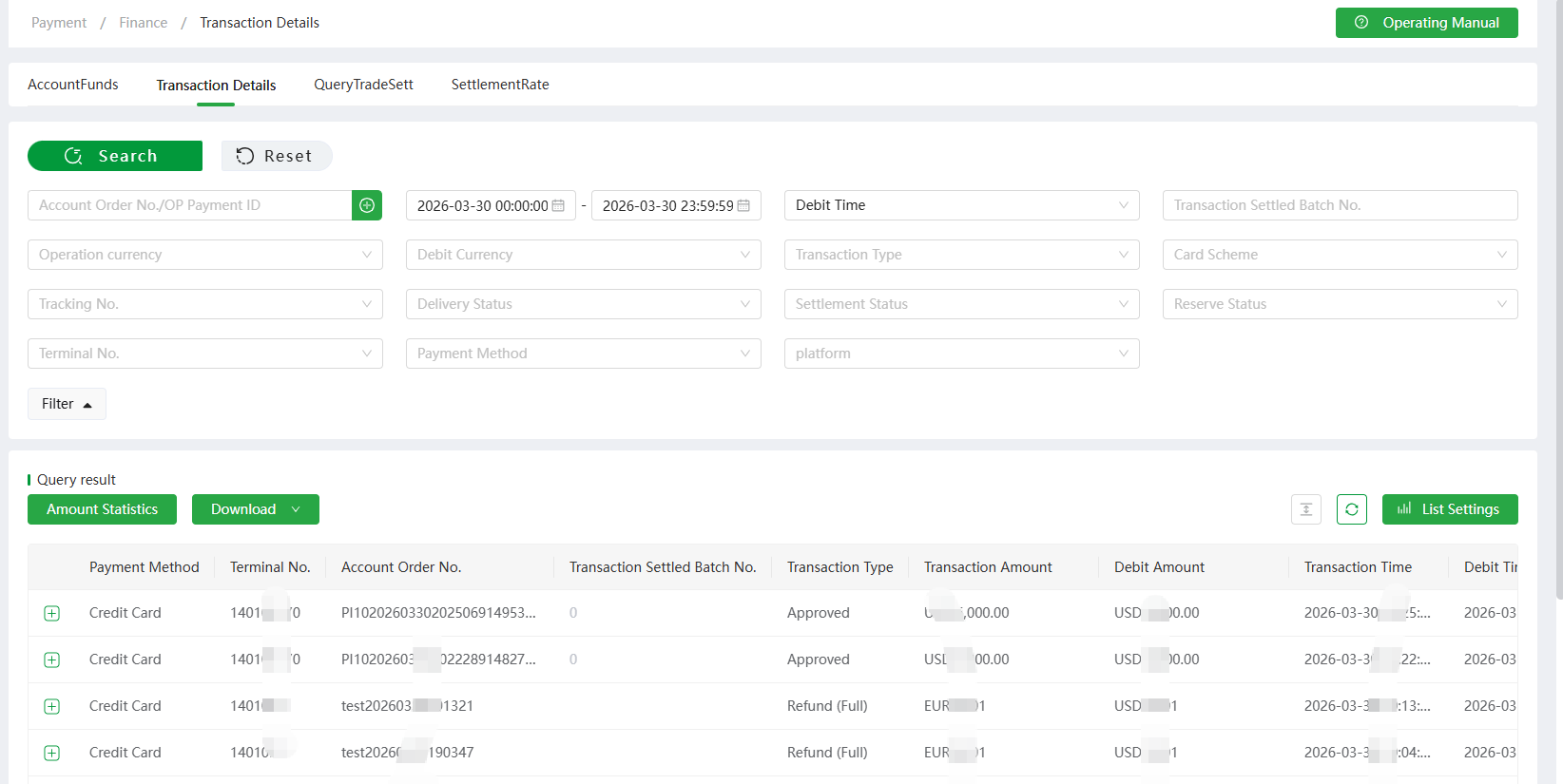
(PC)
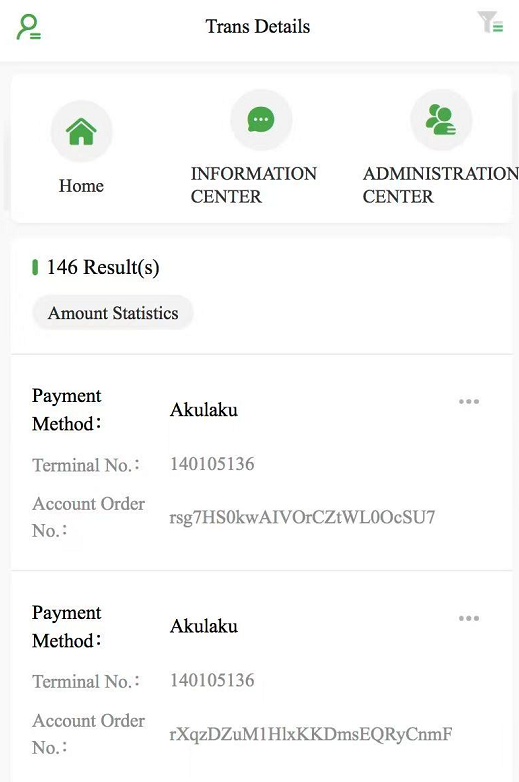
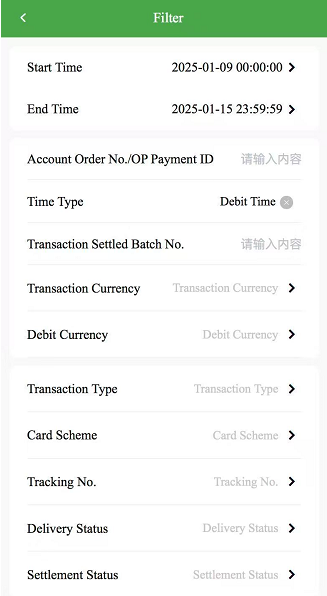
(H5/Mini Program) Click "Amount Statistics" on the upper side, and the queried data will be split and counted according to the currency into the Debit Amount and Transaction amount.
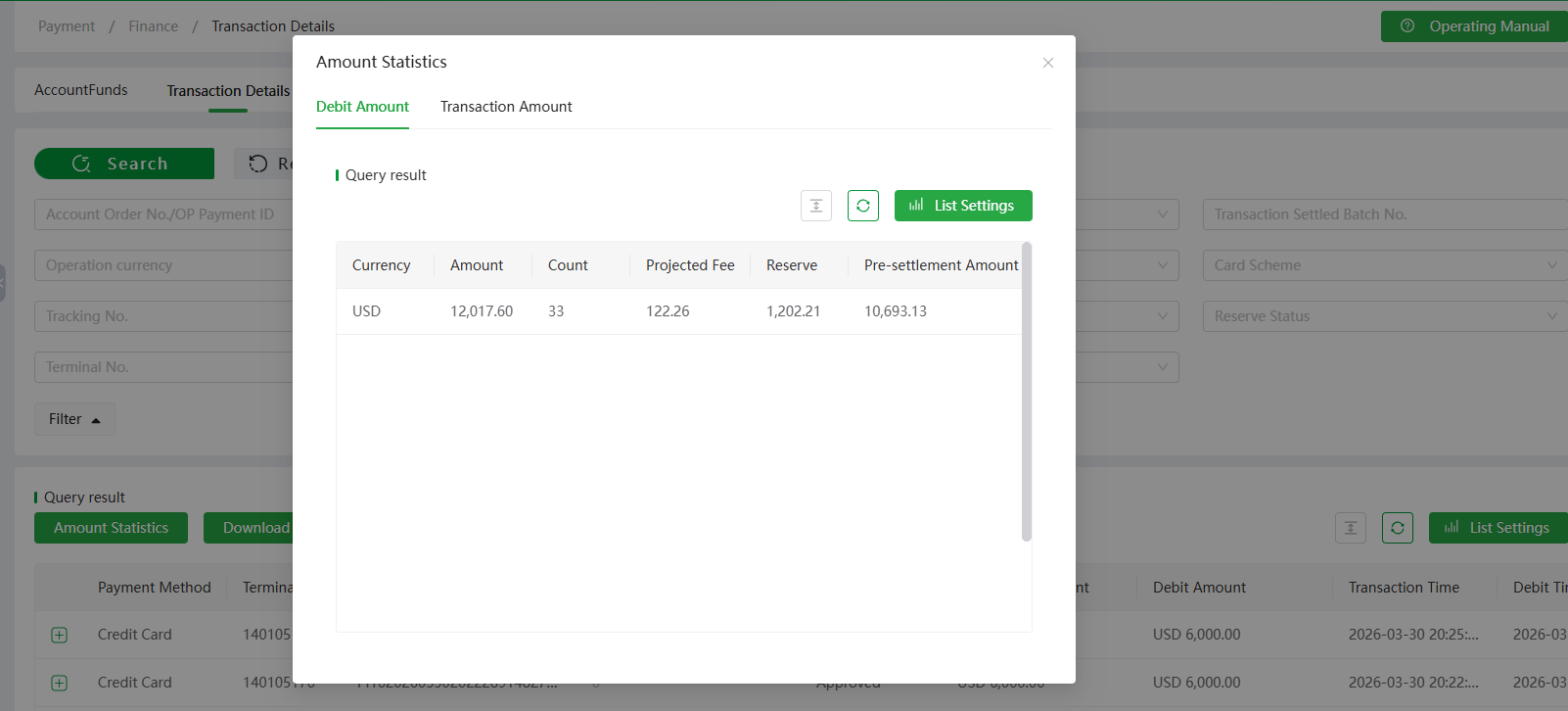
(PC)
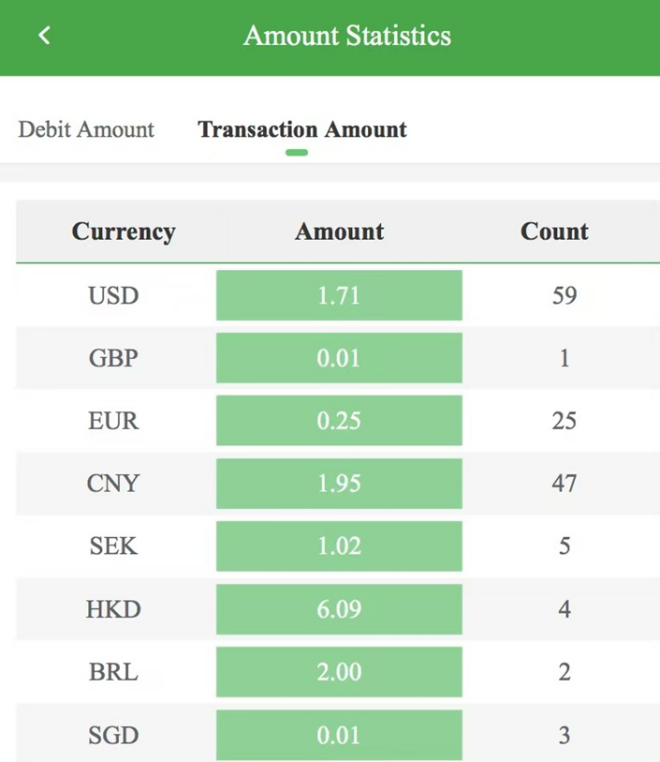
(H5/Mini Program) The display list field supports custom selection.
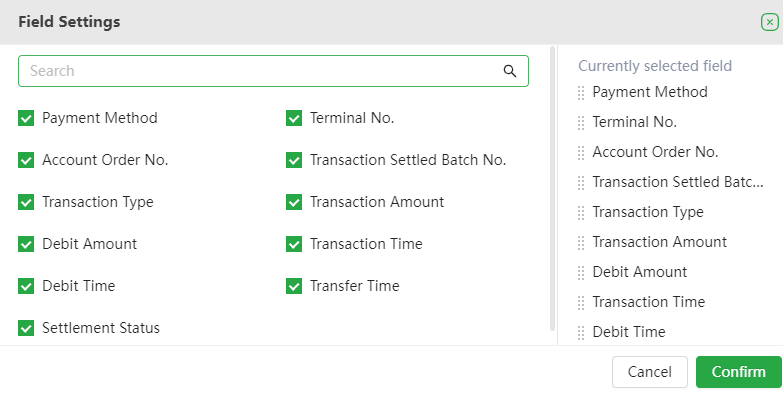
(PC) At the same time, it supports the download function to download the corresponding data.

(PC)
6.3 QueryTradeSett
Click [Payment] - [Finance] - [QueryTradeSett] to query the corresponding transaction transfer records according to the transfer time and transfer currency. It is shown below:
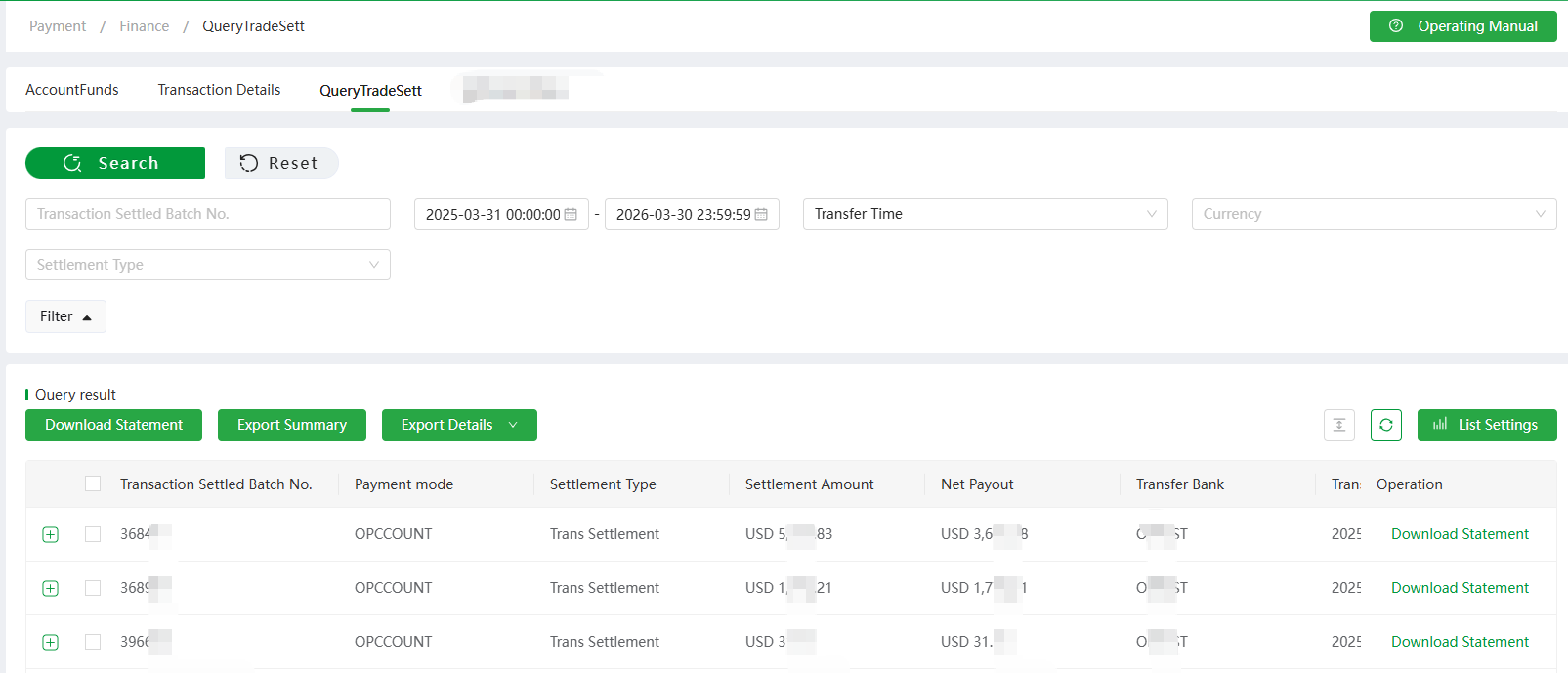
(PC)
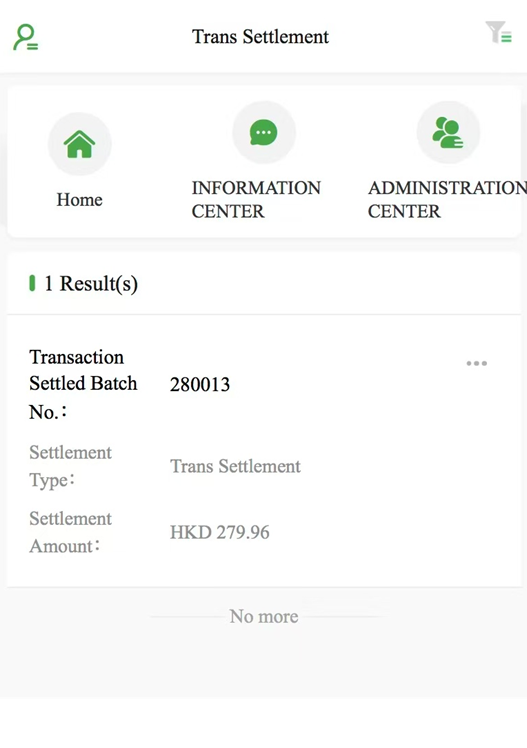
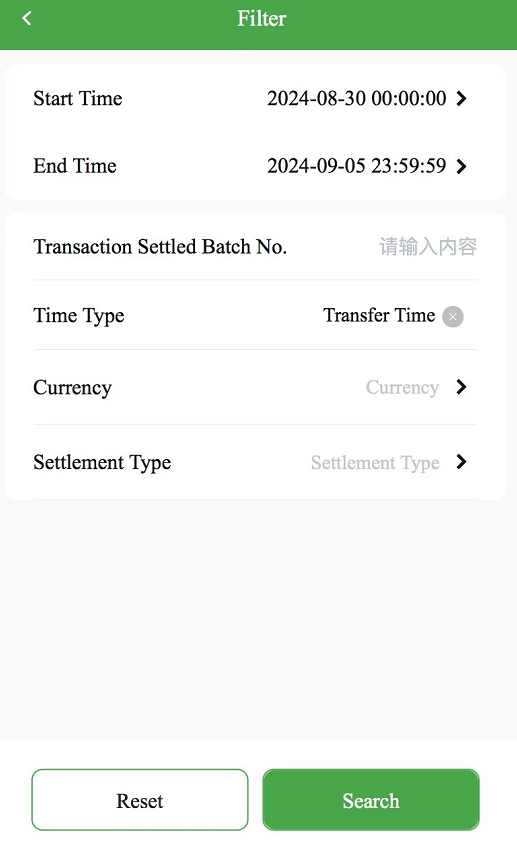
(H5/Mini Program)
If you click on a transfer record, the information such as Exchange Fee, Other Fee, Other, Return and Remarks of the transfer batch will pop up.
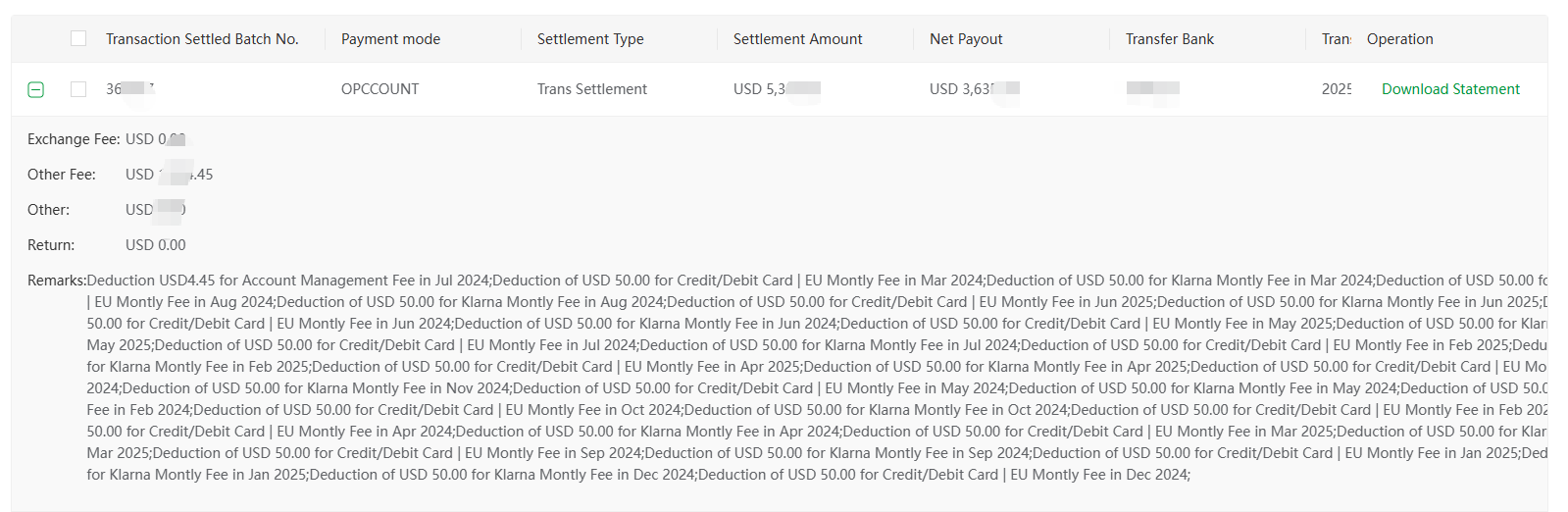
(PC)
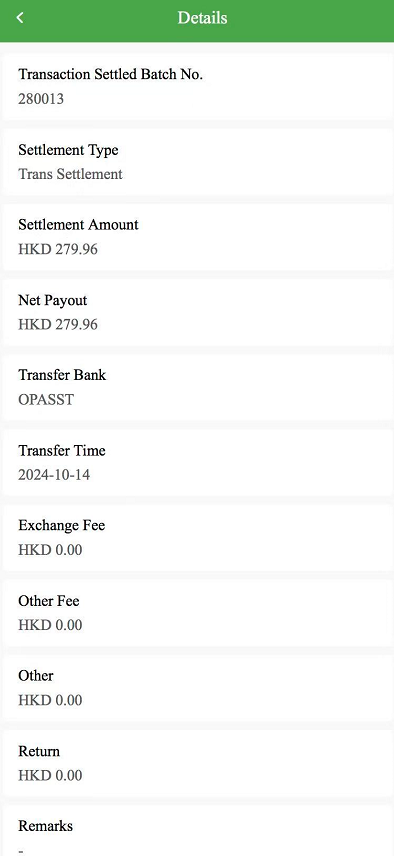
(H5/Mini Program)
The display list field supports custom selection.
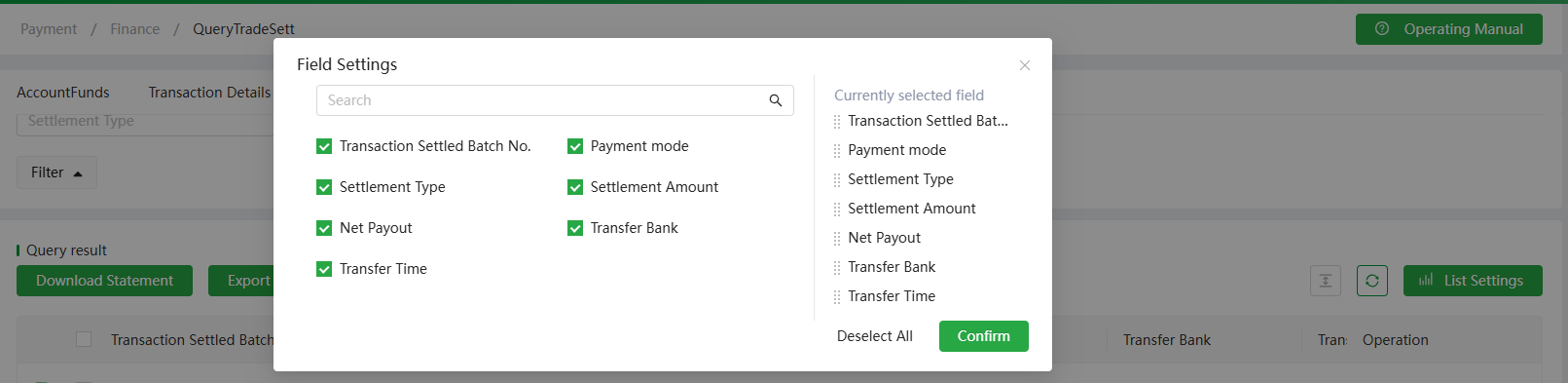
(PC)
Click on the right or select the data and click "Download Statement" on the upper side to download the corresponding file, which displays the transaction funds and fees of this batch (no statement is provided for Reserve transfer).
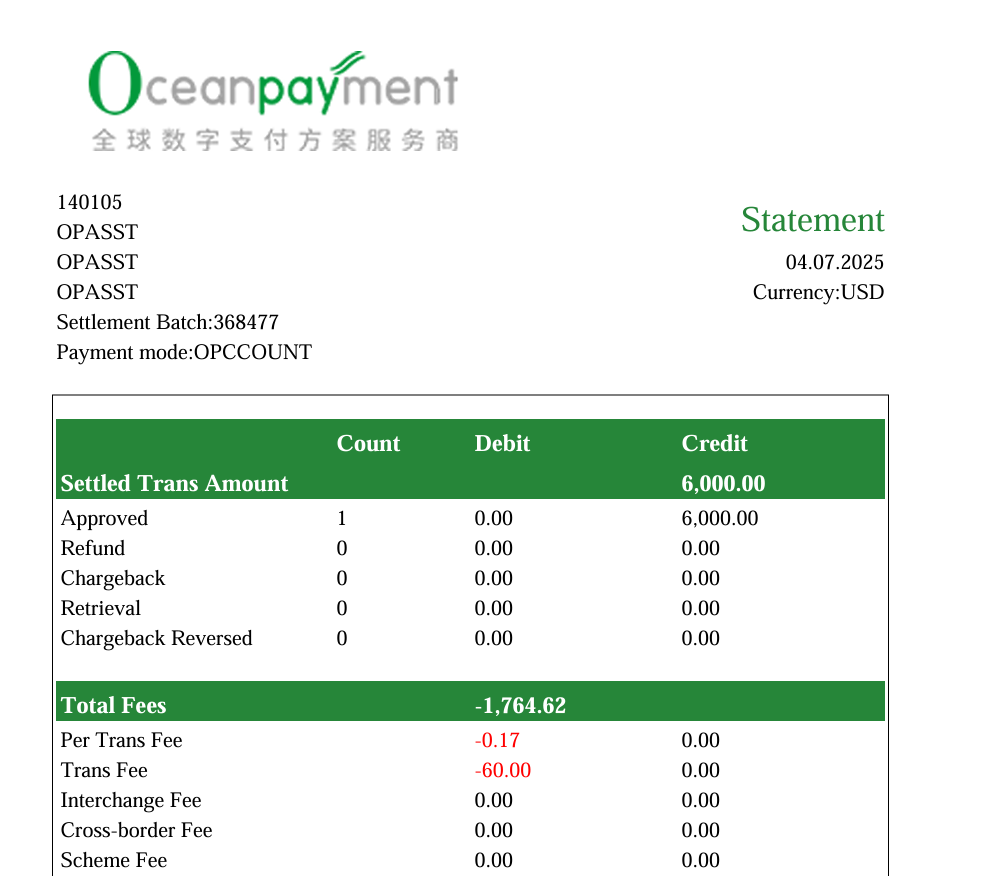
(PC) Select the data and click "Export Summary" on the upper side to download the corresponding file, which displays the specific transaction information and fees of this batch (no statement is provided for Reserve transfer).

(PC)
Select the data and click "Export Details" on the upper side to download the corresponding file, which displays the specific transaction information and fees of this batch. When downloading, you can choose to download the file to be EXCEL or CSV.

(PC)
7. Notification Center (PC/H5/Mini Program)
Click [Notification Center] - [General Notice] [Chargeback Notice] [Fraud Notice] [Retrieval Notice] to view the important announcement information released by the system in the last six months. The small bell that the user sees at the top of the home page is the shortcut menu of the system bulletin column. Click on the little bell - see all.

You can also get into the message list page of the system announcement. It looks like this:
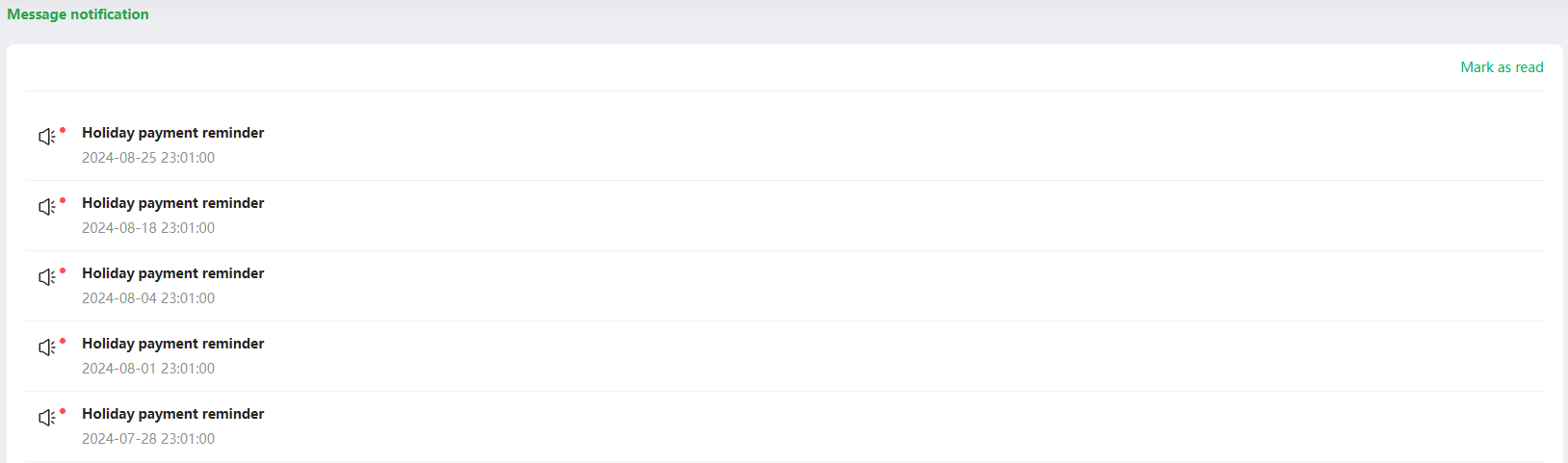
(PC)
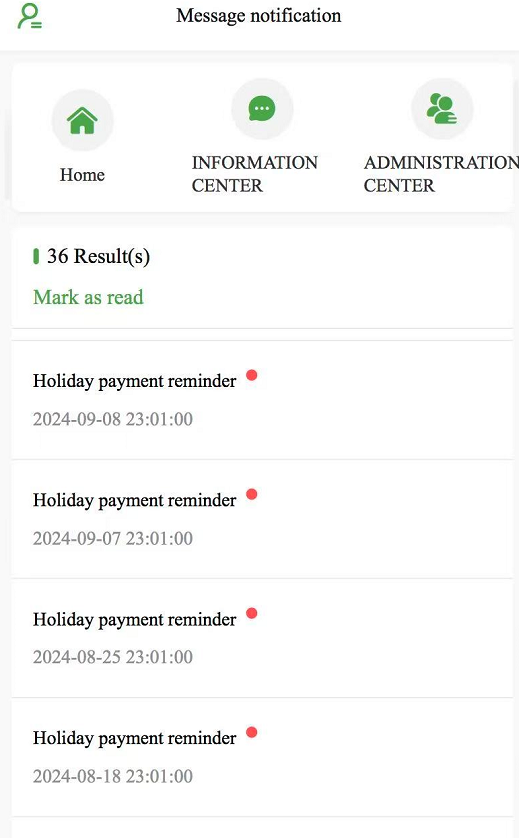
(H5/Mini Program)
The message center contains system announcements, chargeback notices, fraud notices, and retrieval notices, as well as unread badges for corresponding notification messages. The number of badge prompts in the first-level menu of the message center is equal to the sum of the number of unread badge prompts in the second-level menu such as system announcements.
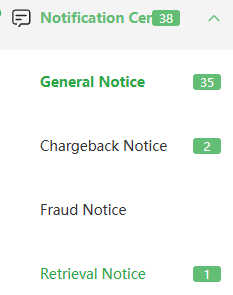
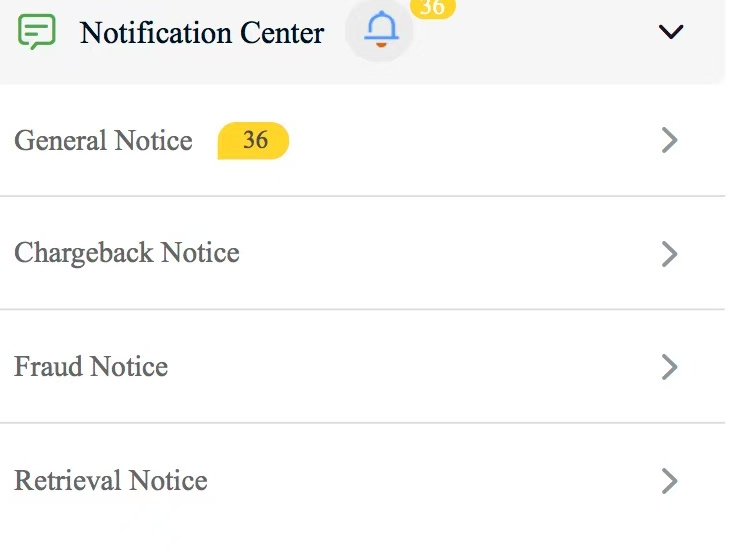
(PC) (H5)
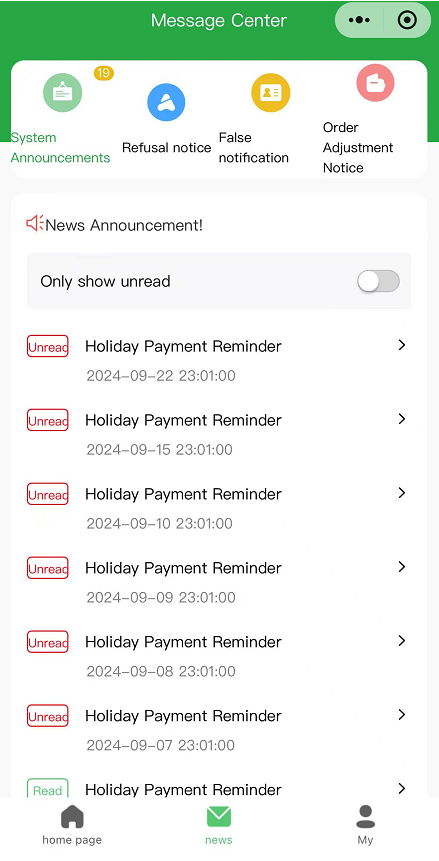
(Mini Program) Chargeback/ Fraud Notices/Retrieval Notices display the message notifications of the last 31 days by default, and click details view the details of the corresponding notification.
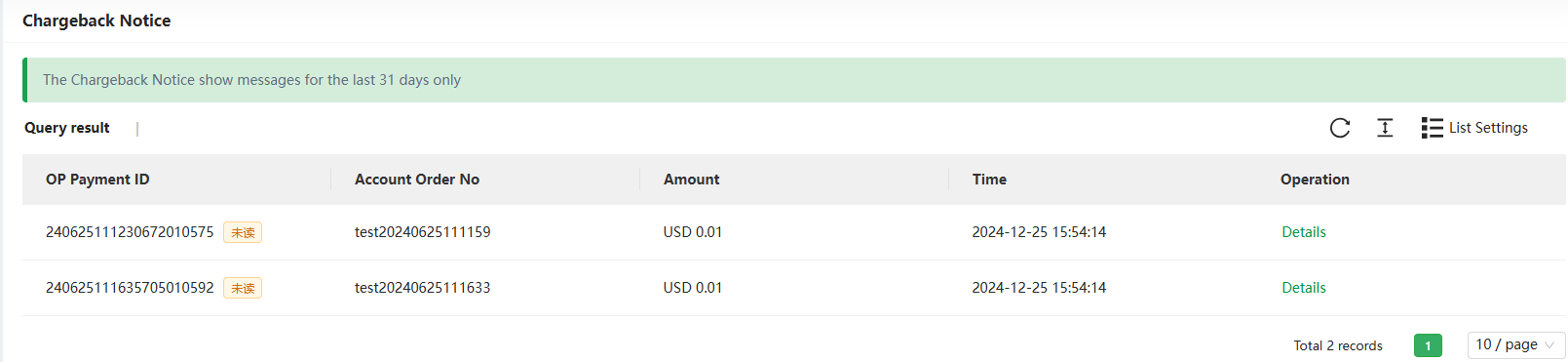
(PC)
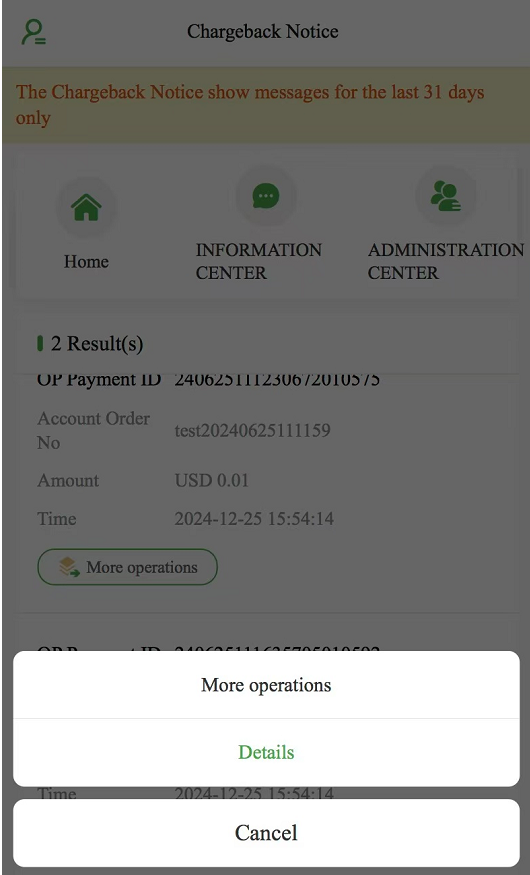
(H5)
8. Risk & Fraud (PC/H5)
8.1 High Risk (PC/H5)
Alert push
- Database: Within nearly 720 hours of the scanning time, all transaction data of the Oceanpayment platform will be scanned;
- Alarm scanning time: 8:00 a.m., 17:00 p.m., 20:00 p.m.;
- High-Risk Fraud Alert: The current alert scanned within the previous 168 hours, with no refunds, no chargebacks, and no counterfeiting successful transactions, which are displayed in the list of high-risk fraud alerts (Successful Transaction Status or Pre-Authorization Pending Credit Card Order), orders that have already been notified in the alert list are no longer notified repeatedly. Alert Rules
- If merchants need to add additional alarm scanning rules, they can contact Oceanpayment's dedicated operation support manager. Oceapayment can support custom alert scan rule settings.
Alert receiving mailbox Merchants can set up their own email addresses to receive alerts in the portal. High fraud risk alert feature After logging in to the account backend, click the ODPM button and select [Risk Management] to jump to the High Fraud Risk Alert Notification module. Search Fields:
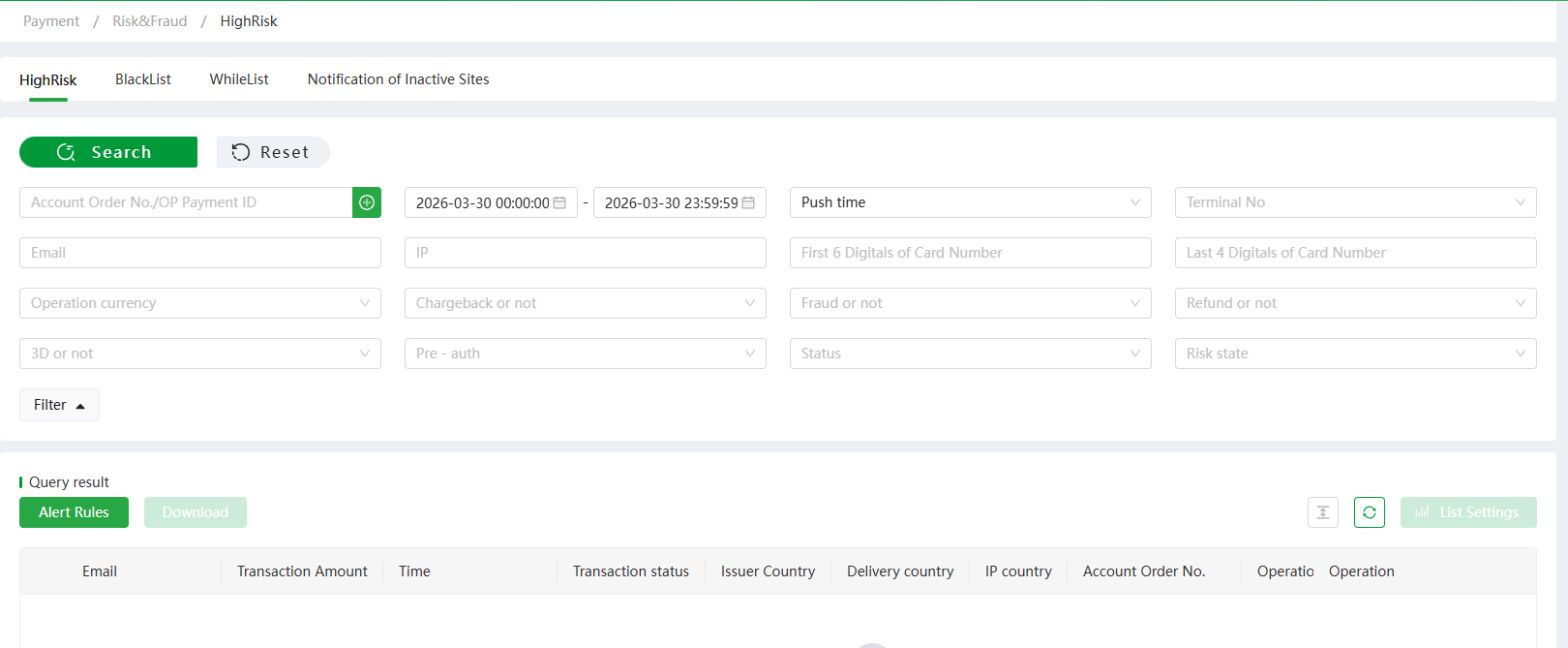
(PC)
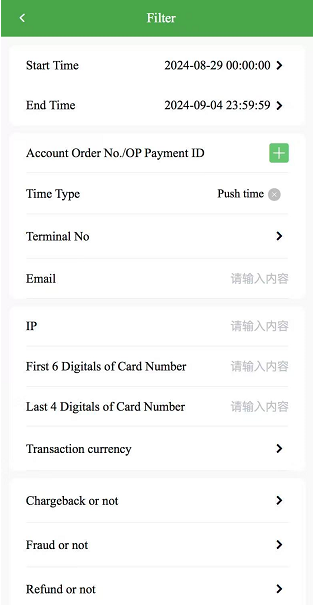
(H5)
- Account Order No./OP Payment ID;
- Default[ Push Time]: The push time of high-risk orders after the alert is scanned;
- Transaction Time: The transaction time of alert orders;
- Processing Time: The time when the merchant refunded the alert order;
- Terminal NO: You can select multiple terminal numbers at the same time;
- E-mail: Case-sensitive, accurate query;
- IP address, the first 6 digits of the card number, the last 4 digits of the card number, and the transaction currency: accurate query;
- Chargeback or not: Yes if the order has already been charged, otherwise no;
- Fraud or not: If the order has been counterfeited, it is yes, otherwise no;
- Refund or not: Yes if the order has been refunded, otherwise no;
- 3D or not: Yes for 3D transactions, or no;
- Pre-auth: Yes for pre-authorized transactions, or no;
- Status: Orders for High Fraud Risk Alert Delivery are processed regardless of whether they are automatically authorized through Alert Rules, revoked by Alert Rules, completed by manual authorization, revoked by manual authorization, or submitted for refund, otherwise the processing status is no;
- Risk state: High-risk transactions, Risk warning transactions;
- High-risk transactions: Blacklist transactions: The information of this order is due to "card theft, fraudulent chargebacks, fraud, multi-card transactions in bulk" and other reasons in the blacklist database.
- Multi-card transactions with the same user: The information of this order has the characteristics of "bulk multi-card transactions", such as "transactions with multiple different credit cards in the same mailbox".
- Risk Warning Transaction: High Amount Order: High Amount Order Reminder (e.g. Order amount of 900 USD and above). Designated Risk Transaction Alerts: Merchant-defined transaction risk alerts.
Alert Rules
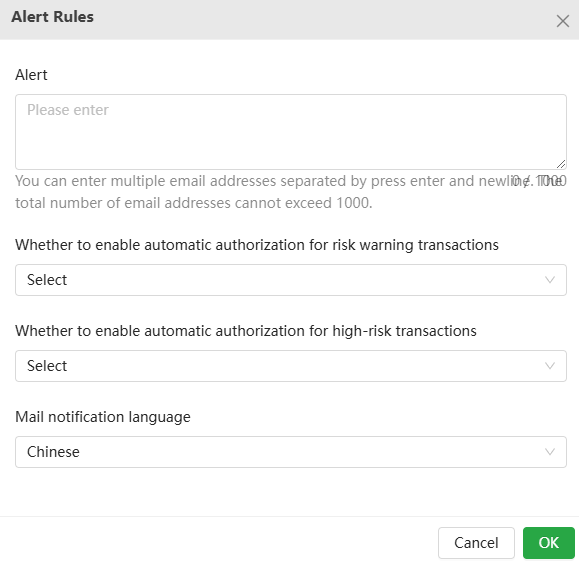
(PC) 8.1.1Alert: Merchants can configure email addresses to receive high-risk alert orders by email. You can configure no mailboxes, or you can configure multiple mailboxes. 8.1.2 Whether to enable automatic authorization for risk warning transactions: Void: Credit card pre-auth transactions, and [Risk Status = Risk Warning Transaction], automatic [Authorization Revocation], transaction failure. Capture: Credit card pre-auth transactions, and [Risk Status = Risk Warning Transaction], automatically [Authorization Completed], the transaction is successful. 3. Whether to enable automatic authorization for high-risk transactions:
- Void: Credit card pre-auth transactions, and [Risk Status = High-Risk Transactions], automatic [Authorization Revocation], transaction failure
- Capture: Credit card pre-auth transactions, and [Risk Status=High-Risk Transactions], automatically [Authorization Completed], the transaction is successful
Refunds and view details

(PC)
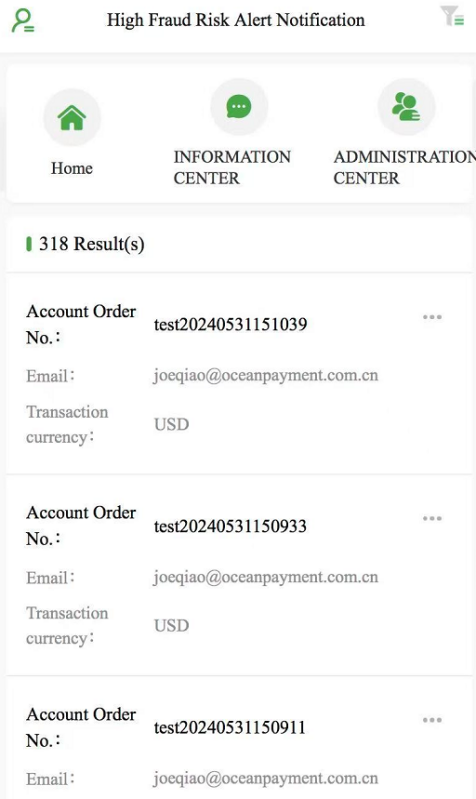
(H5)
8.2 Blacklist (PC)
Blacklist query conditions:
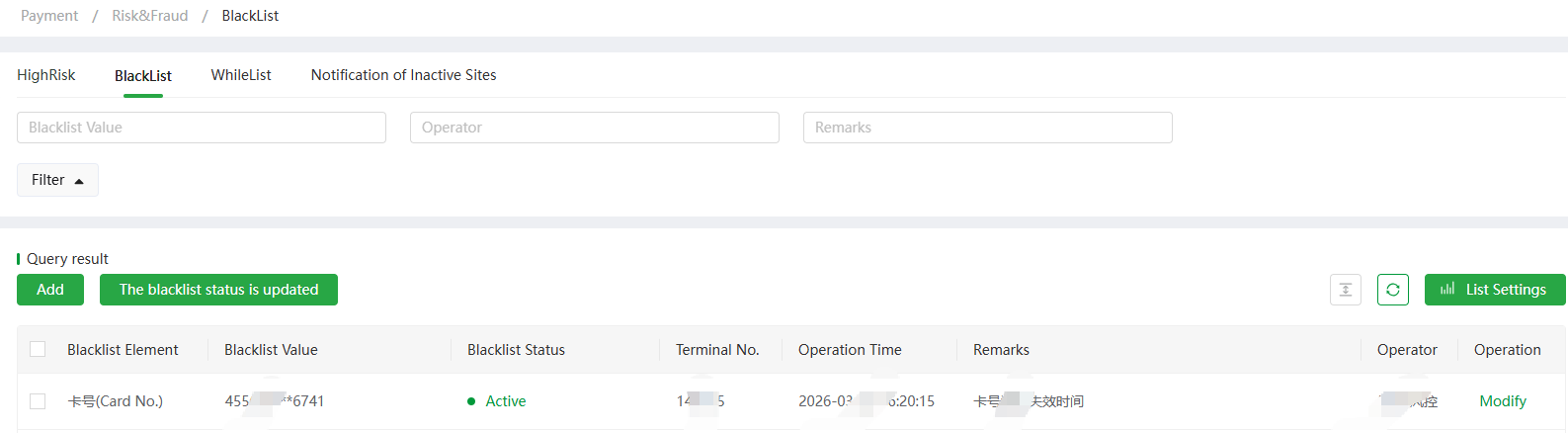
(PC) You can add the “Add” button to manage the website's own blacklist data:
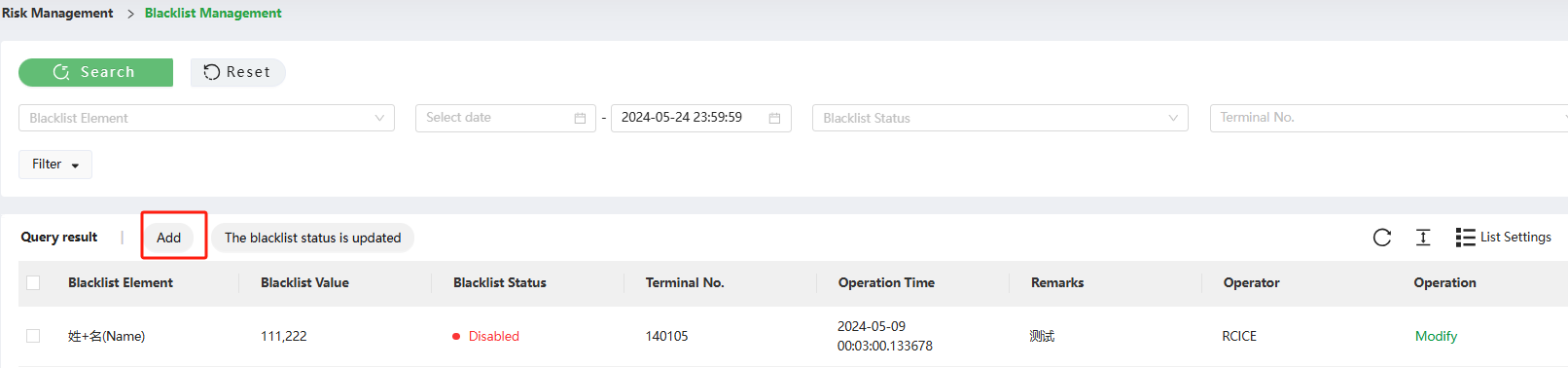
(PC) The following pages have been added:
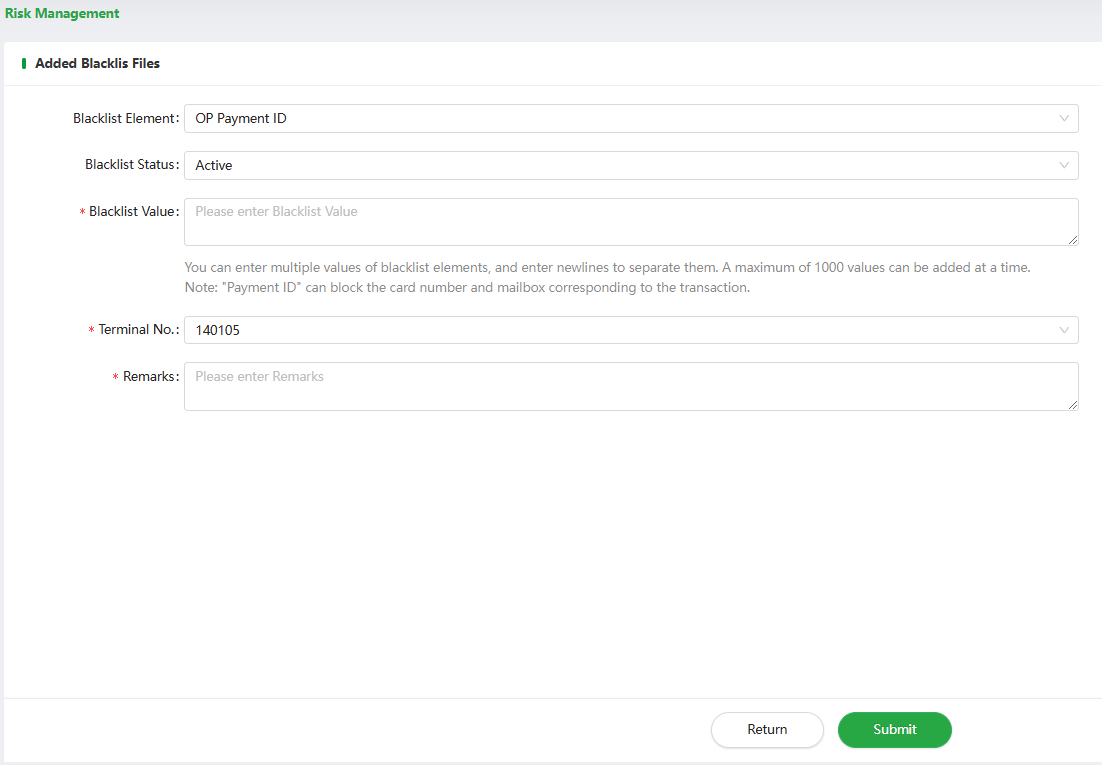
(PC)
Blacklist data can be updated with the status of the blacklist: Disabled, Active, or Operate - Modify settings to take effect for the entire account or a specific terminal number.

(PC)
9. Analytics (PC/H5)
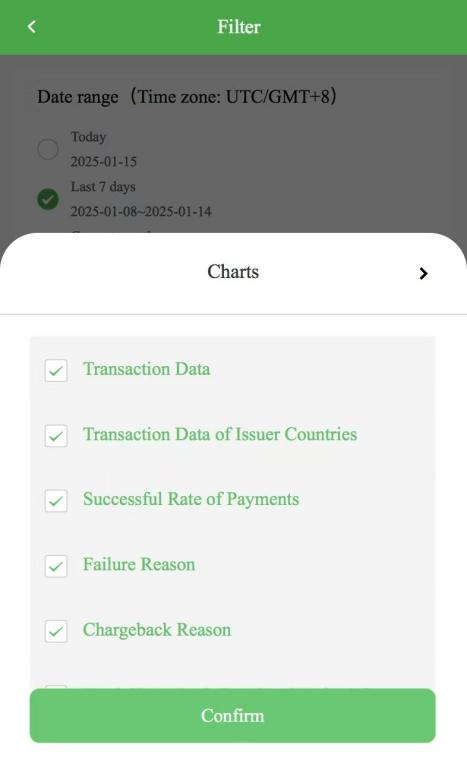
9.1 Visual Analytics(PC/H5/Mini programs)
Filter By default, the time is displayed for nearly 7 days
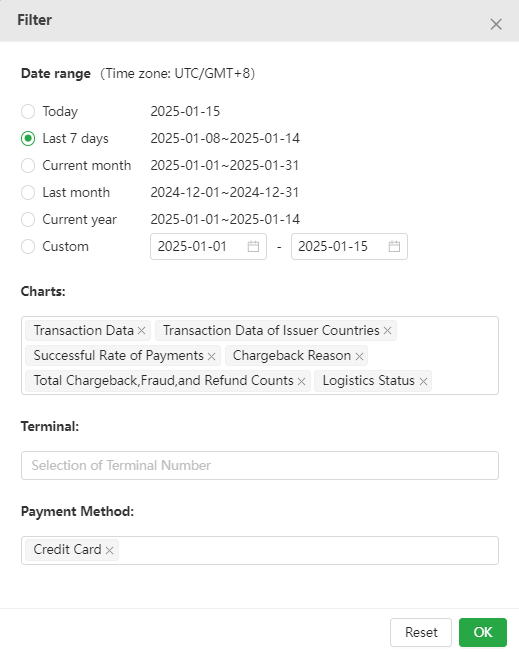
(PC)
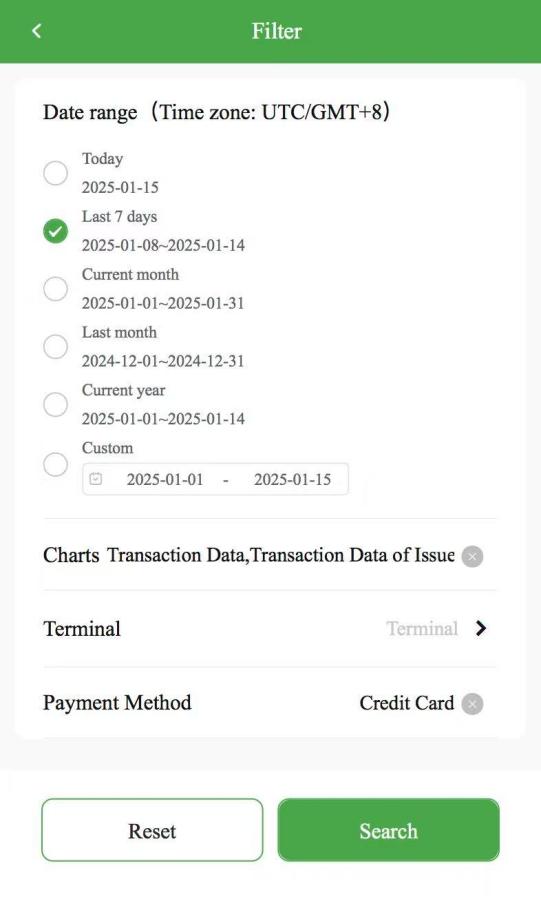
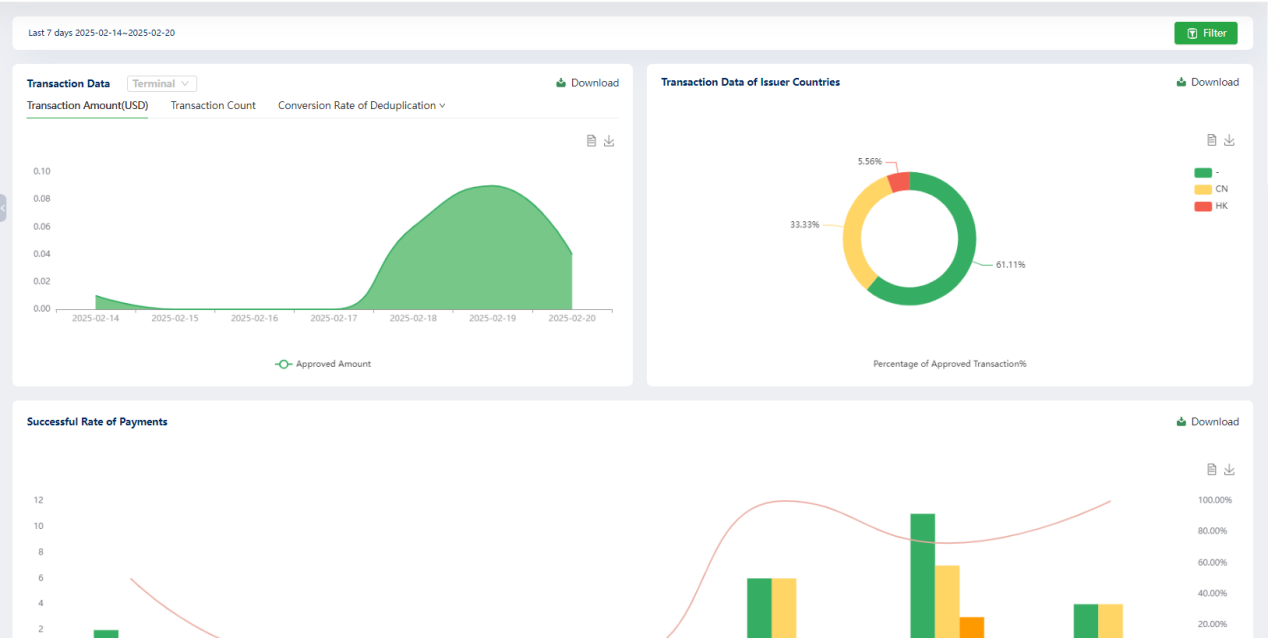
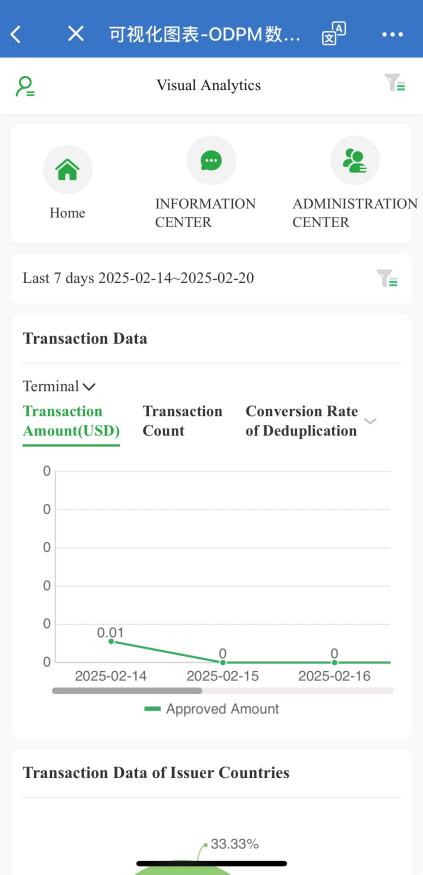
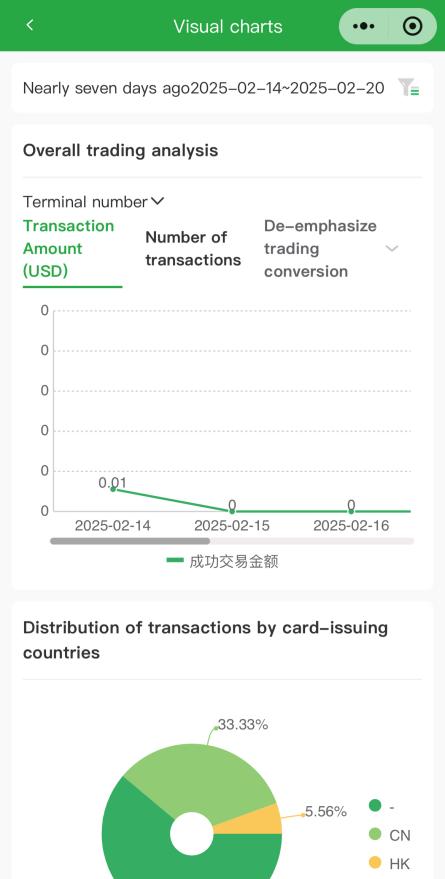
(H5/Mini Program) It supports data visualization in eight charts.
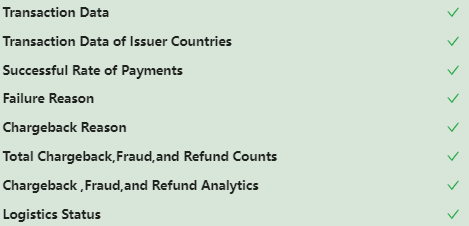
(PC)
(H5/Mini Program)
The following dimensions support more accurate query for terminal number and card type:
(PC)
(H5) (Mini Program)
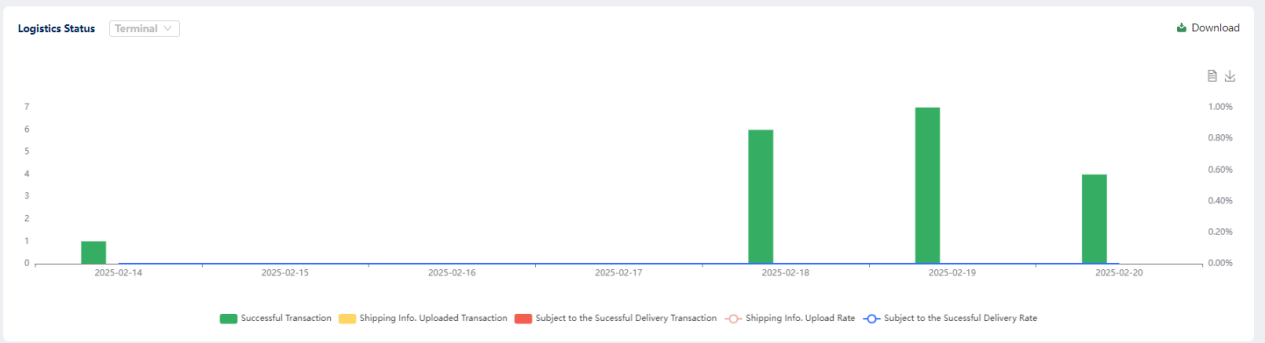
(PC)
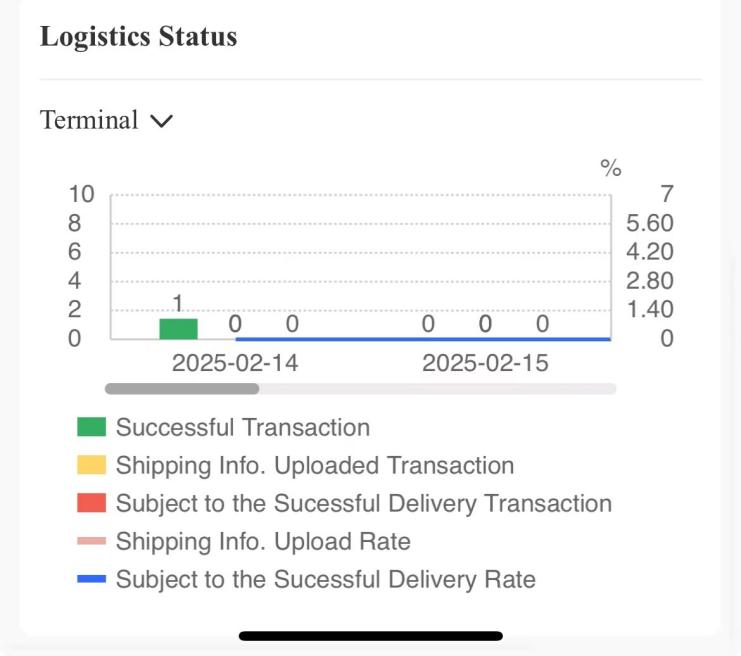
(H5/Mini Program)
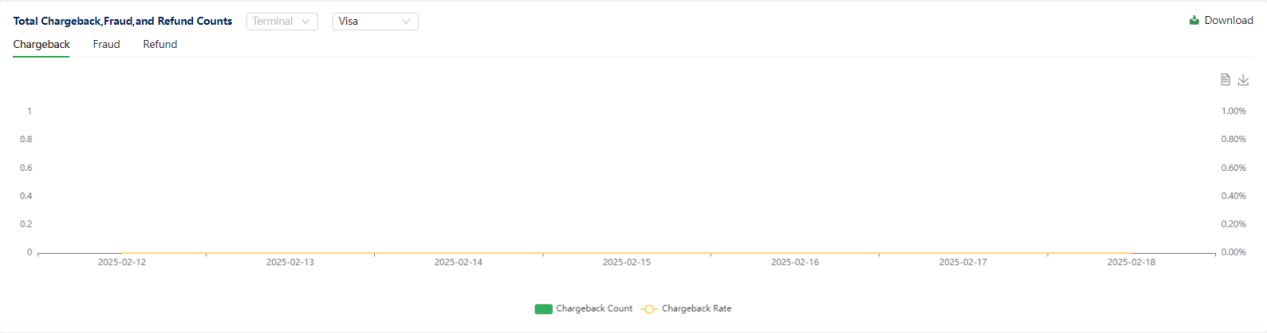
(PC)
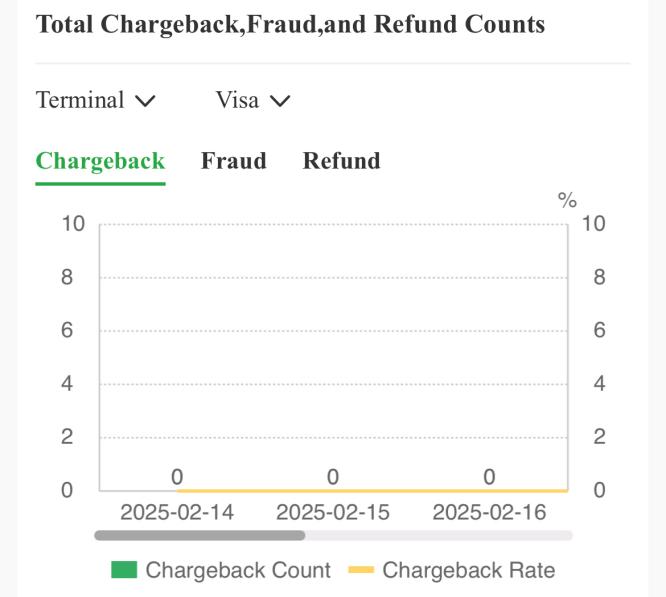
(H5/Mini Program)
Among them, the overall chargeback, fraud and refund also support targeted inquiries for card types:
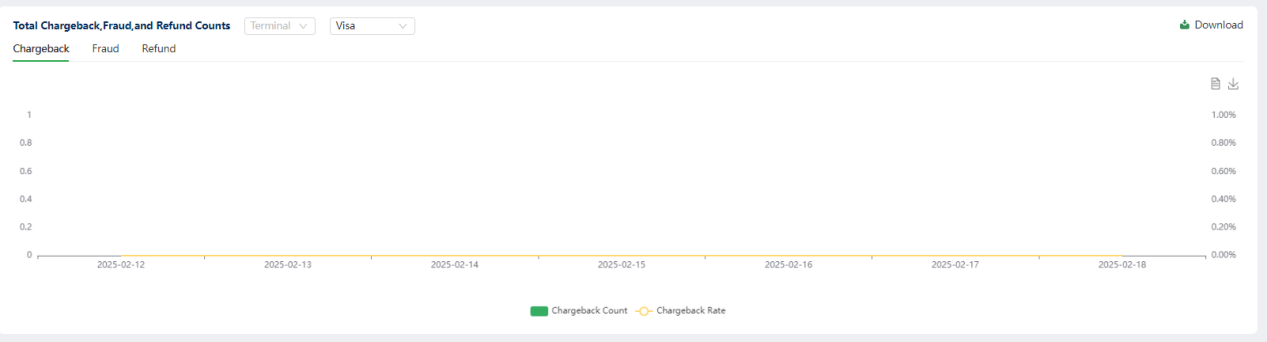
(PC)
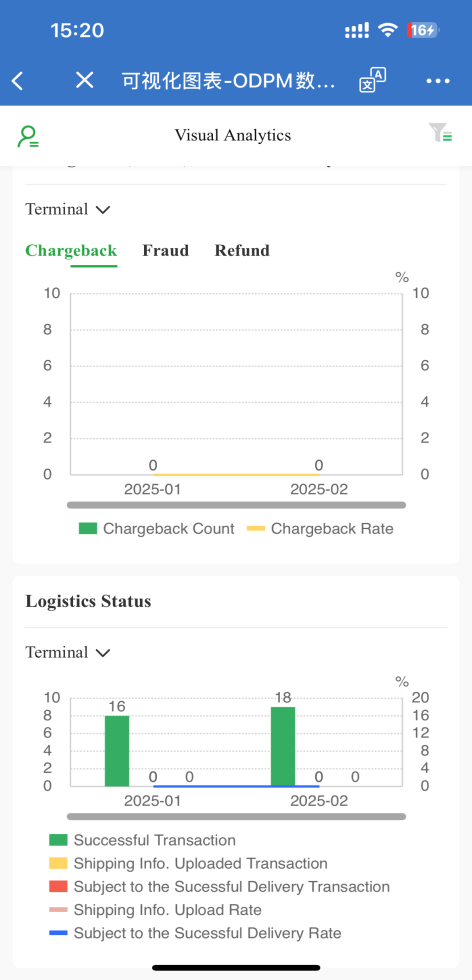
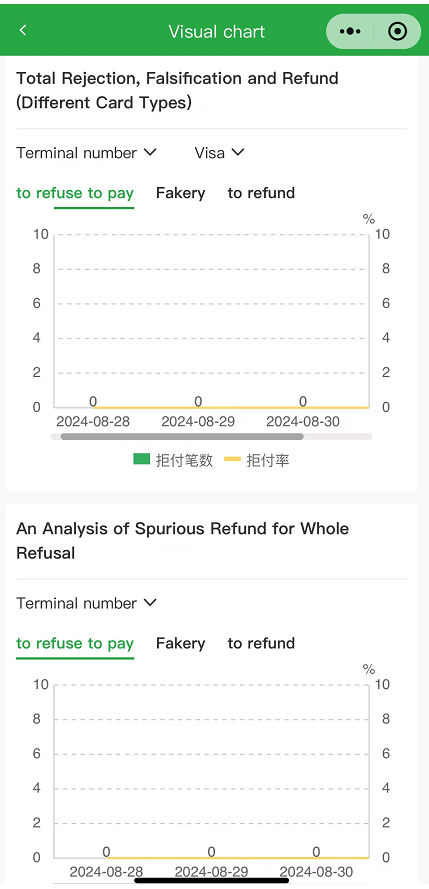
(H5/Mini Program)
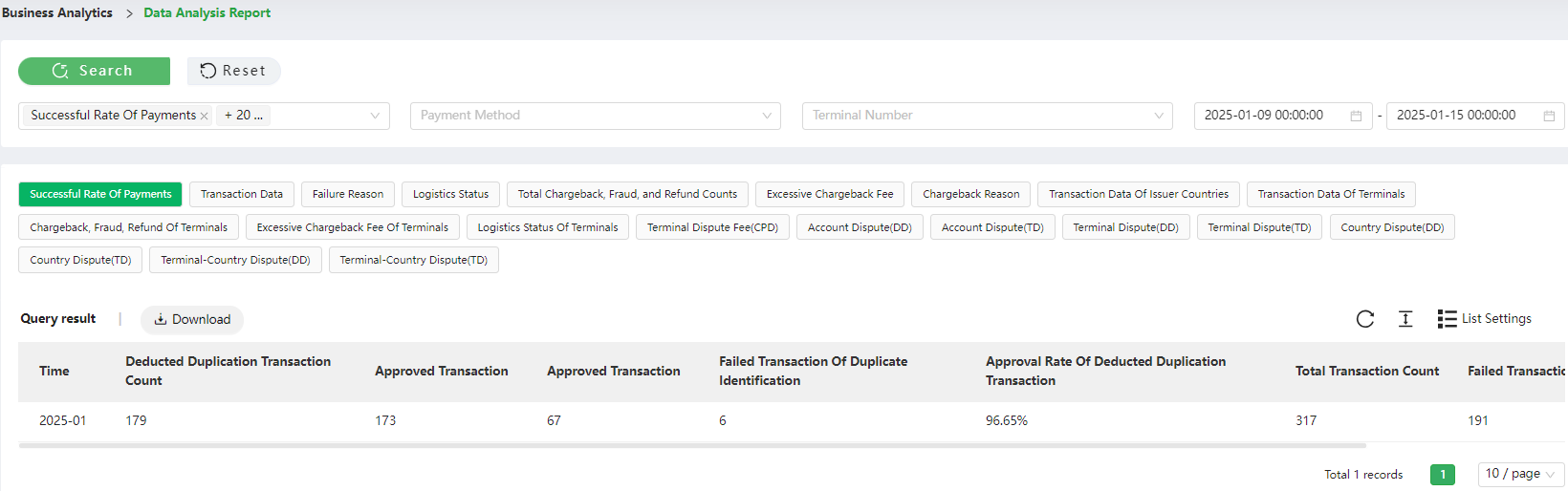
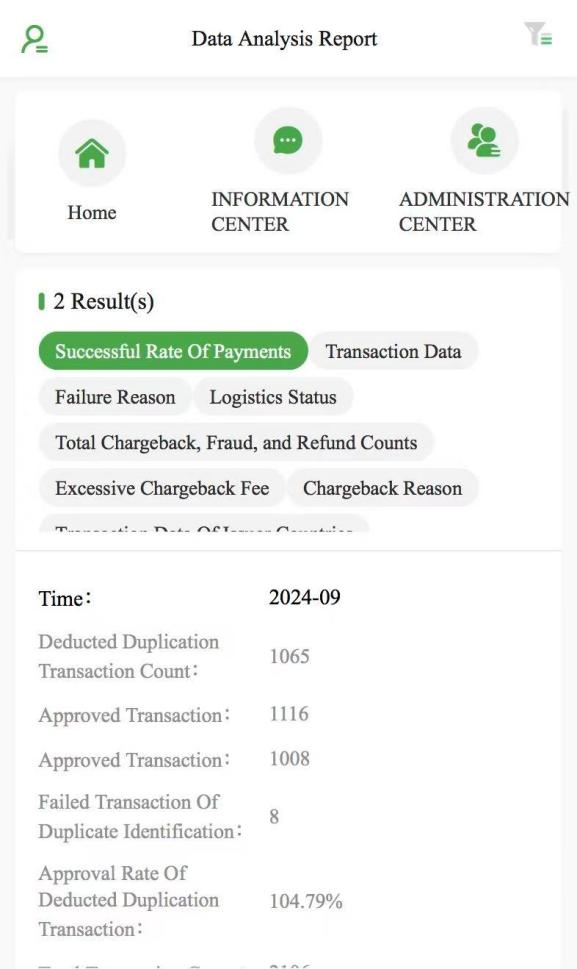
9.2 Data Analysis Report (PC/H5)
Search:

(PC)
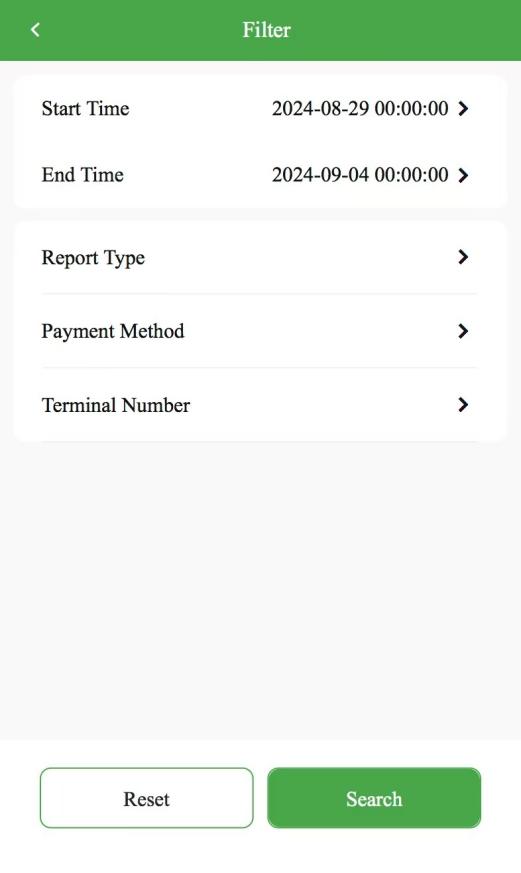
(H5) There are up to 22 data analysis dimensions according to the permissions of the merchant data analysis module, as follows:

Click the Download button to download the Excel data report corresponding to the selected dimension of the report type.
-
(PC)
- (H5)
10. Reports (PC/H5)
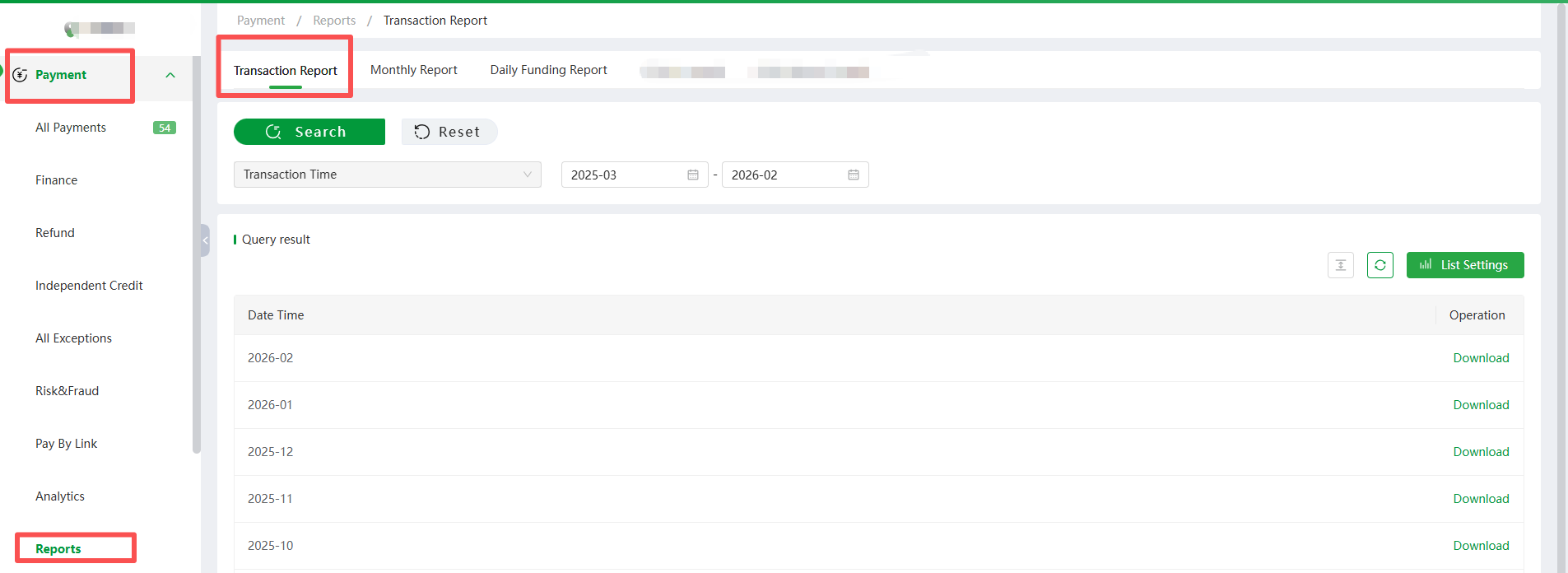
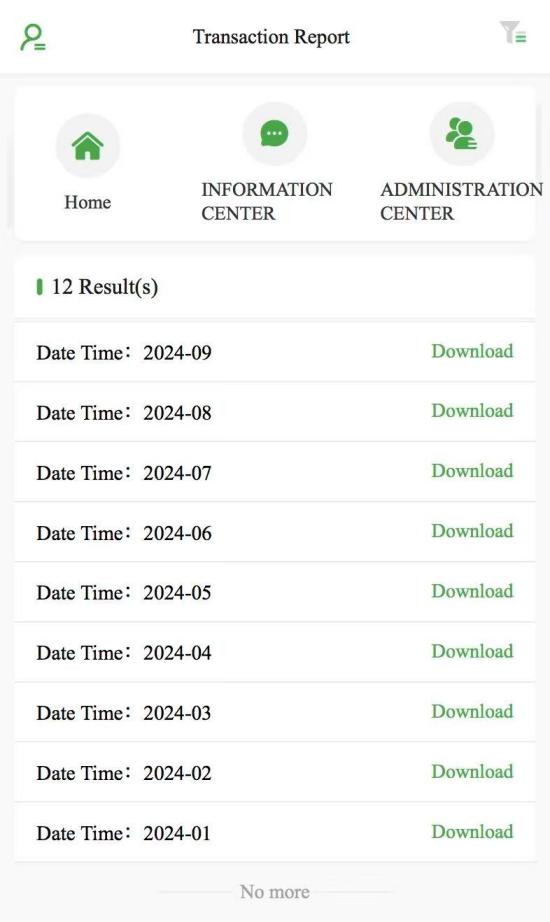
10.1 Transaction Report
Click [Payment] - [Reports] - [Transaction Report] to download and view the transaction report of each month (you can download the report of the previous month at the beginning of the month).
(PC)
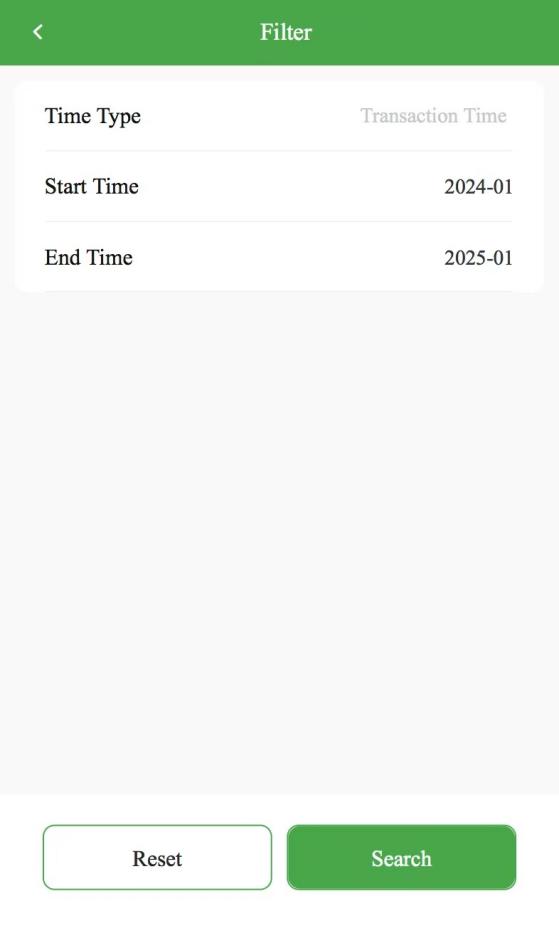
(H5) The display list field supports custom selection.
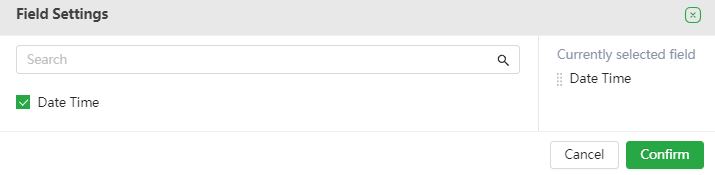
(PC)
Select the data of the month and click Download to download the corresponding file, which will count the number of transactions, transaction amount, and debit Amount in the corresponding month according to the payment method, transaction type, transaction currency, and debit currency. At the same time, the chargeback rate (count), chargeback rate (amount), refund rate (count), and refund rate (amount) of the corresponding payment method will also be counted.
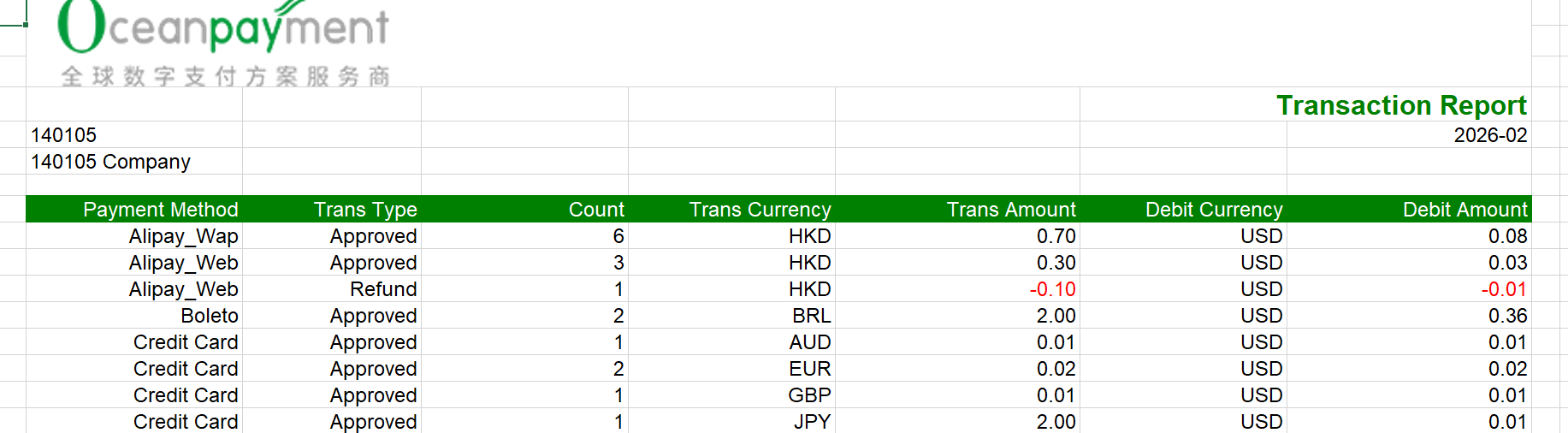
(PC)
10.2 Monthly Report
Click [Payment] - [Reports] -- [Monthly Report] to download and view the monthly settlement report of each month (you can download the report of the previous month at the beginning of the month).
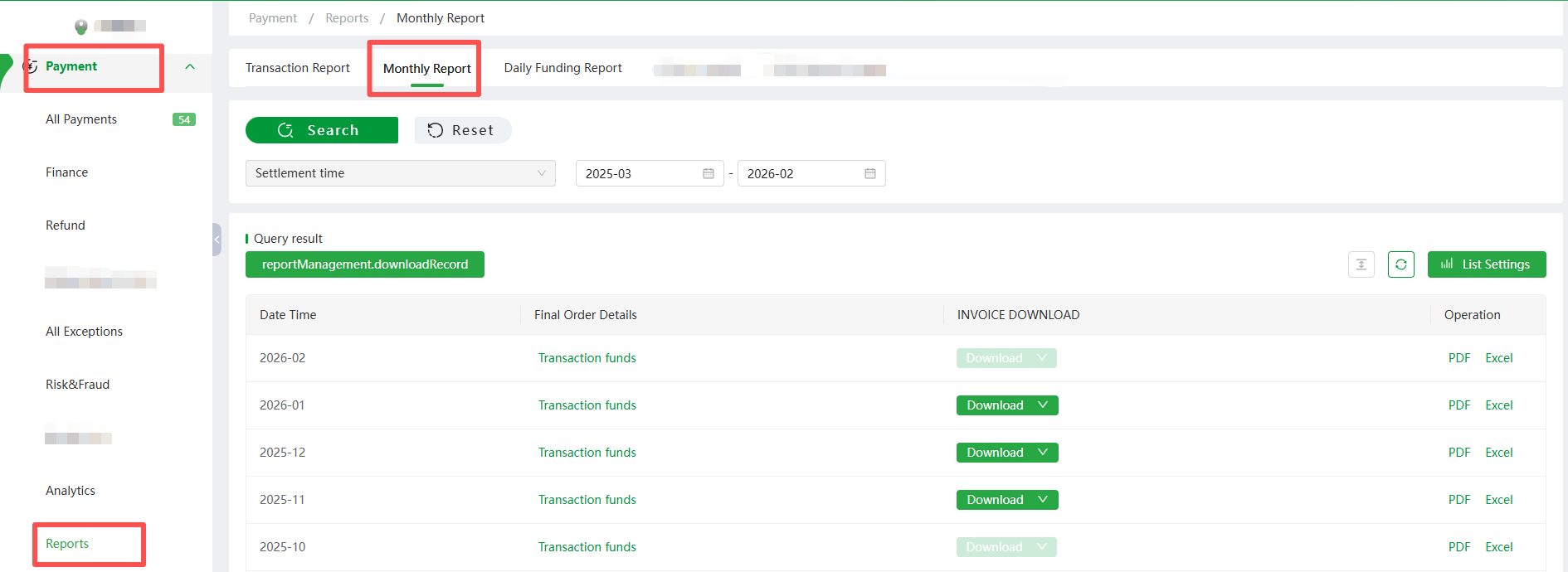
(PC)
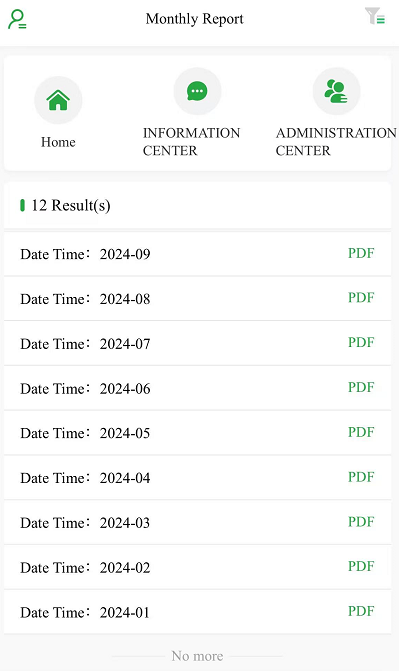
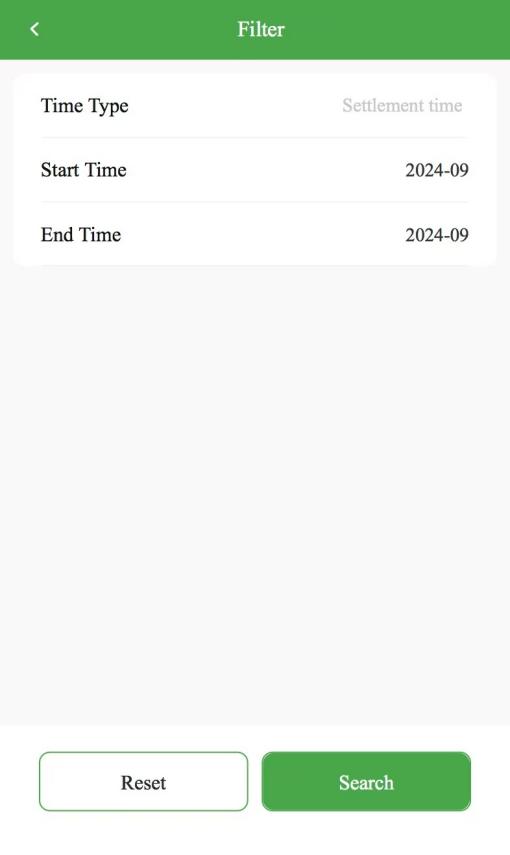
(H5)
The display list field supports custom selection.
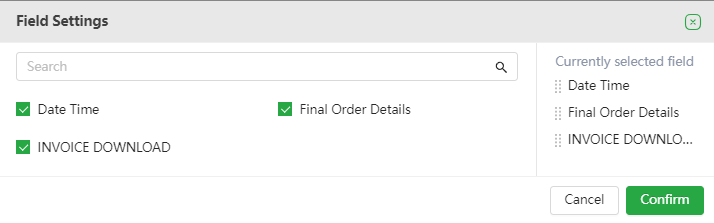
(PC)
You can download the PDF and Excel files separately, and the files will display the transaction and fee information of the corresponding month, and will be split into different tables according to the amount and currency in the report.
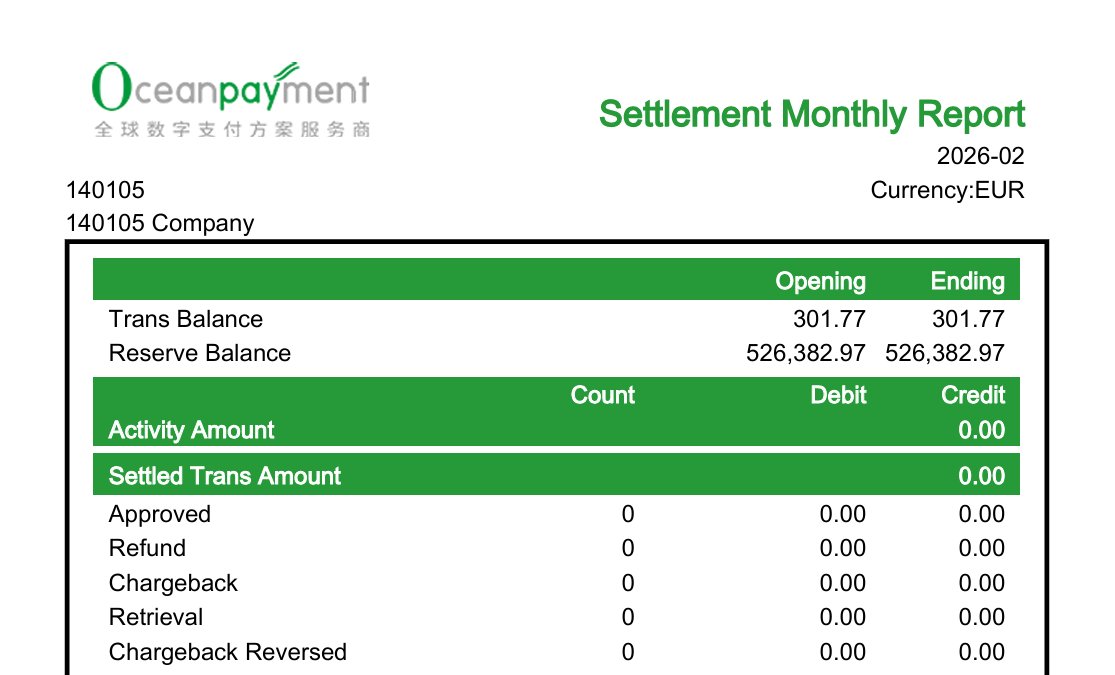
(PC/H5)
10.3 Daily Funding Report
Click [Payment] - [Reports] - [Daily Funding Report] to download and view the daily funds and transactions.
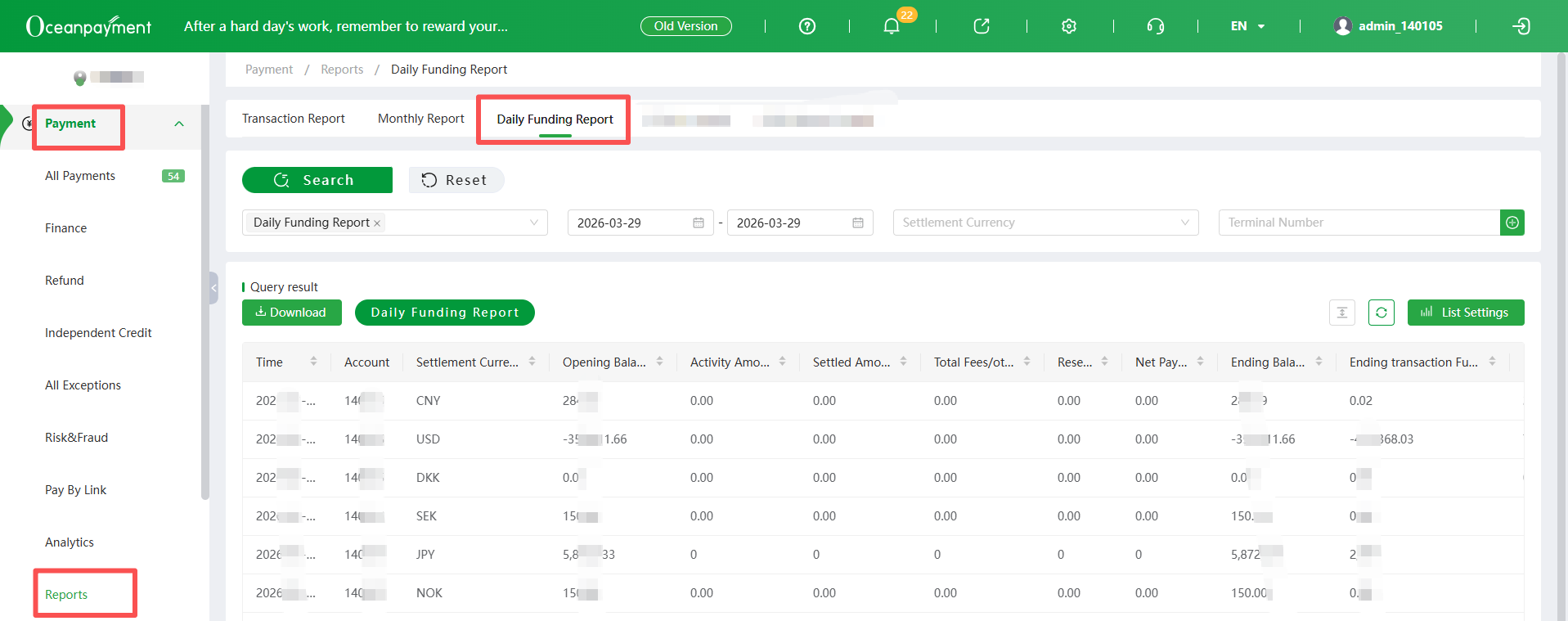
(PC)
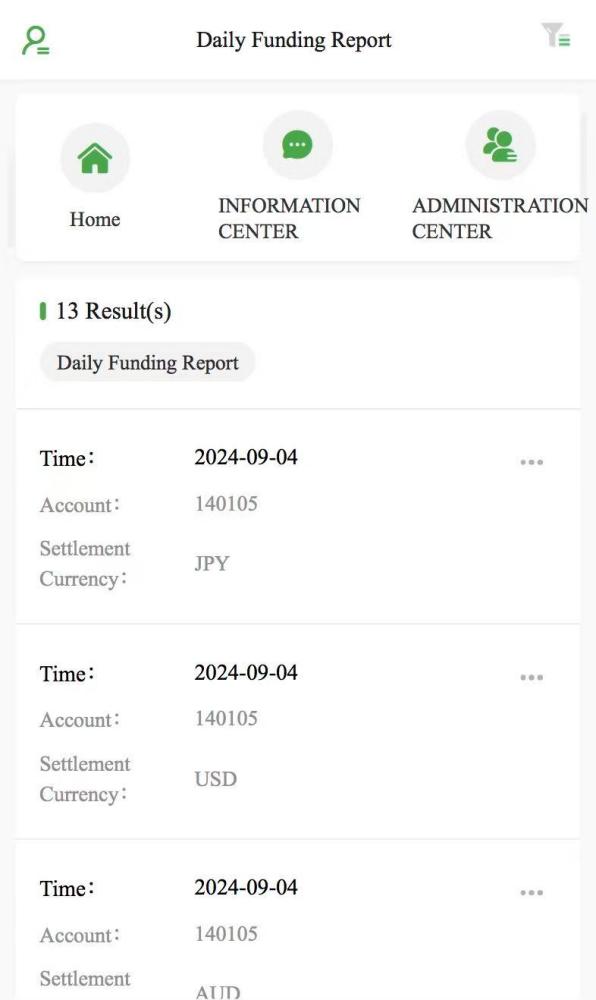
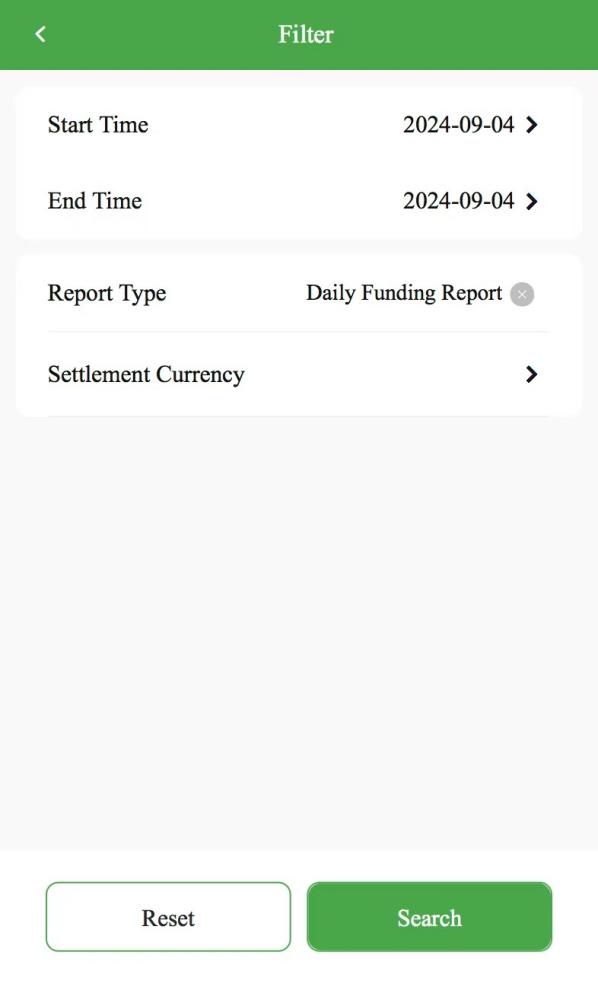
(H5)
The display list shows the daily funding report and daily transaction report based on the selected filters. Daily Funding Report: Statistics of new transactions, settled transactions, fees, reserve and other capital changes by date, account, and settlement currency. Daily Transaction Report: Statistics of new transaction types by date, account, and settlement currency. The display list field supports custom selection.
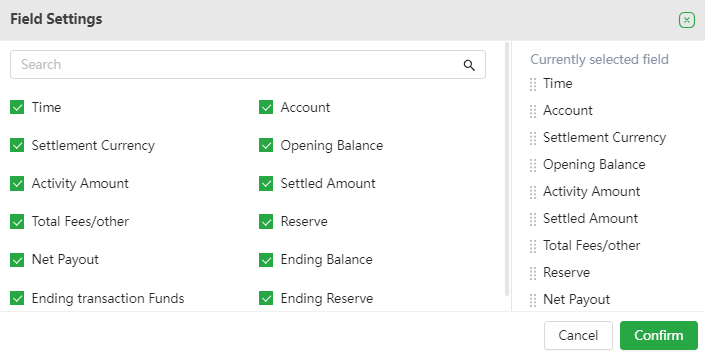
(PC)
At the same time, it supports the download function to download the corresponding data.


(PC/H5)
11. All Exceptions (PC/H5)
11.1 Dispute
When a no-response-required dispute cannot reach an agreeable solution, Klarna gets involved in the dispute process of the order, and this dispute becomes a response-required dispute. Each dispute has a corresponding deadline, the deadline shows the final date until the merchant can respond to the request. For a Klarna order, as long as the dispute remains unresolved, the consumer can continue to seek more information from the merchant and initiate multiple dispute requests.
For a Klarna dispute order, if the consumer accepts the merchant's proposed solution, the current dispute is considered closed. If a consumer has accepted and closed a Klarna disputed order, but later continues to dispute, they can initiate a new dispute case. Until the new dispute case is resolved, the consumer can still continue to seek further information from the merchant and initiate multiple dispute requests.
If a consumer does not accept the merchant's proposed solution for a Klarna disputed order, the dispute will escalate to a chargeback, and Klarna will directly refund the consumer.
Click [Administration Center] - [All Exception] - [Dispute] Merchants can query the corresponding dispute transaction information according to Account Order No. or OP Payment ID. Disputes can also be filtered by Transaction Type, Dispute Type, Process Status, Number of Disputes, Klarna status etc.
Time types that can be selected in the filter: Application Time, Transaction Time, Dispute Time, Dispute response deadline, Close at.
- Application Time: The time when response-required disputes and no-response-required disputes are updated in the back-end;
- Transaction Time: The transaction time of this transaction
- Dispute Time: The time when a no-response-required case occurs or a no-response-required case was escalated to a dispute.
- Dispute response deadline: The end time of the Klarna no-response-required order or the deadline for submitting a Klarna dispute appeal in Oceanpayment back-end.
- Closed at: The closing time of the no-response-required disputes or response-required disputes at Klarna system.
Up to five types of time can be selected simultaneously for searching.
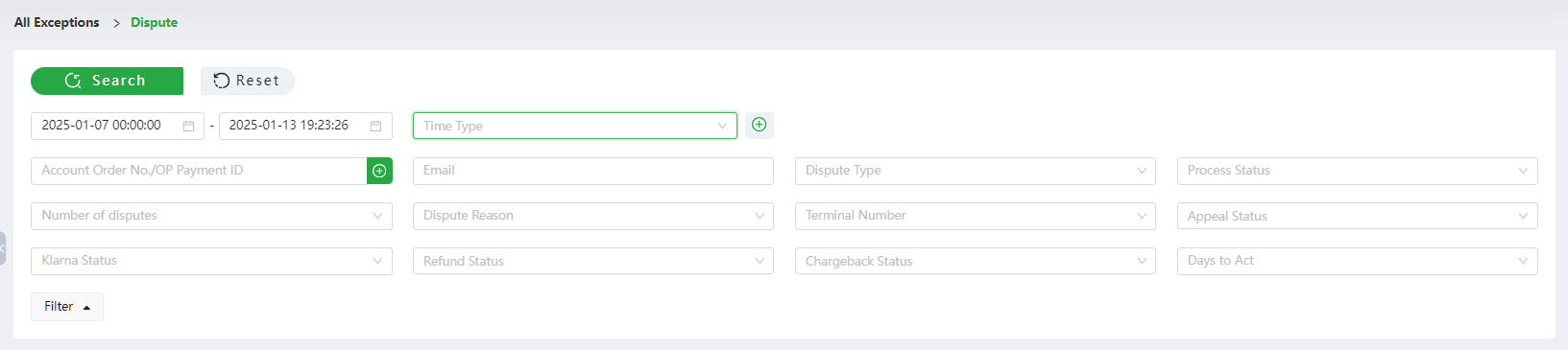
(PC)
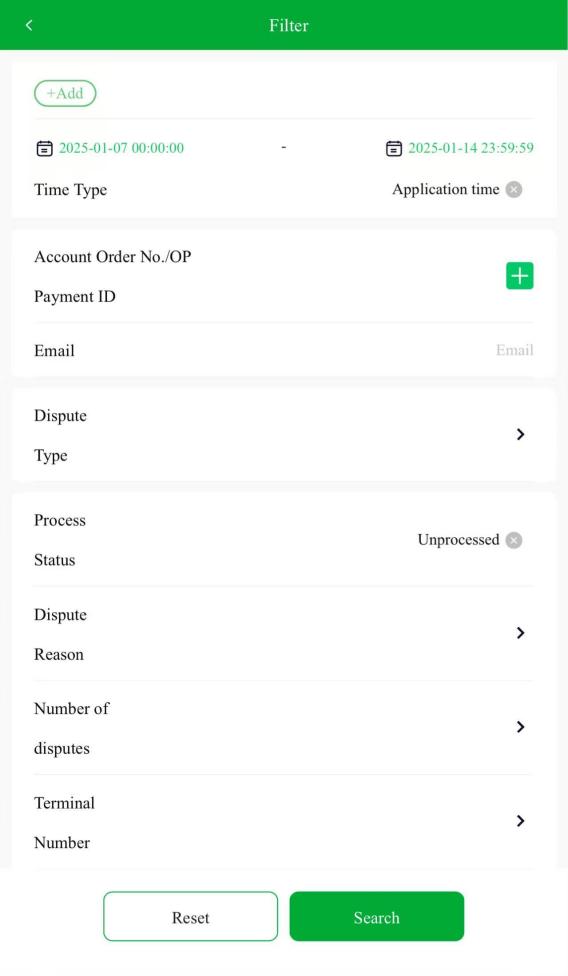
(H5)
Select the process status as "Unprocessed" in the condition filter, and you can view the remaining days until the response deadline for the order. If the response deadline has not been reached, the days to act range will be: today, 1, 2, 3, 4, 5, 6, 7, or over 7 days; if the current time has already exceeded the response deadline, the days to act will be displayed as "-".
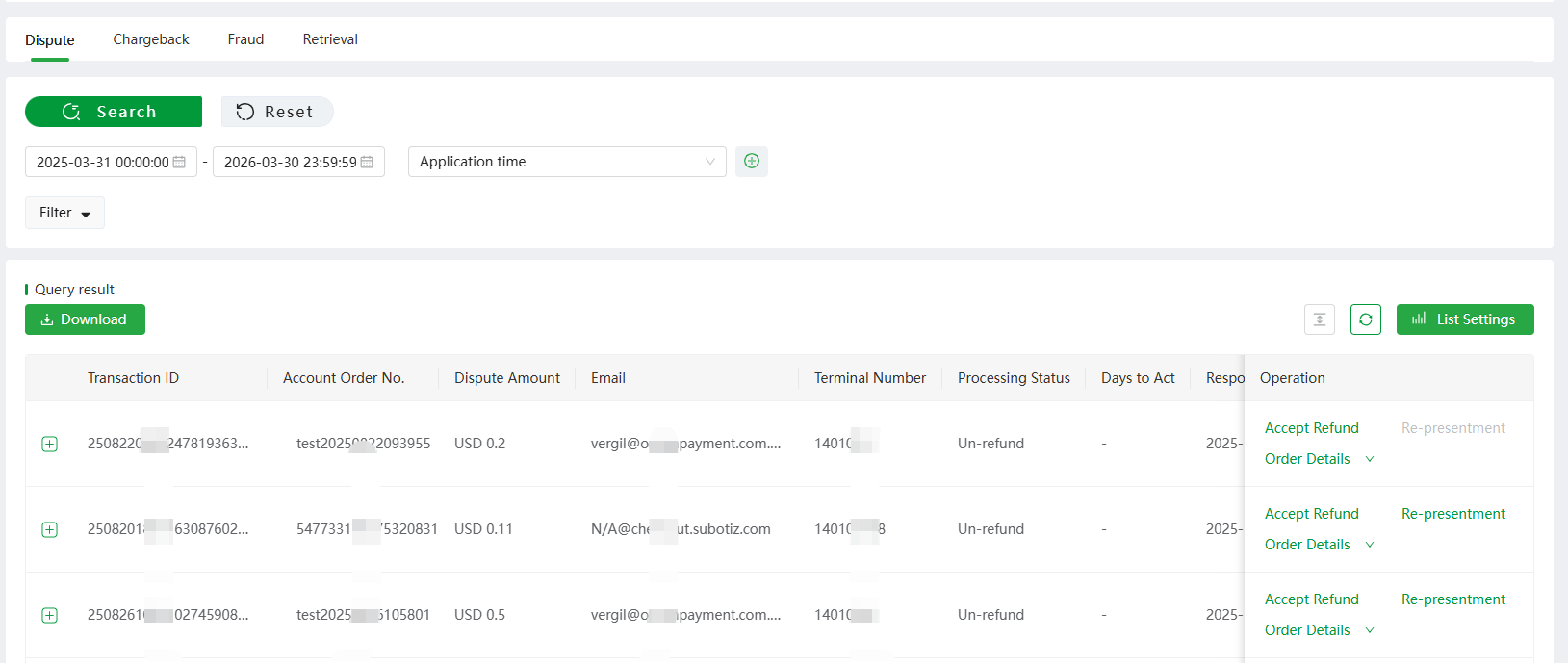
(PC)
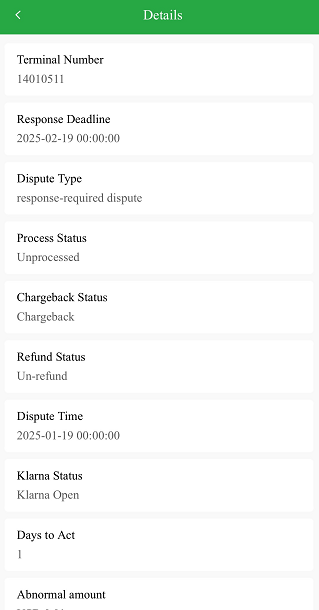
(H5)
Click disputes record, the page will display order details. For no-response-required case, merchants can make fully or partially refund for in this page or reach out to customers firstly.
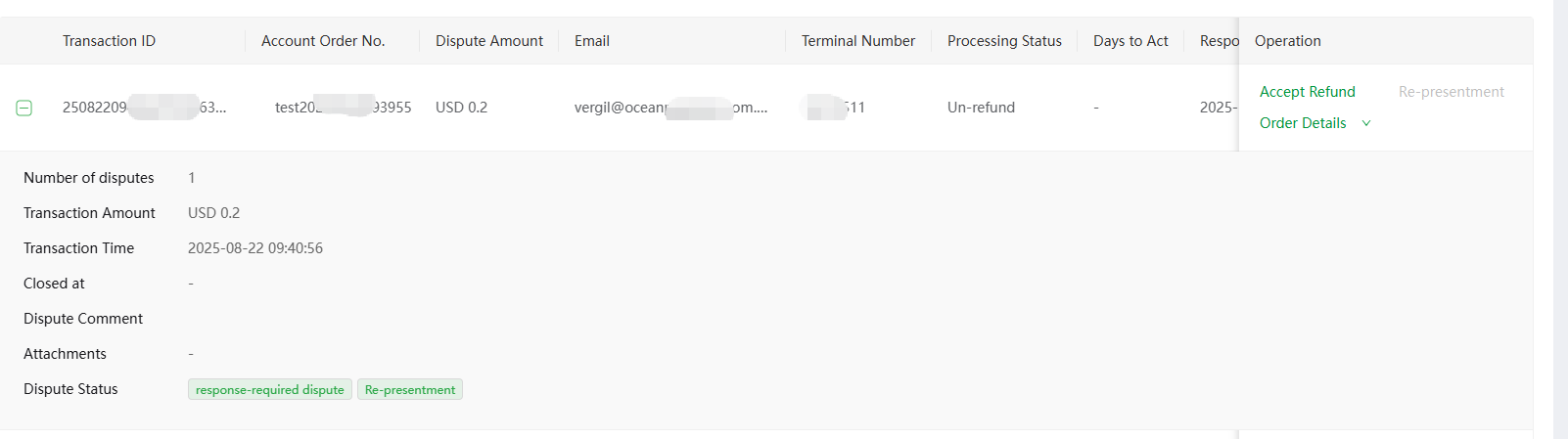
(PC)
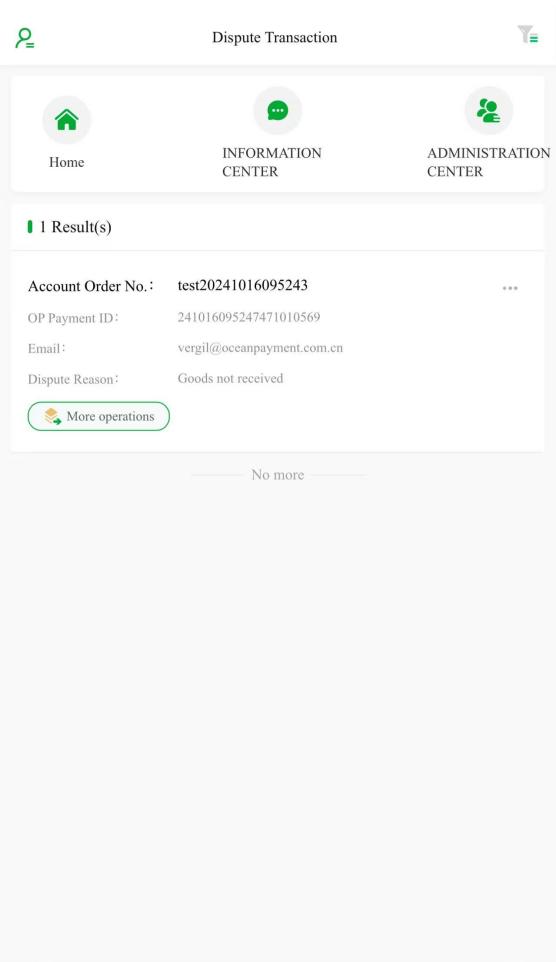
(H5)
For response-required disputes, merchants can make refund or apply for dispute re-presentment and submit the necessary dispute materials required by Klarna. Click [Accept Refund], the page will display order details, and merchants can apply for fully or partially refund.
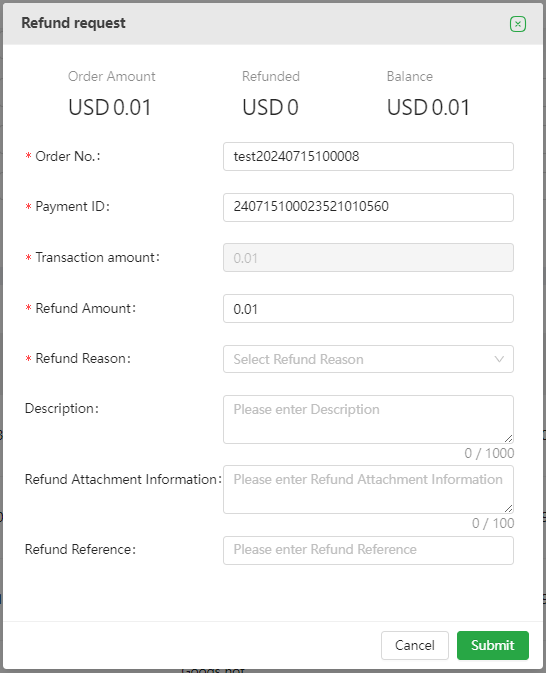
Click [Re-presentment] to submit relevant supplementary materials.

Click [The next step] to proceed to the page for filling out transaction information, re-presentment explanation, and supporting materials.
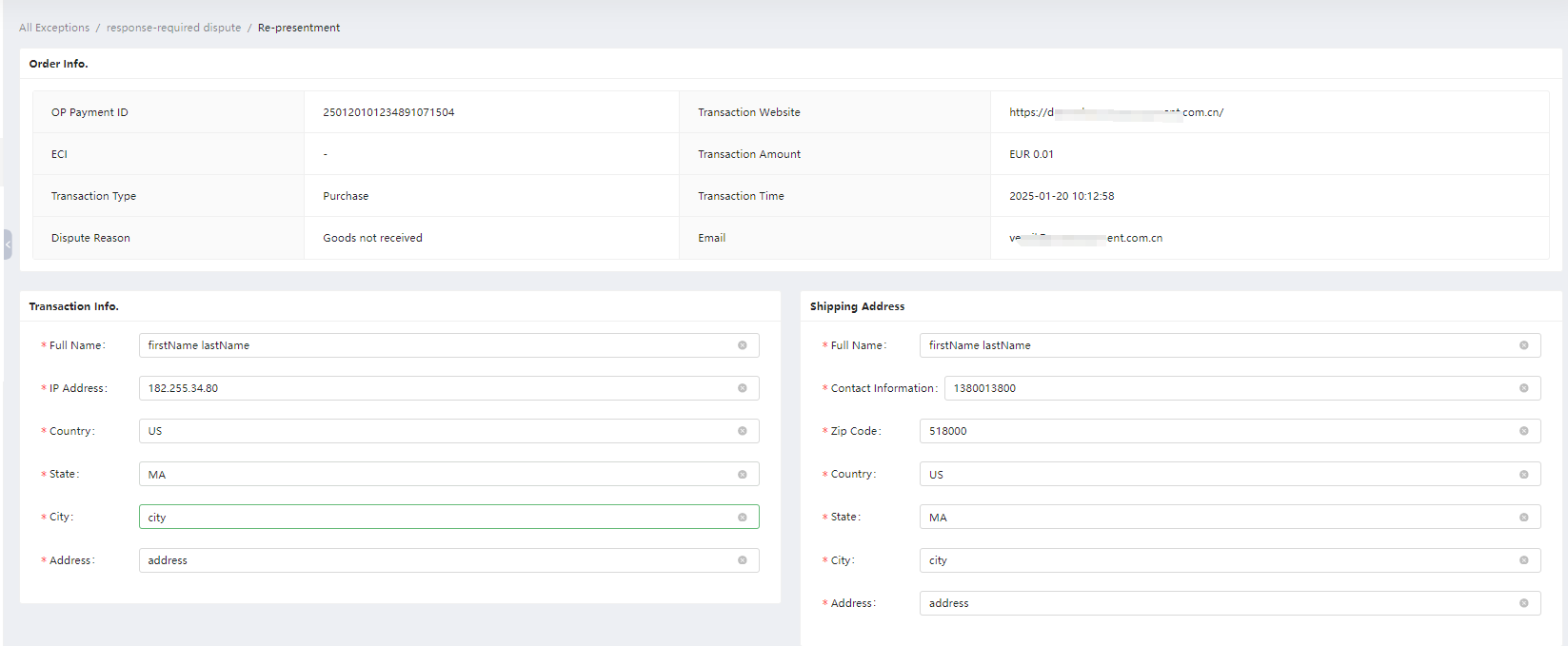
Click [Comment] to view the complete reply process for the Klarna dispute case.
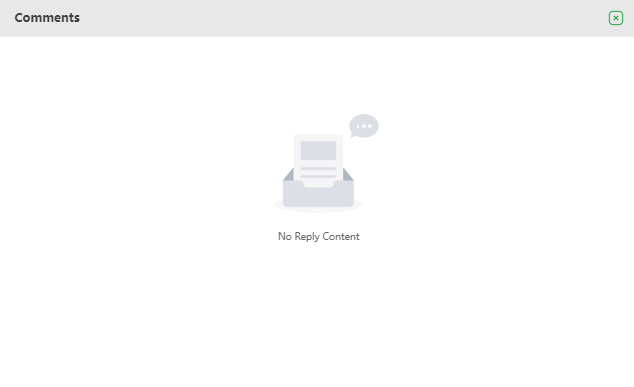
(PC)
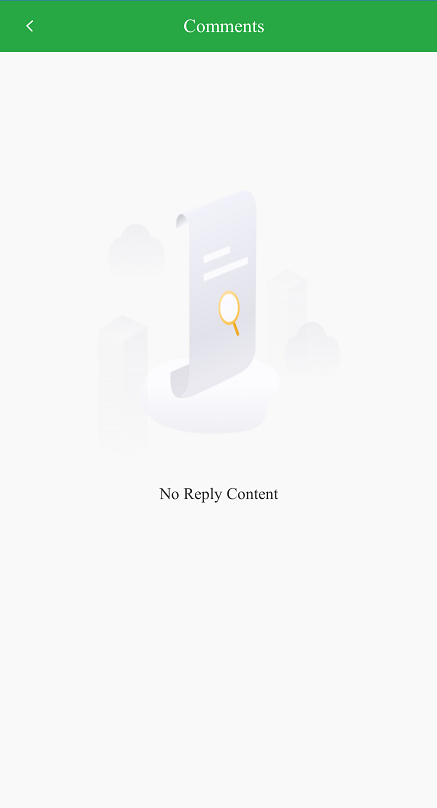
(H5)
11.2 Chargeback
A chargeback is the reversal of financial transaction, typically initiated by a customer (the cardholder), who disputes a sale on his or her credit card. Generally occurring within 180 days after the transaction, some industries and issuers can accept chargeback applications for a longer period of time. When a chargeback occurs, merchants can submit re-presentment before the reply deadline if they do not agree with the chargeback. And if merchants win the re-presentment, fund will back to the merchant's account. Besides, please note that regardless of whether the appeal is successful or not, the bank will charge a chargeback fee.
Click [Administration Center] - [All Exception] - [Chargeback] Merchants can query the corresponding chargeback transaction according to the Account Order No. or OP Payment ID. The page will also show the corresponding transaction details of the chargeback according to the transaction time, chargeback date, response deadline, processing time, chargeback reason, chargeback status, chargeback type, payment method and chargeback recall status.
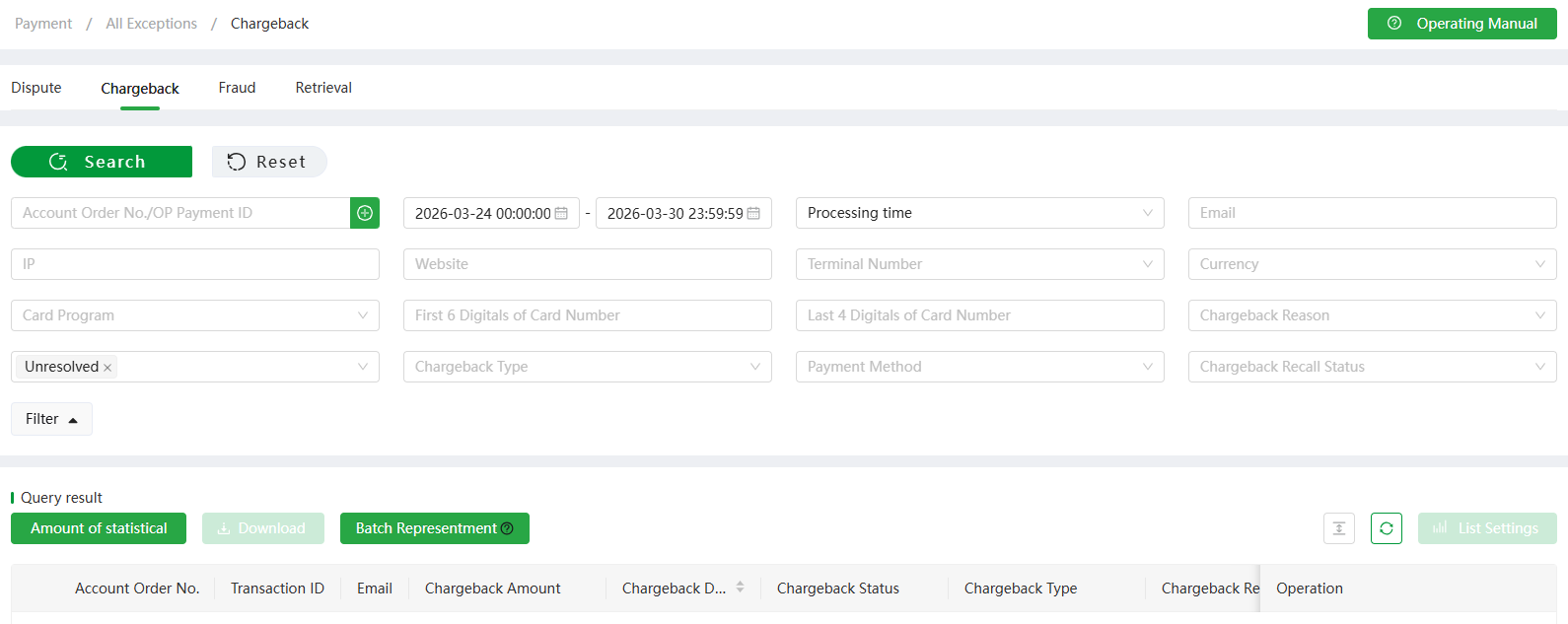
(PC)
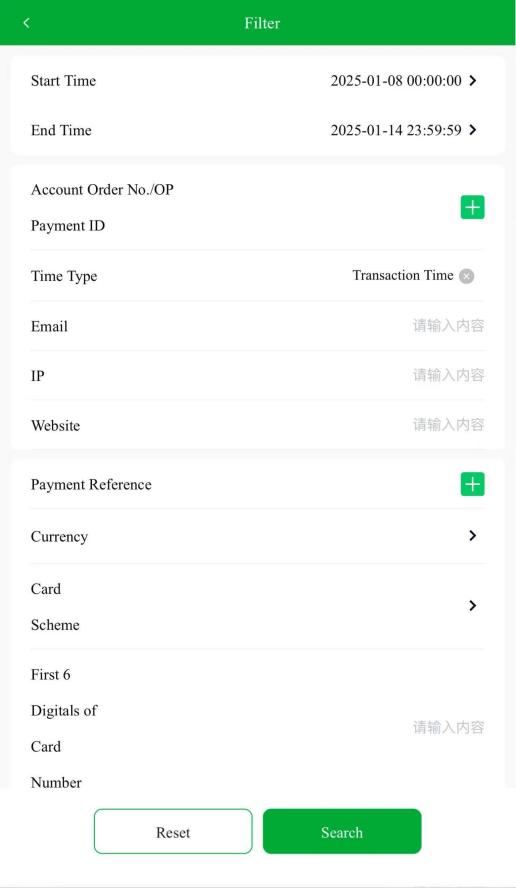
(H5) In the filter, four types of time can be selected:
- Transaction Time: The time when this transaction occurred.
- Chargeback Date: The day when this transaction was chargeback. It equals the central processing date (CPD).
- Response Deadline: The deadline for submitting re-presentment information for this transaction. If no reply is received by then, the merchant will be deemed to have accepted the chargeback and waived the right to appeal by default.
- Processing Time: The latest status of the chargeback, including the review time of the chargeback status, presentment status. Chargeback Reason includes Other Fraud-Card Absent Environment, Merchandise/Services Not Received, Not as Described or Defective Merchandise/Services, etc. Please submit re-presentment information for transaction with different chargeback reasons by following the Chargeback Notification email.
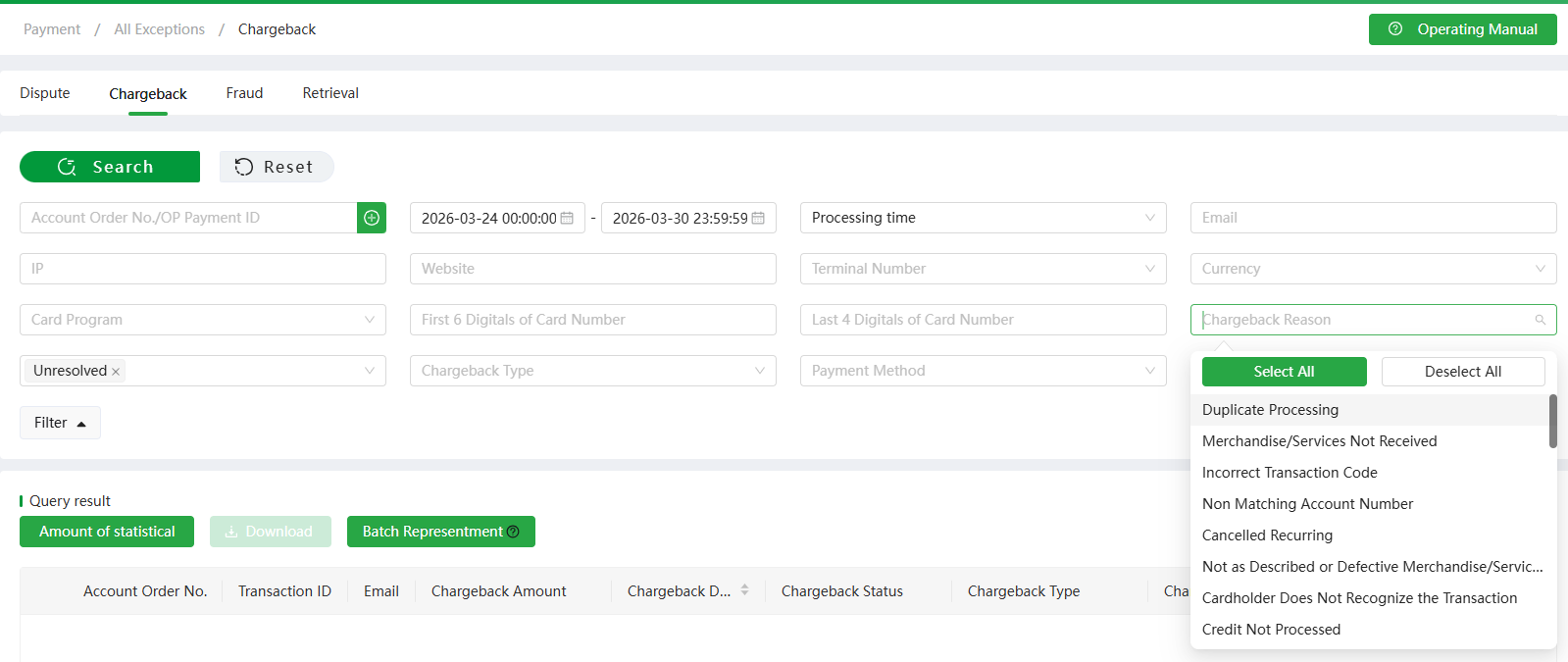
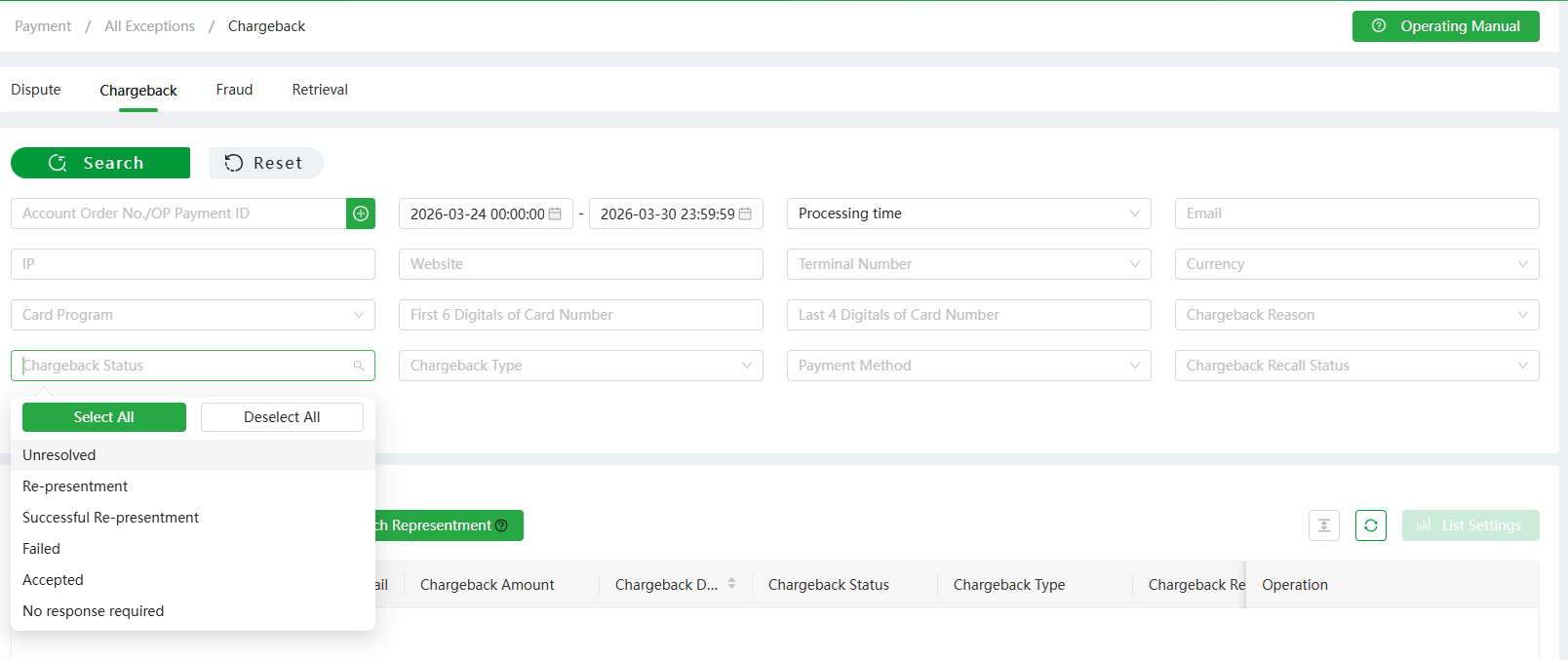
Chargeback status: The processing status of this transaction
- Unresolved: Orders that support re-presentment submission within the response deadline but have not yet initiated re-presentment.
- Re-presentment: Orders for which re-presentment has been submitted.
- Successful re-presentment: The final re-presentment result is successful and the chargeback amount will be returned to the merchant.
- Failed: The final re-presentment result is failed.
- Accepted: Orders that have submitted "Accept Chargeback" in the background; orders that support re-presentment submission but have not initiated re-presentment within the response deadline.
- No response required: The chargeback amount is 0; or when the chargeback is updated, the response deadline has expired (i.e., chargeback orders that do not support re-presentment).
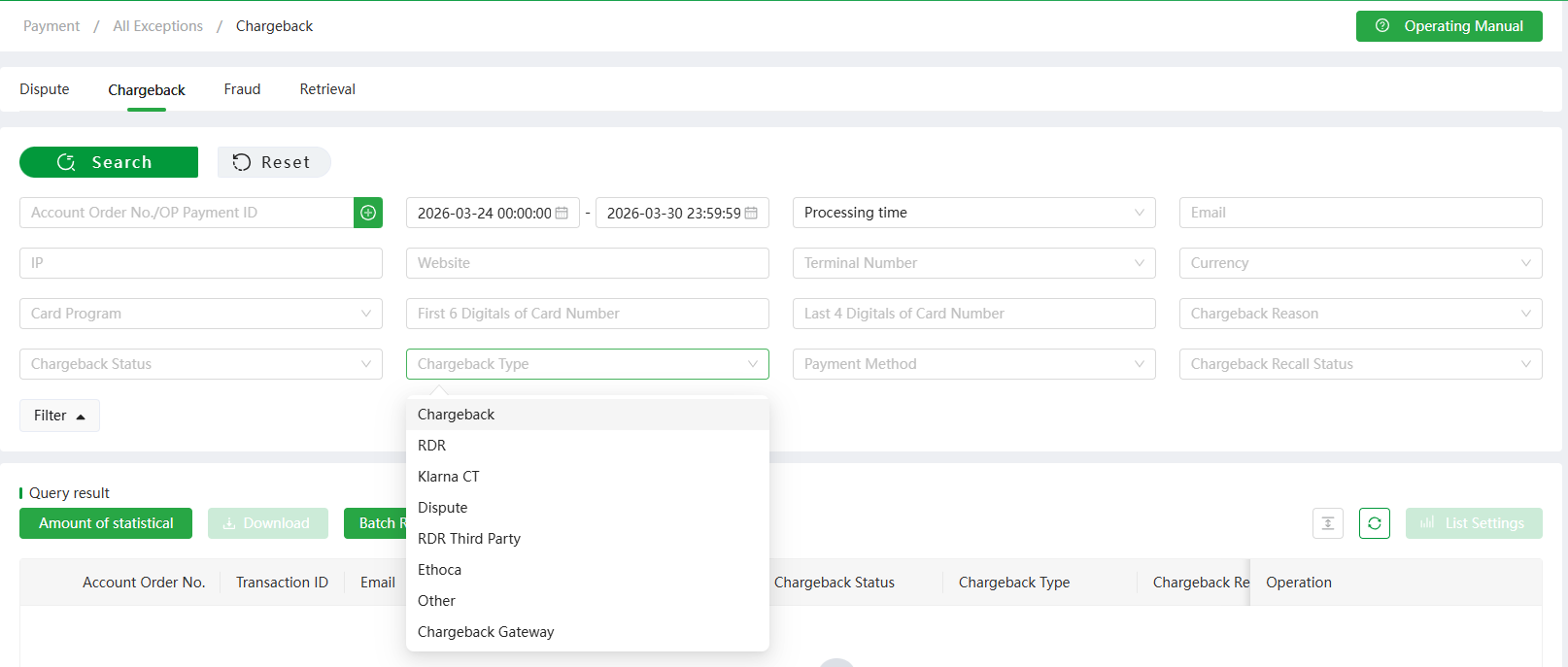
Chargeback Type: Chargeback, RDR, Klarna CT, Dispute, RDR third party, Ethoca, Other
- Chargeback: Chargeback transaction
- RDR: Chargeback alert transaction
- Klarna CT: Klarna chargeback early warning transaction
- Dispute: Afterpay chargeback transaction
- RDR third party: Third party chargeback early warning transaction
- Ethoca: Mastercard chargeback early warning transaction
- Other: Transactions deducted in other ways, not chargeback orders
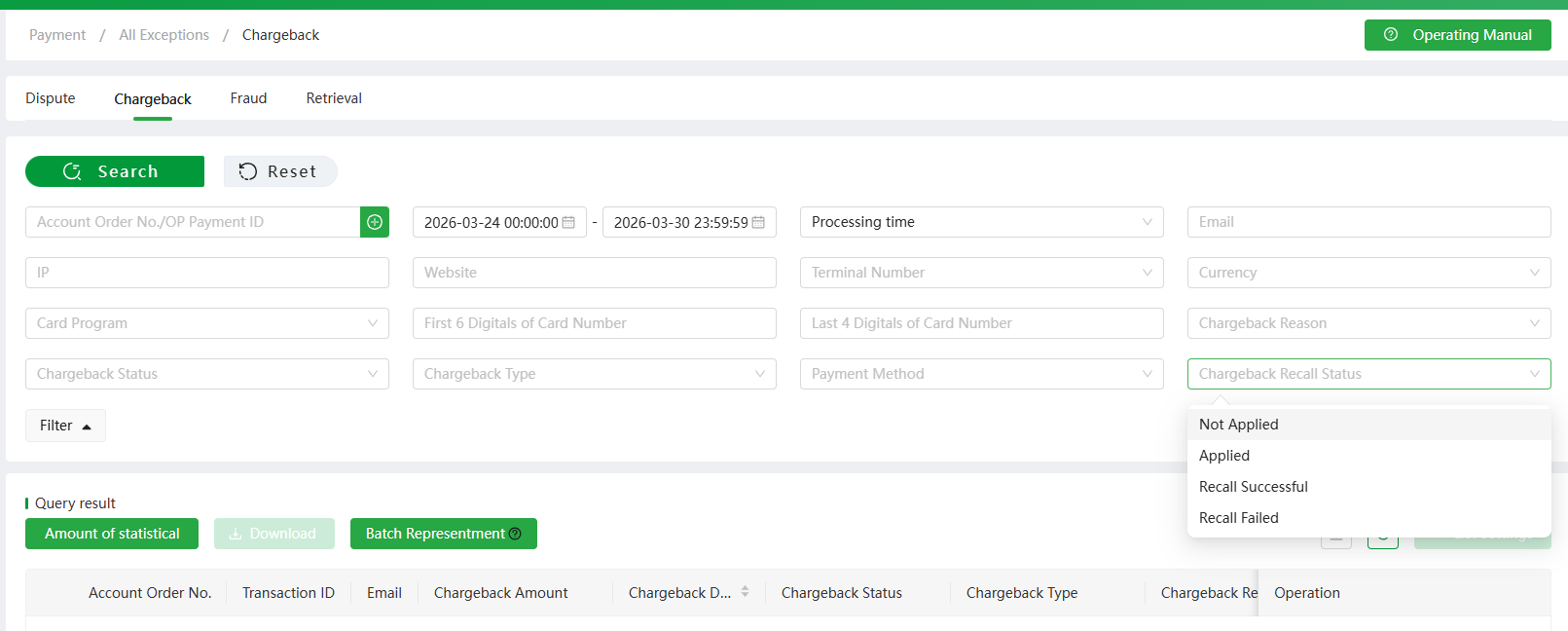
Payment method: You can choose multiple payment methods at the same time Chargeback recall status: Not applied, Applied, Recall successful, Recall failed.
Initiate Re-presentment: search the transaction in [All Exception] - [Chargeback], click the transaction to see its details as below:
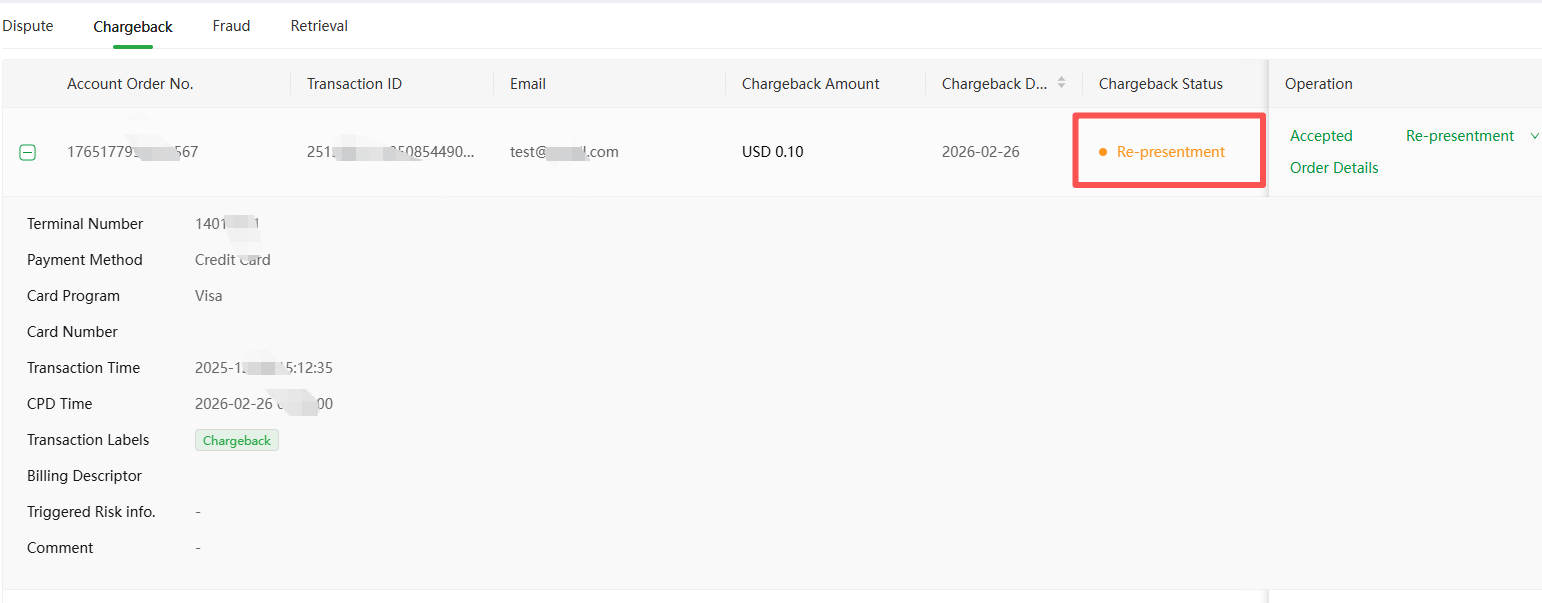
(PC)
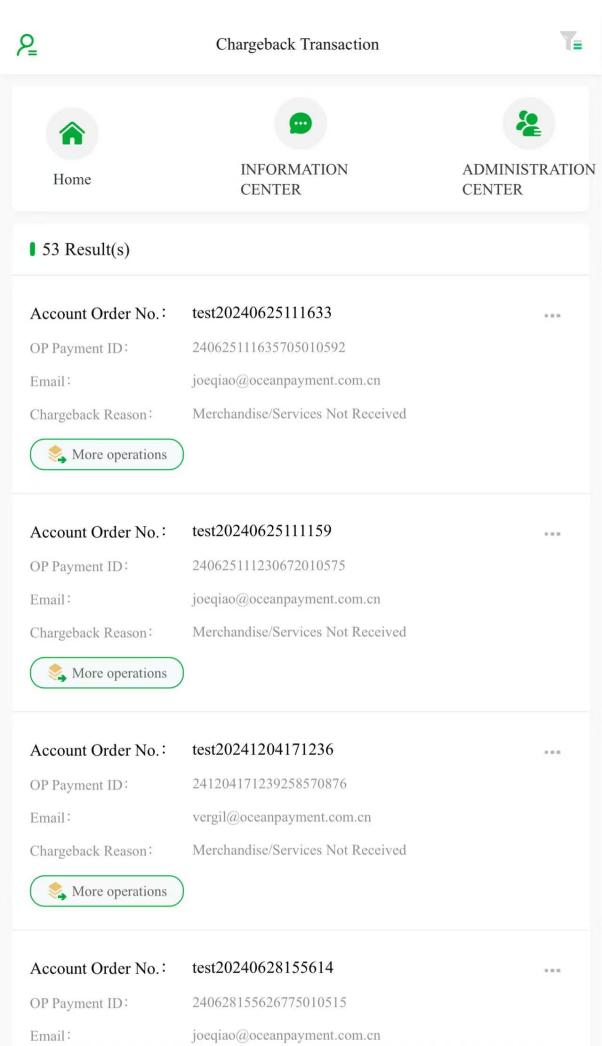
(H5)
As shown in the picture above, the chargeback reason is "Merchandise/Services Not Received". The client paid this transaction on Dec 4th, and initiated a chargeback on the same day. The response deadline is Dec 10th, which means the merchant can click [Accepted] or [Re-presentment] before Dec 10th. If the merchant does not accept this chargeback, click [Re-presentment] to submit information proving that the cardholder's dispute is invalid.
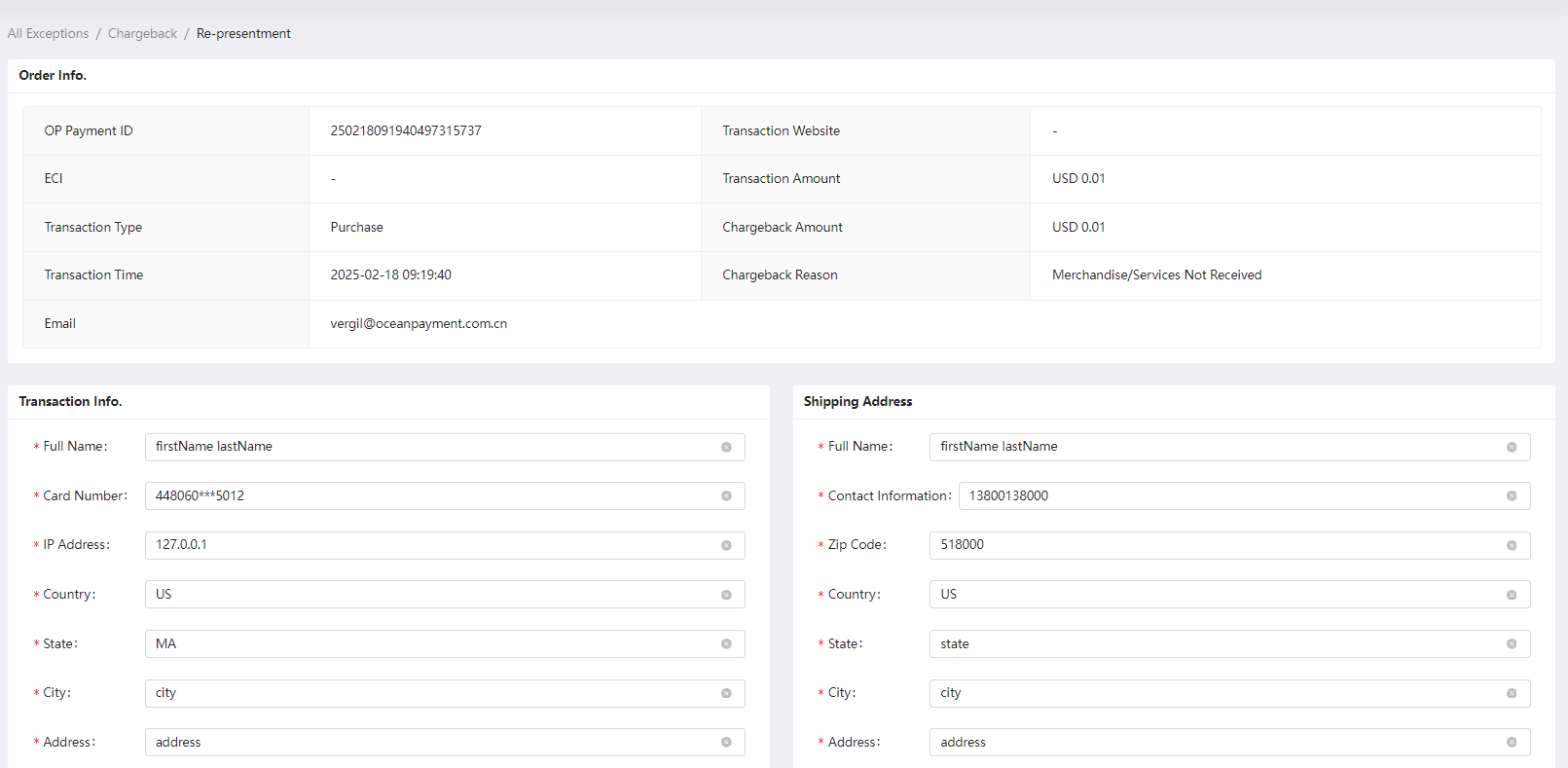
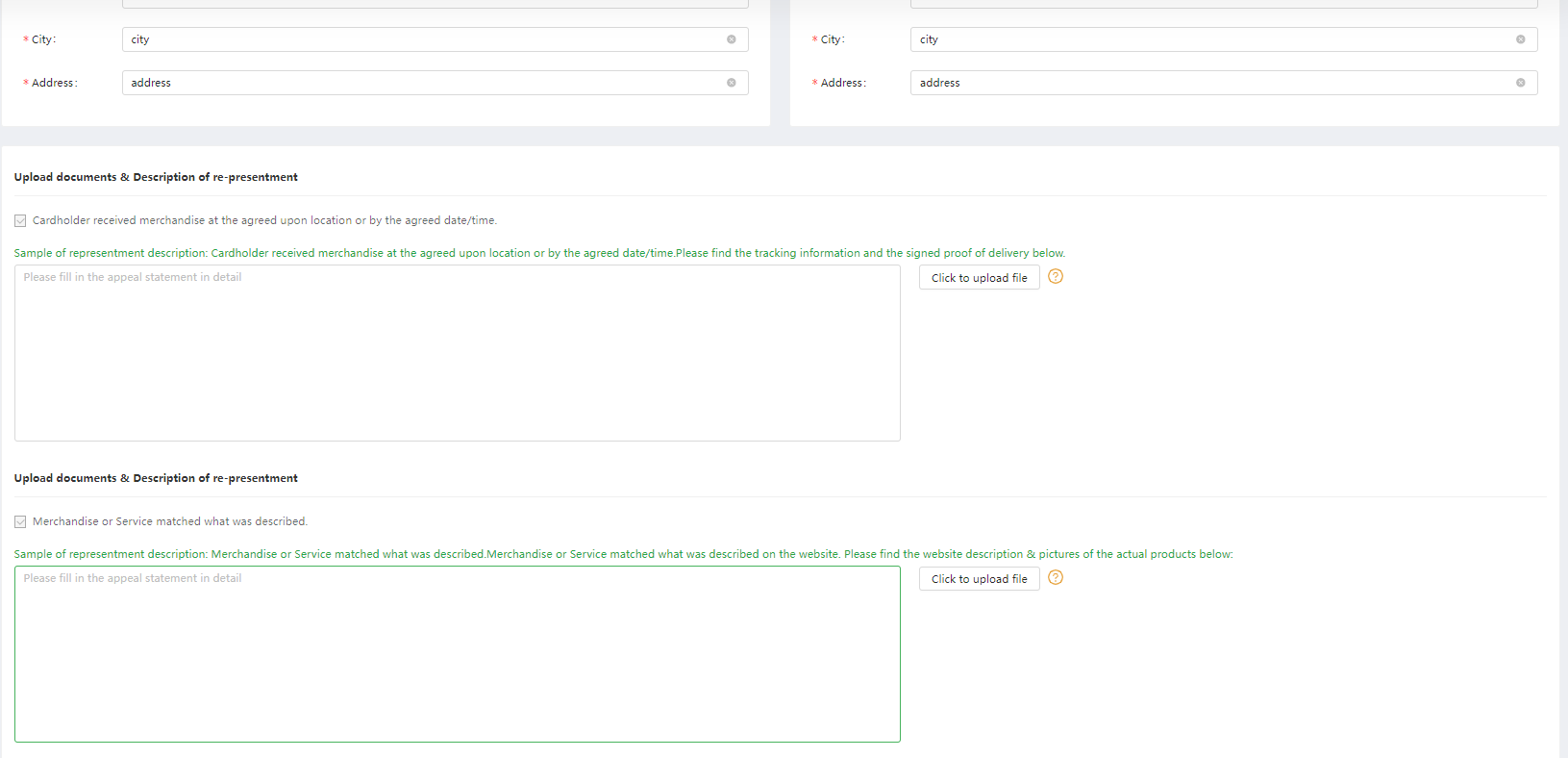
The re-presentment page has auto-synchronized the original information of the order, and merchants can edit the order information or receipt information on this page. Meanwhile, the system will display the corresponding information items for different chargeback reasons, and samples of re-presentment description as well. Double-click the blue font above can be auto-synchronized to the text box. Upload the relevant documents, and then click [Submit]. Please refer to the detailed re-presentment material requirements in Chargeback Notification email. After clicking [Submit], merchants can preview the re-presentment documents.
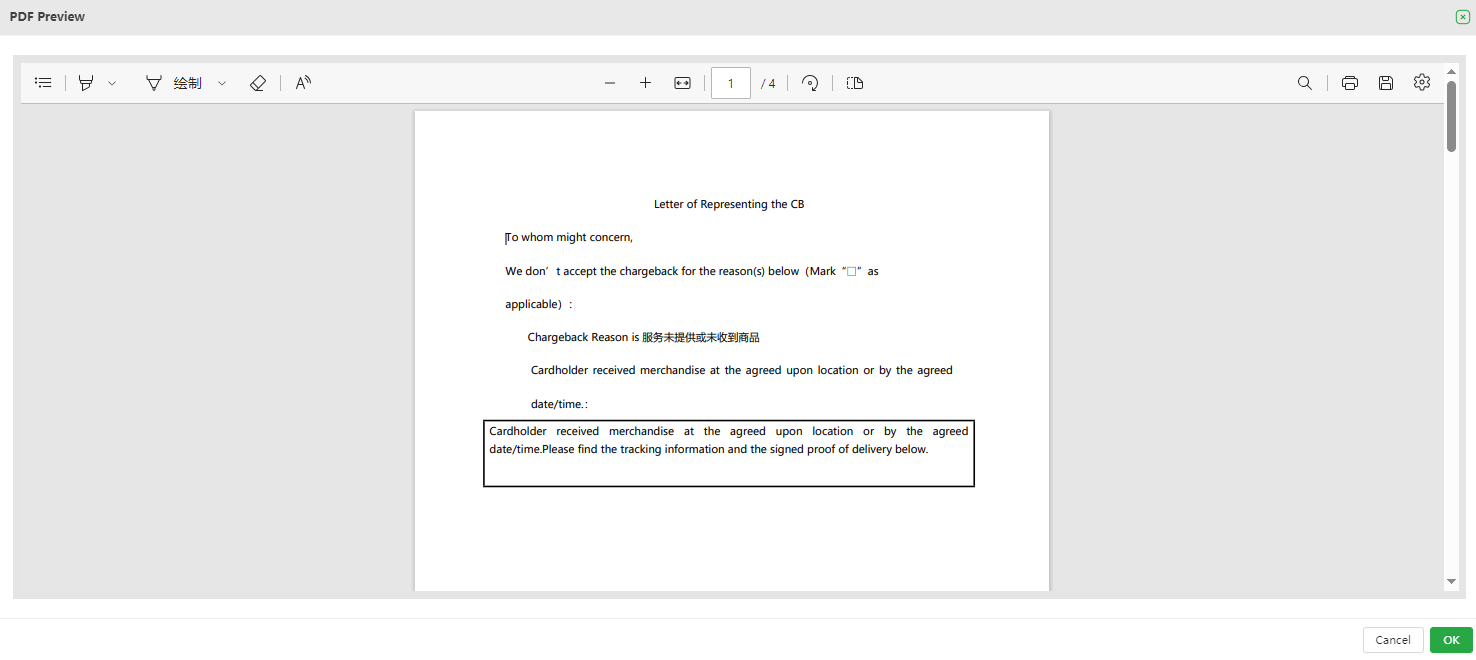
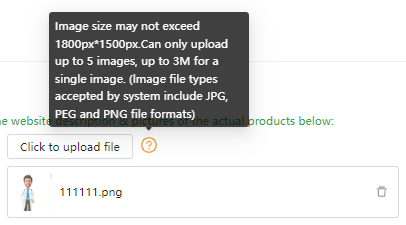
The re-presentment submission requires that the supporting documents be in English, and the supporting materials must be images. You can provide 1 to 5 images. The images should be clear and support JPG, JPEG, PNG, and other image formats. Each image should be controlled within 3MB, and the image size must not exceed 1800px by 1500px.
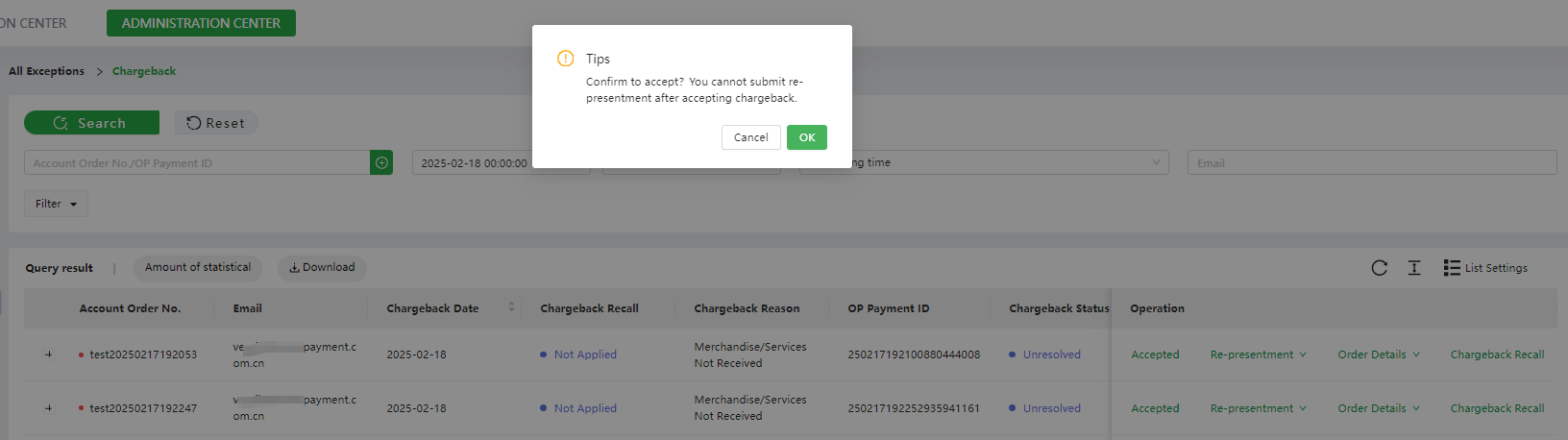
Accepting the chargeback indicates that you agree to this chargeback order, and do not submit the re-presentment information, the bank will deduct the corresponding chargeback amount of the transaction.
The following figure shows that the response deadline for this transaction is 2025-03-01 23:59:59, if you accept this chargeback transaction, click [Accepted] before the response deadline. Once clicked, you cannot Initiate [Re-presentment]. If the deadline has passed, the system will automatically default to [Accept Chargeback], and no further [Re-presentment] will be allowed.
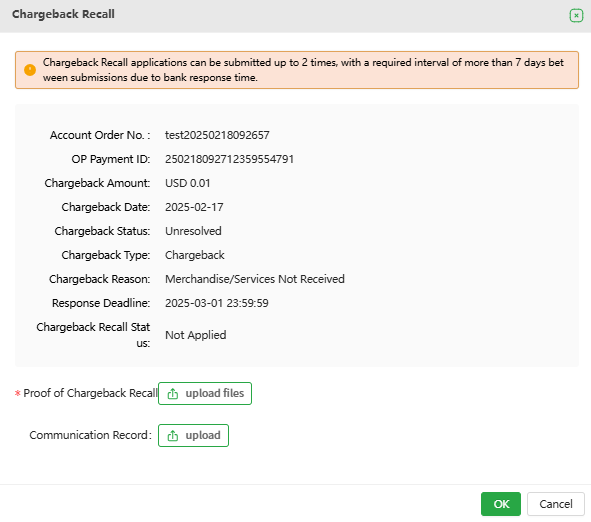
What is the difference between Chargeback Recall and Re-presentment? Chargeback Recall: The consumer proactively cancels the chargeback with the issuing bank and agrees to return the funds. The merchant must provide relevant withdrawal documentation for the acquirer to confirm the chargeback status with the issuing bank. Chargeback Re-presentment: The merchant disputes the chargeback, providing evidence to prove the chargeback is invalid or unreasonable. The final decision rests with the issuing bank.
The chargeback recall function is not universally applicable. To initiate a chargeback recall request, all the following conditions must be met (if not met, the recall button will not appear):
- Payment method: Credit Card, GooglePay, ApplePay
- Chargeback amount > 0
- Chargeback type = "Chargeback"
- Chargeback status = "Unresolved" or "No Response Required"
- Within 15 days from the chargeback date
- Chargeback recall status = "Not Applied" or at least 7 days have passed since the last recall failed result As shown in the figure, click [Chargeback Recall] to access the documentation submission page. Detailed requirements for initiating a withdrawal request will be provided in the chargeback notification email.

11.3 Retrieval
When cardholders are unsure whether a transaction on the issuer's statement was made by themselves, they usually request a copy of the relevant transaction document from their card issuer to determine whether the transaction was made by them. The above behavior is called retrieval. After the retrieval request occurs, the issuer freezes the transaction amount and waits for further verification before deciding whether to unfreeze it. If the fund of the transaction is frozen, the settlement of this transaction will be postponed. Click [Administration Center] - [All Exception] - [Retrieval] Merchants can query the corresponding retrieval transaction information according to Account Order No. or OP Payment ID. Orders can also be filtered by Transaction Time, Retrieval Time, Response Deadline, Processing Time, retrieval status, etc. In the filter, four types of time can be selected: Transaction Time, Retrieval Time, Response Deadline, and Processing Time. Among them, Retrieval Time refers to the time when this transaction was retrieved.
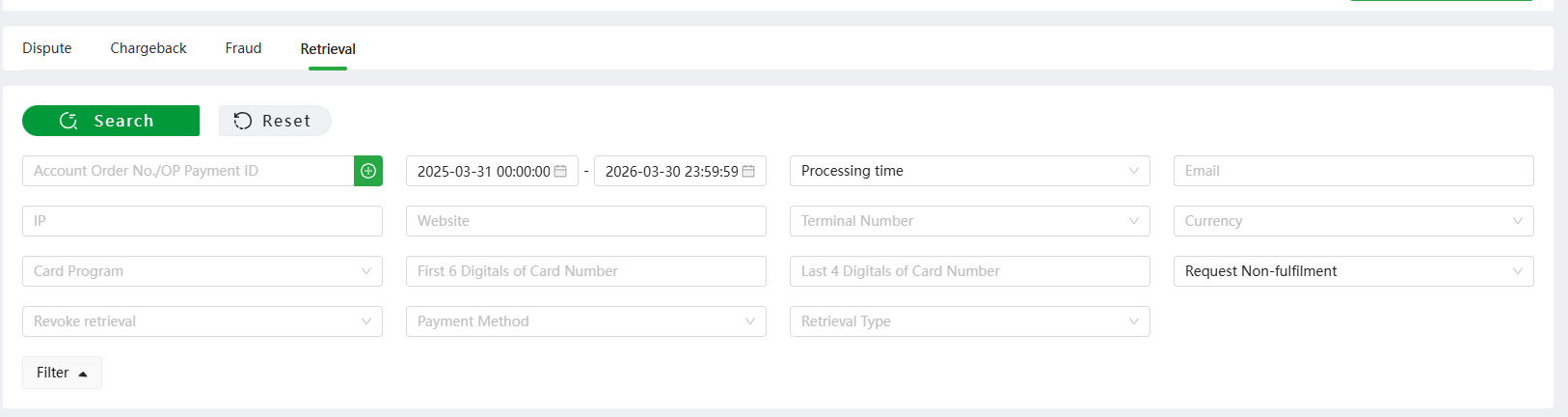
(PC)
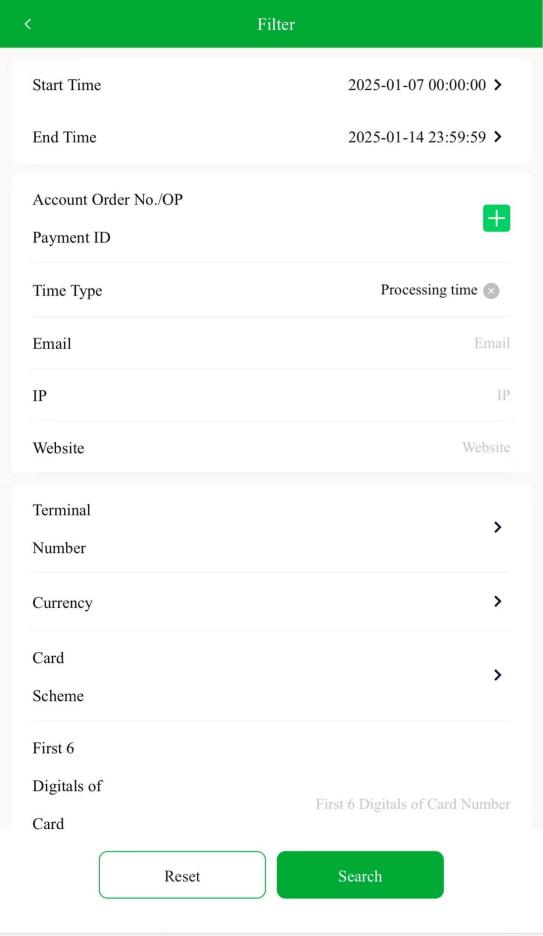
(H5) Search the transaction in [All Exception] - [Retrieval], click the transaction to see its details as below, then merchants can choose [Accept Refund] or [Re-presentment]:
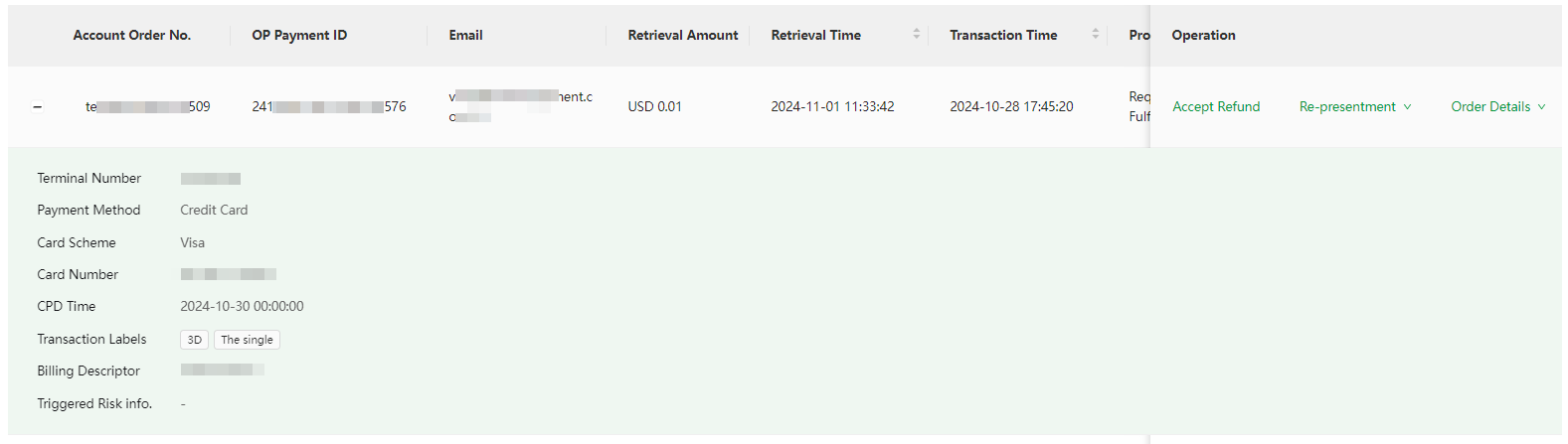
(PC)
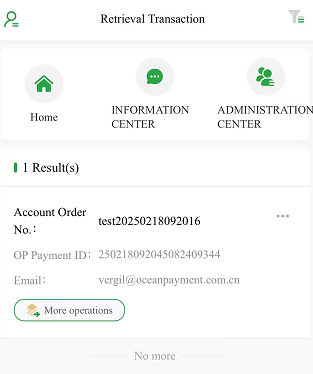
(H5) Click [Accept Refund], the page will display order details, and merchants can apply for fully or partially refund.
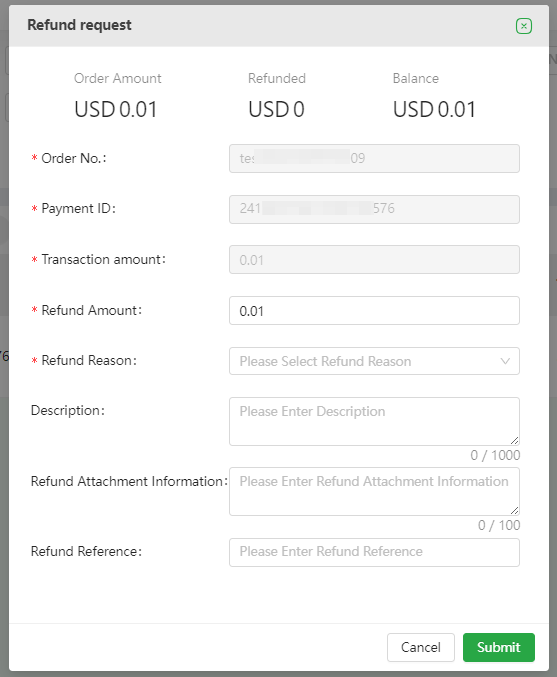
(PC) Click [Re-presentment] to go to the editing page.
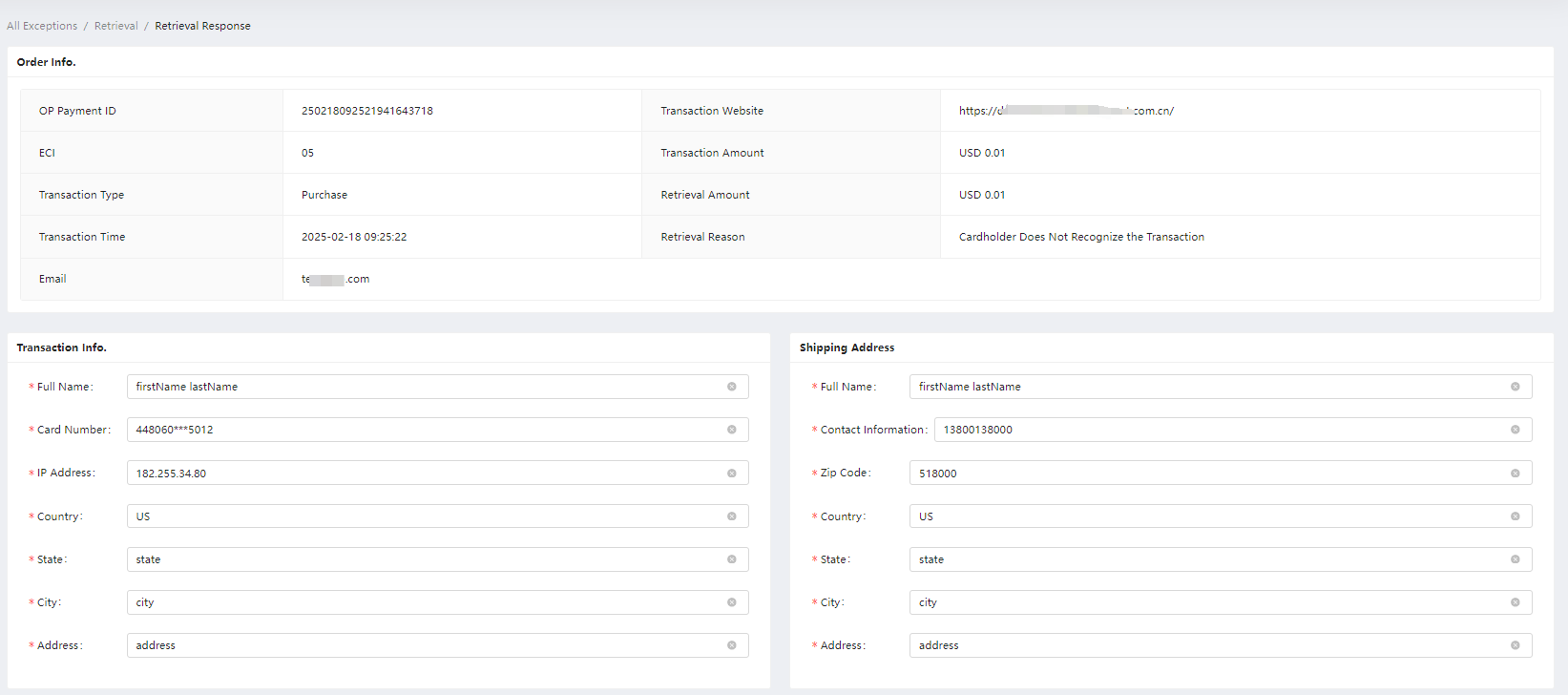
(PC)
11.4 Fraud
Each issuer will report consumer fraud to the corresponding agency (TC40 or SAFE). Based on the reports issued by these agencies, the acquiring bank and the issuers will understand the fraud risk of the transaction and adjust the risk control strategy timely to ensure that the fraud is eliminated. Transactions are controlled within reasonable limits. Visa's fraud reporting is TC40; MasterCard's fraud reporting is SAFE. We call the transactions covered by these reports Fraud. Failure to respond to the fraud notification may result in an 85% probability of a chargeback. When a chargeback is initiated, the bank will comply with the chargeback process, and will charge an additional chargeback processing fee apart from the deducted transaction amount, and will assess the chargeback rate as well.
Click [Administration Center] - [All Exception] - [Fraud] Merchants can query the corresponding retrieval transaction information according to Account Order No. or OP Payment ID. Orders can also be filtered by Transaction Time, Fraud Time, Terminal, etc.
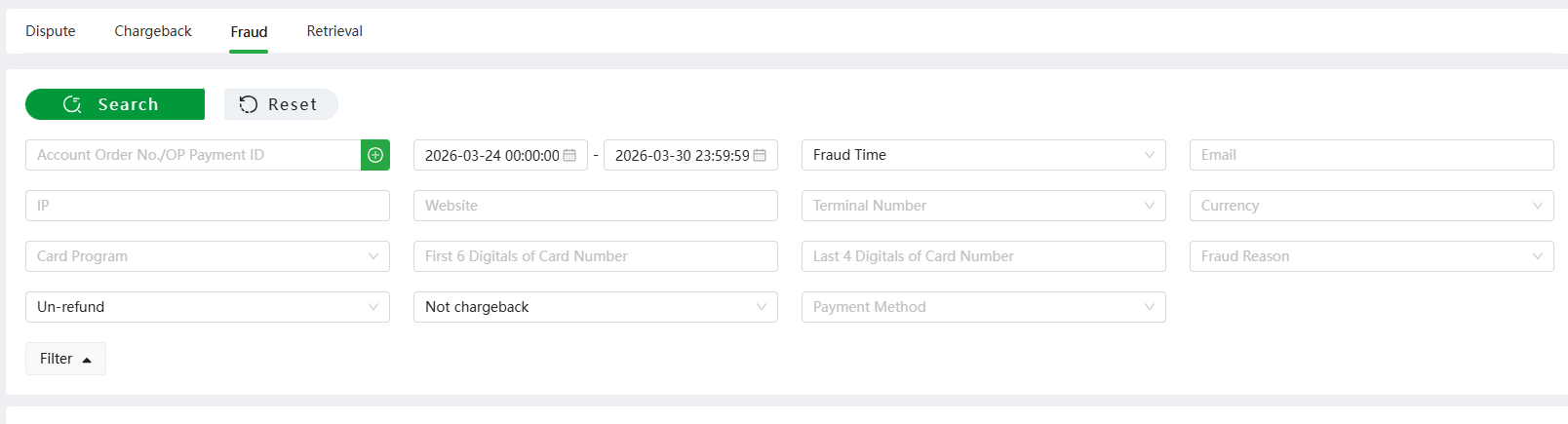
(PC)
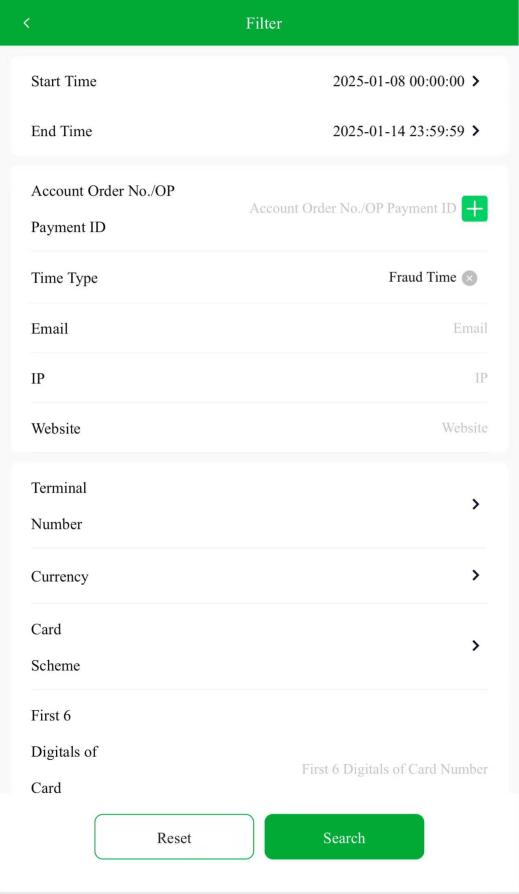
(H5)
Click the fraud record to see details and more process options. Merchants can accept this fraudulent transaction to prevent this transaction from escalating to a chargeback by issuing a refund.
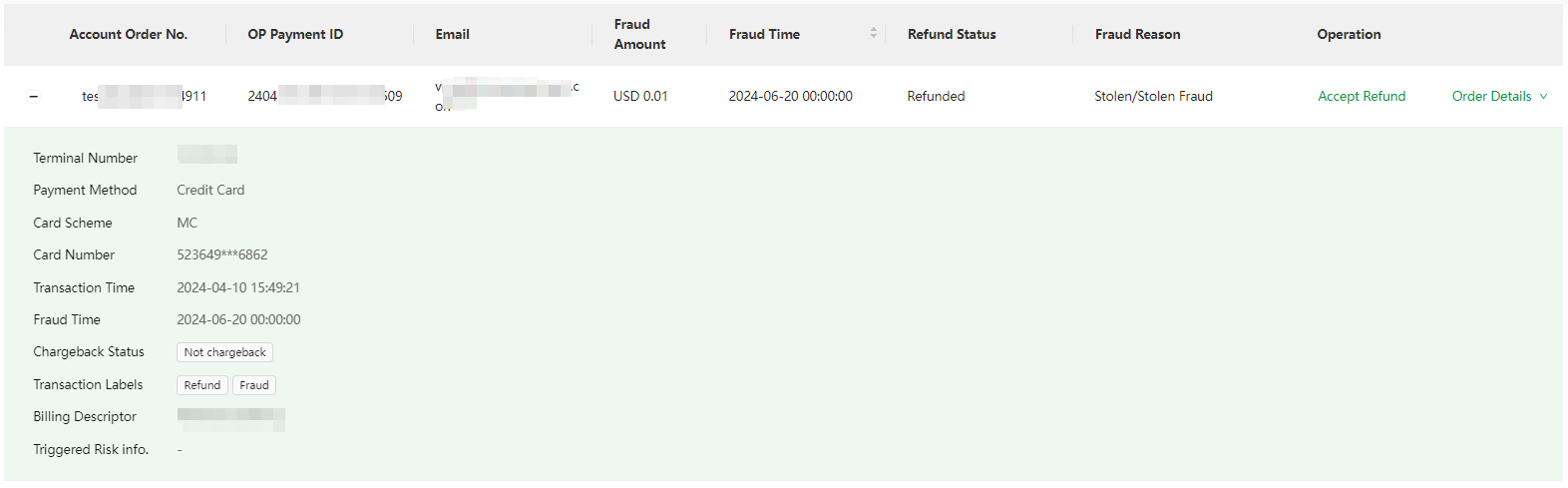
(PC)
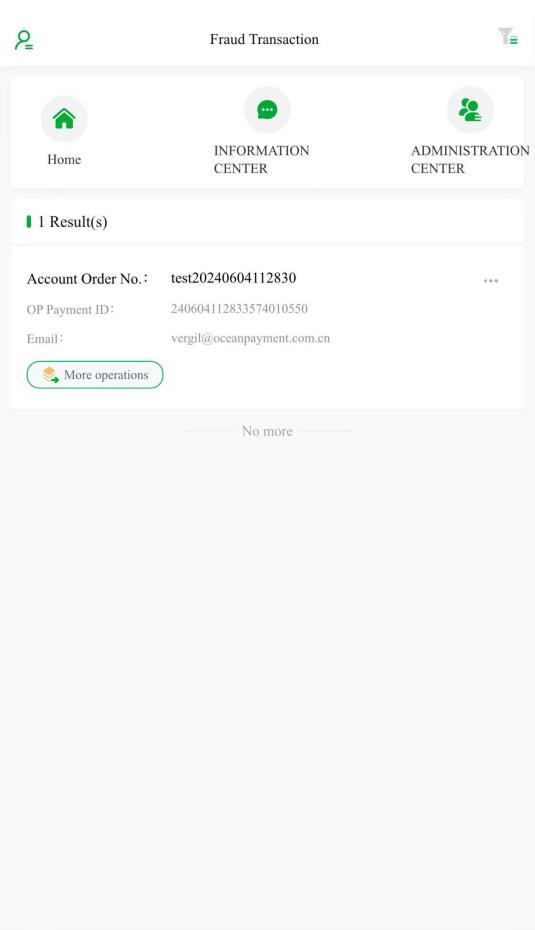
(H5)
Click [Accept Refund], the page will display order details, and merchants can apply for fully or partially refund.
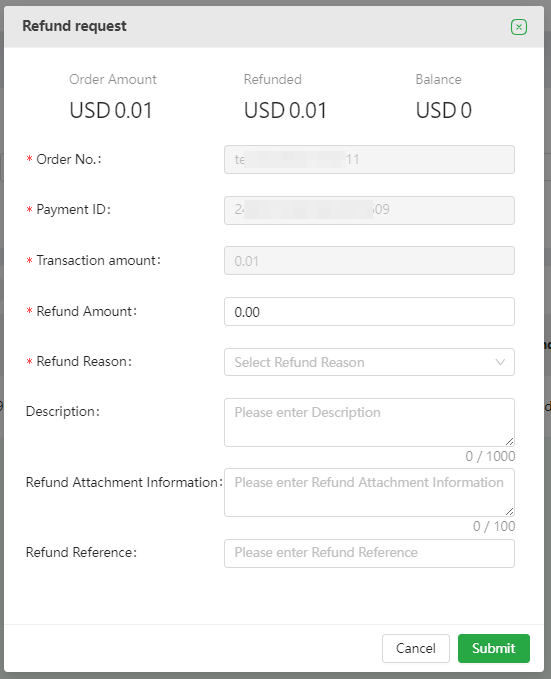
(PC)
12. Refund (PC/H5)
Click [Payment] - [Refund] to apply for a fully or partially refund.
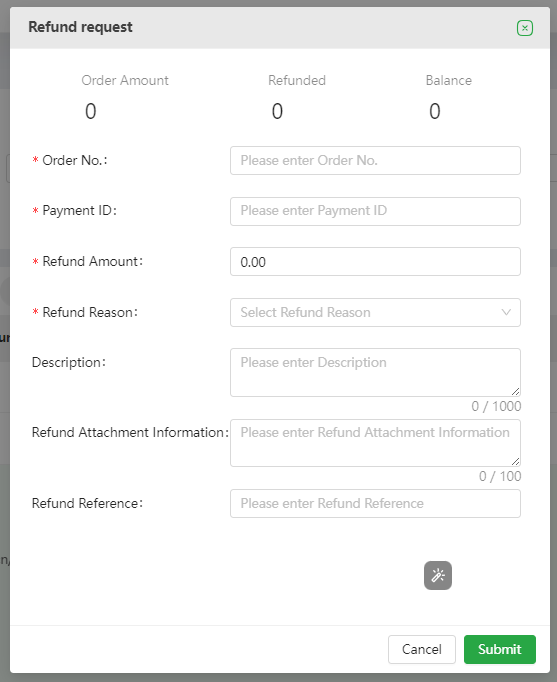
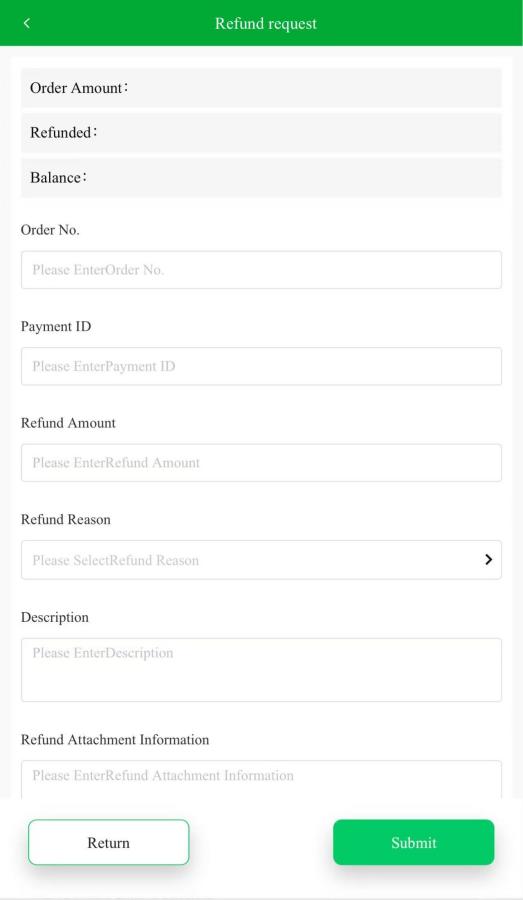
(PC) (H5)
Enter Account Order No. or OP Payment ID and then click on the blank space, the transaction amount, refund amount, and terminal of the transaction will be shown.
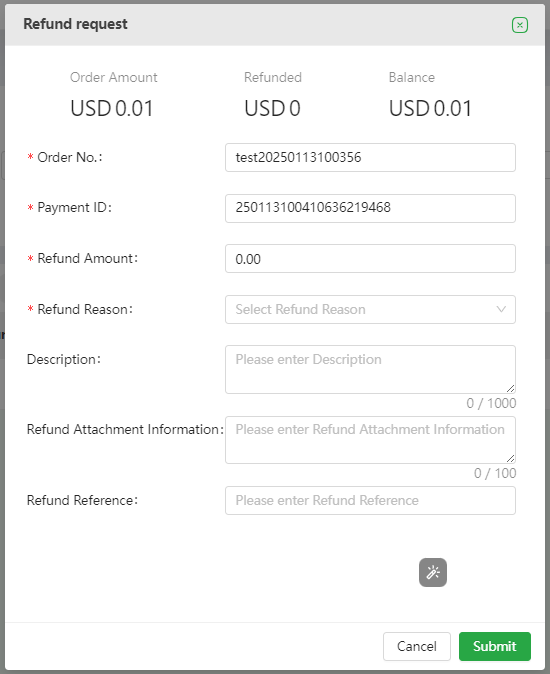
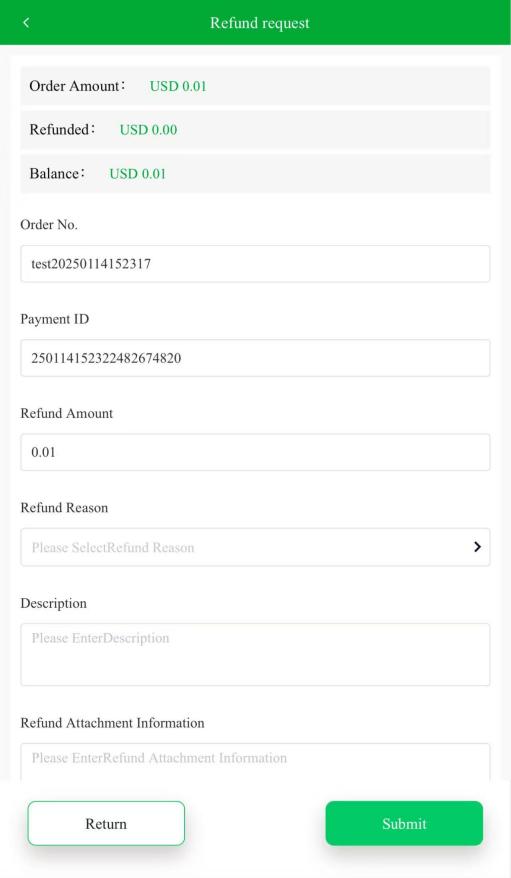
(PC) (H5) The default refund amount is the transaction amount, i.e., full refund. If merchants need a partial refund, fill in the amount needed, select the corresponding reason for the refund and submit. The refund flow is as below:

- After submitting a refund request, merchants can check the pending status of this refund in [Refund History]. Merchants can undo the refund that was requested within 24 hours and the status remains pending.
- Oceanpayment will process the refund request within 1 working day, submit the refund request to the bank, and the refund status will be "Processing".
- After the bank audit, the refund status changes to "Approved", which means that the bank has processed the refund. The refund amount will be transferred to the consumer's card issuer. The exact time for the customer to receive the refund mainly depends on the processing speed of the cardholder's card issuer, which is usually around 5-10 working days.
- Merchants can check the status of refund in [Refund History]
- Merchant Notes Required:
- Partial and full refunds are applicable, however, the total refund amount for the same order cannot exceed the transaction amount.
- Refunds are generally free of merchant and cardholder fees, yet a few banks will charge a refund processing fee. Please refer to the quote in the contract for details. Refund API can be docked to submit refund requests. Merchants can make refunds in Shopify stores as well.
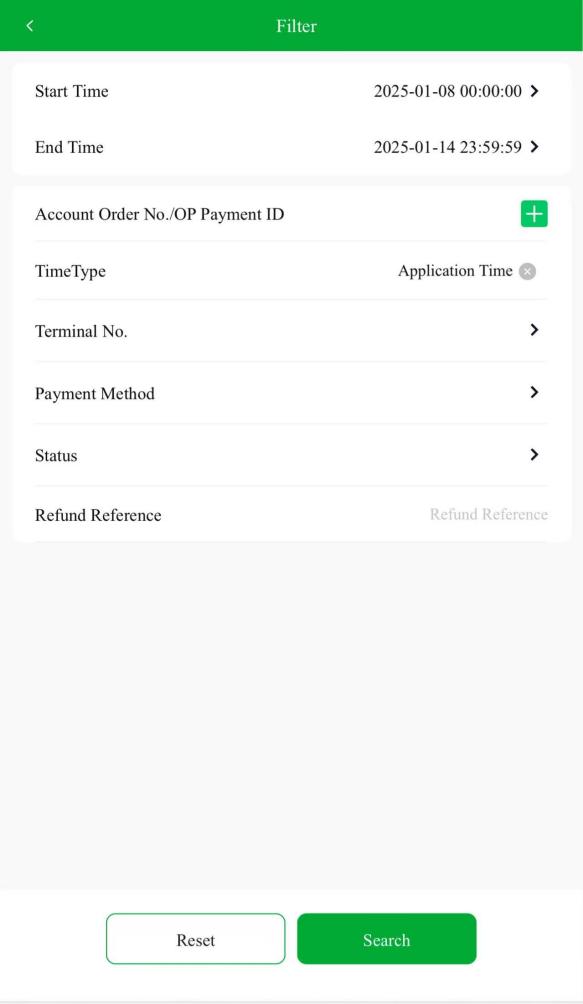
- In [Refund] section, merchants can search transaction according to Account Order No. or OP Payment ID. Besides, filtering refund transactions by a period of time is applicable as well.

(PC)
(H5)
Types of time includes: Process Time, Application Time, Transaction Time.
- Process Time: The time when Oceanpayment system processes the refund and updates the status.
- Application Time: The time when merchants submit a refund request.
- Transaction Time: The time when the order was paid. Refund Reference: If clients say they haven't received their refund, merchants can check and send the corresponding refund reference to clients. The refund status can be confirmed via this information in clients' issuers. The refund API can be docked to return the corresponding refund processing status information.
13. Website (PC/H5)
Click [Website] to can check all the terminal number corresponding to the each website.
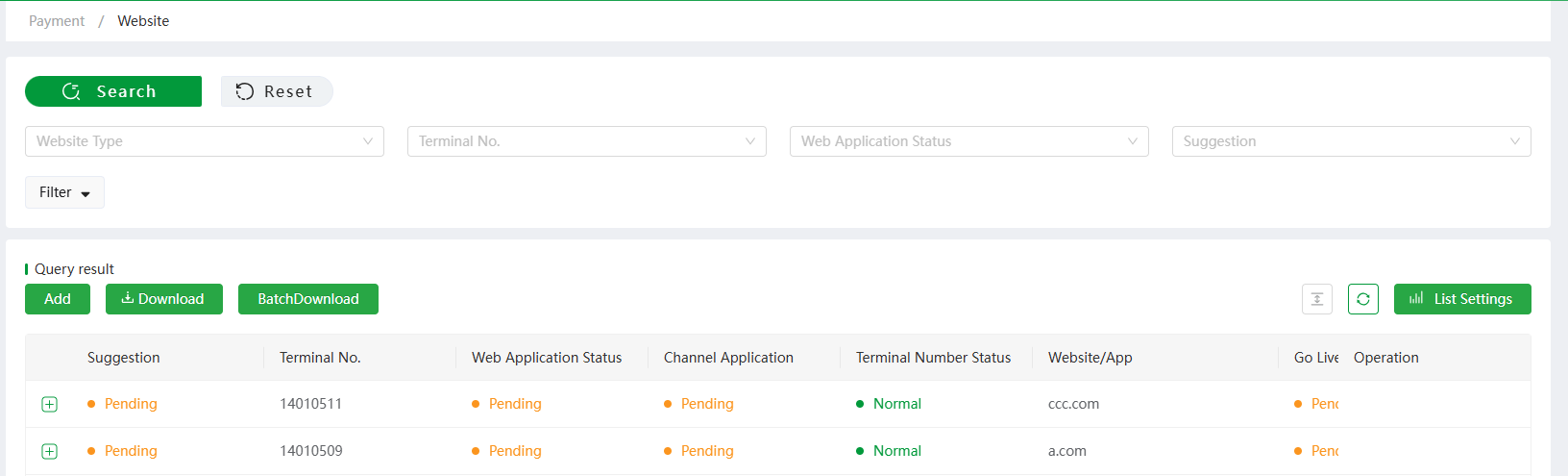
(PC)
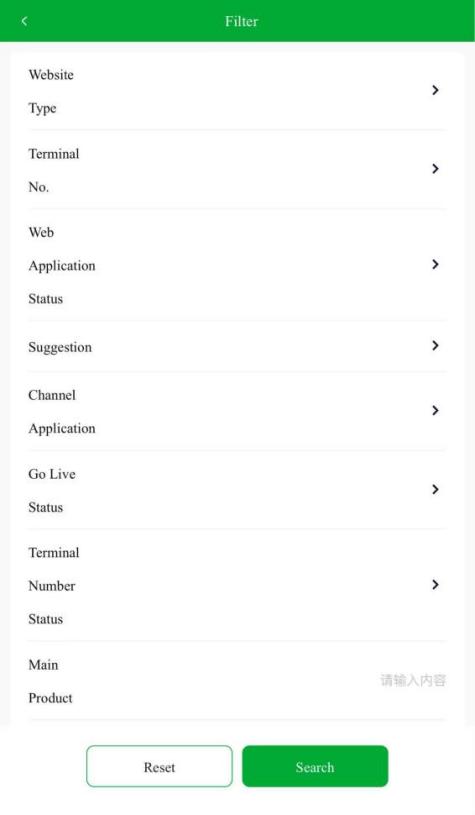
(H5)
Click [Add] to apply for new payments gateways for your new websites.
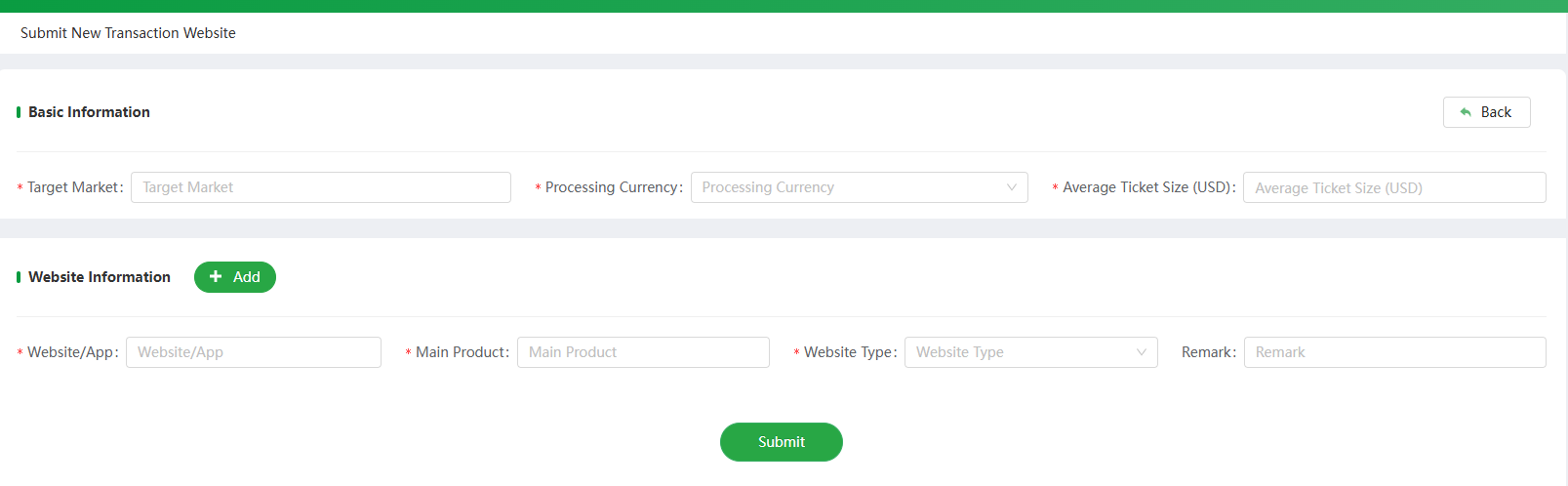
(PC)
- Fill in target markets of the new site
- Select the processing currency that the new site uses
- Fill in the average ticket size
- Fill in the domain
- Fill in the main product sold on the site, e.g. Women's clothing, electronics, general merchandise, etc.
- Select the website type, e.g. Shopify, APP, etc.
- Upload a domain certification (a snapshot of the domain setting in its store is applicable as well)
- Remarks are not required, Merchants may not fill in if there is no special instructions
14. More (PC)
14.1 Login Log
Click [More] - [Log]- [Login Log] to check the login record of the super administrator and all sub-accounts for a certain period of time under this account, such as user name, login IP, etc.
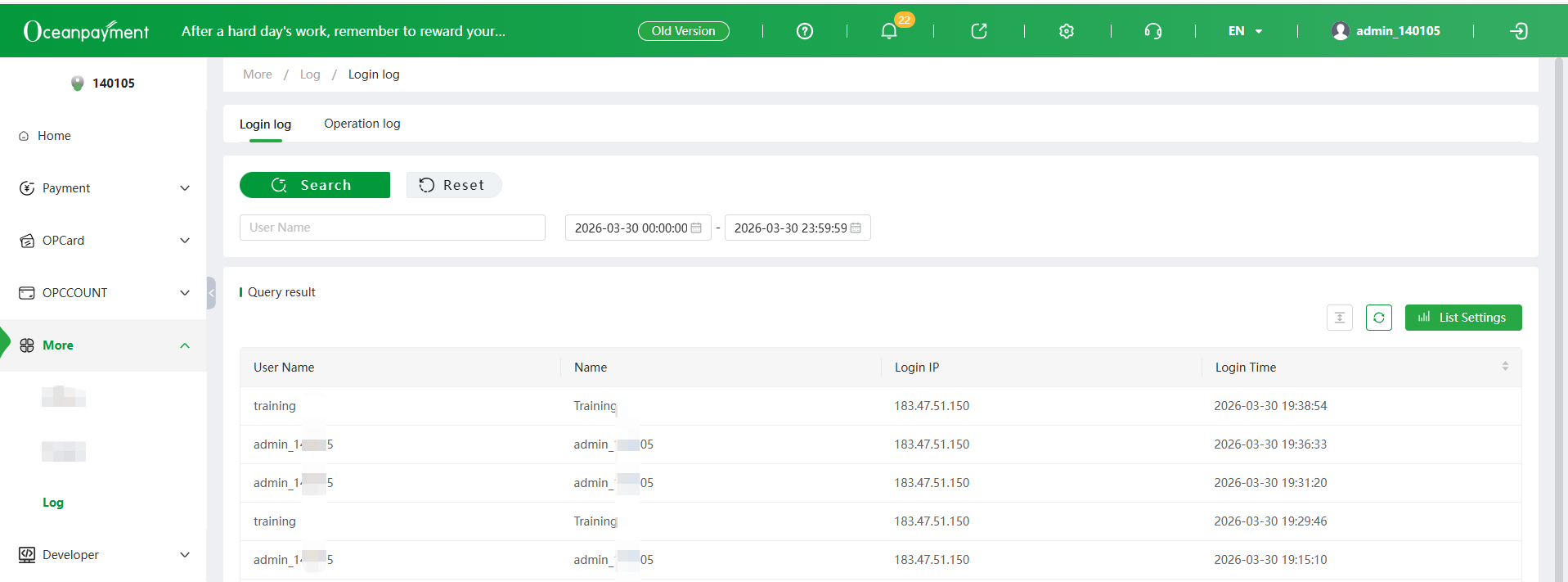
(PC)
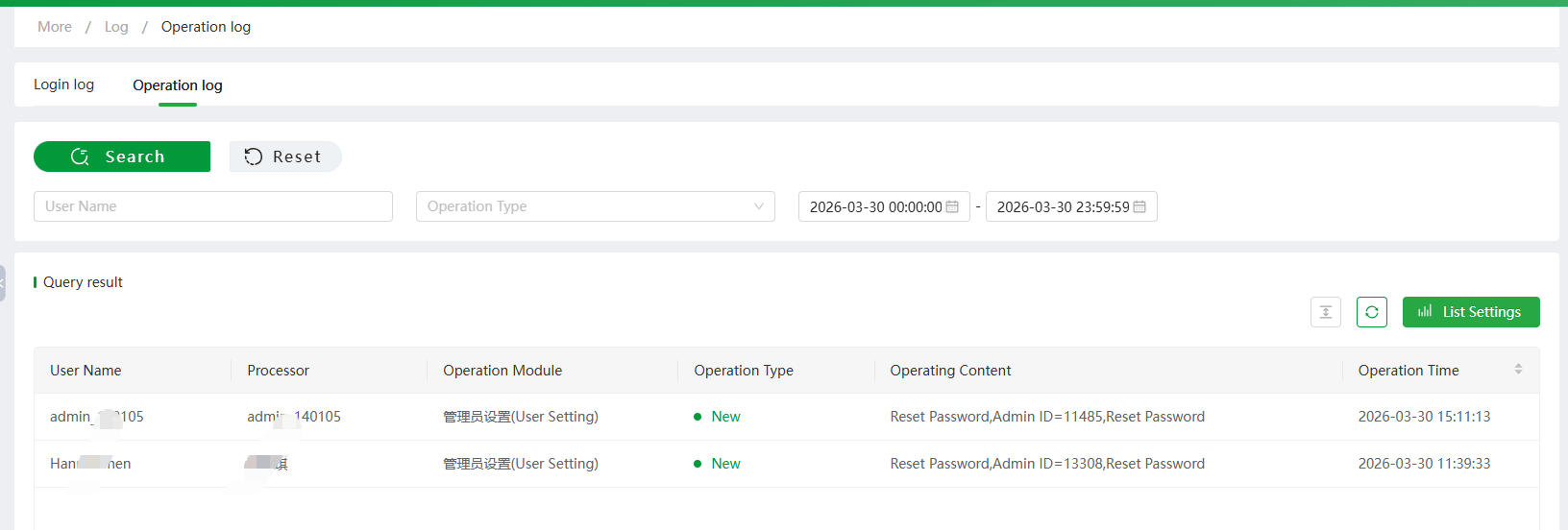
14.2 Operation Log
Click - [Log]- [Login Log] - [Operation Log] to check the operation logs of the super administrator and all sub-accounts for a certain period of time under this account, such as saving refund, submitting chargeback re-presentment, etc.
(PC)
15. Developer(PC)
15.1 Terminal Setting
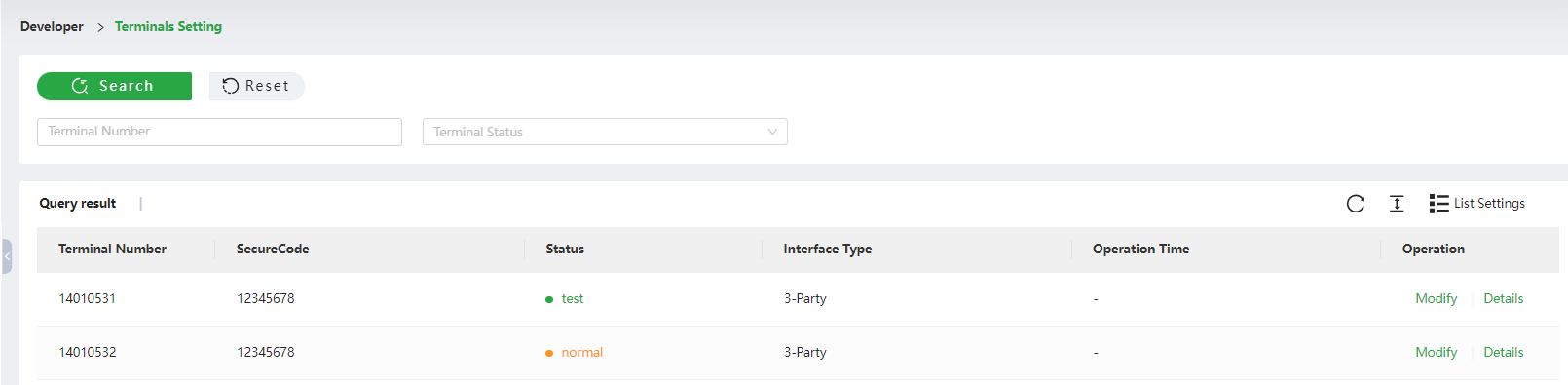
Click [Developer] - [Terminal Setting], SecureCode of each terminal, status, interface type, operation time can be checked in this section.
(PC)
- Normal: the terminal was onboarded, and customers can paid on the corresponding site successfully.
- Test: the terminal still under testing, and customers cannot make payment on the site.
- Disable: the terminal was terminated, and customers cannot make payment on the site.
16. Download Center(PC)
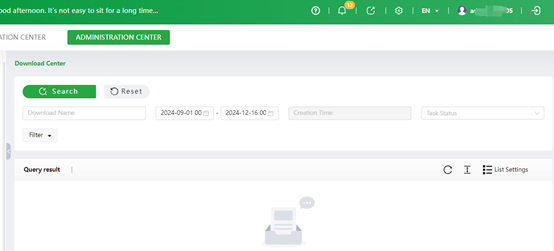
Usage Scenario: The purpose is for the download of large data volume, when the merchant needs to download the general transaction details data more than the maximum threshold of 10W data set by Oceanpayment backend (the maximum threshold of the data may be adjusted with the change of business scenarios), to perform asynchronous downloads, offline downloads, and the user jumps to the download area when downloading the data of large data volume for download.
17. Help Center(PC/H5)
Click on this icon in the top navigation bar

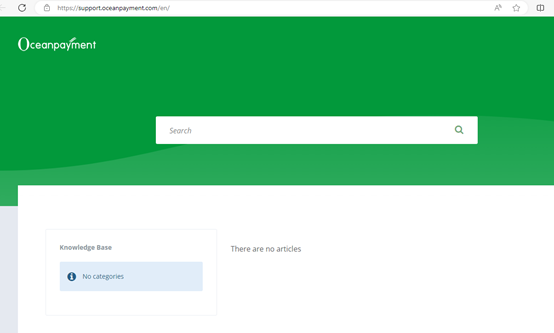
(PC) Click on Administration Center - Help Center Visit the Help Centre for Q&A on frequently asked questions and guidance notes on categorized issues
(PC)