Oceanpayment-Merchant Batch Representment Submission Guide (20250909)
Introduction to Batch Representment Functionality
1. Feature Overview
The bulk representment feature addresses merchants' customized requirements for representment materials, enabling them to independently define the layout and content of representment documents. Batch operations also streamline the process and reduce the complexity of multi-step submissions.
2. The Difference Between Batch Representments and Initiating Representments
Initiate a Re-presentment: To submit a representment for a chargeback order, click Re-representment under the chargeback order to access the designated submission page. Edit the system-provided fields and upload supporting documentation.
Batch Representment: This function enables merchants to submit representment materials for multiple payment IDs. It reduces system layout restrictions and allows merchants to customize representment documents.
Batch representments and individual representments are both methods for submitting representment materials, but the final outcome remains subject to the bank's decision.
3. Operation Path
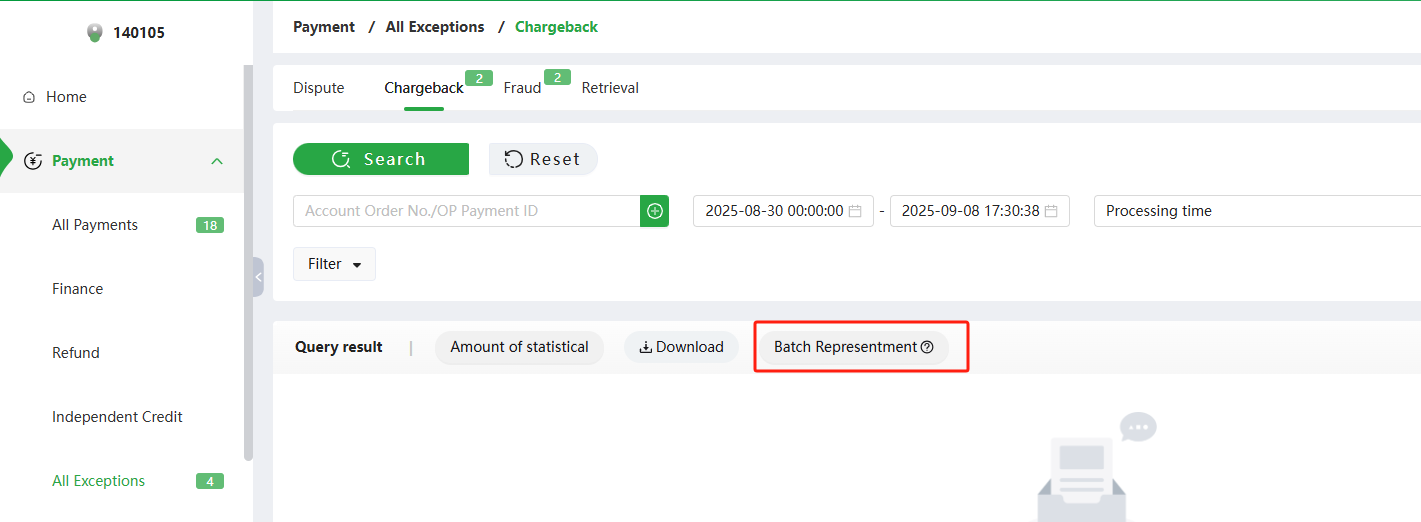
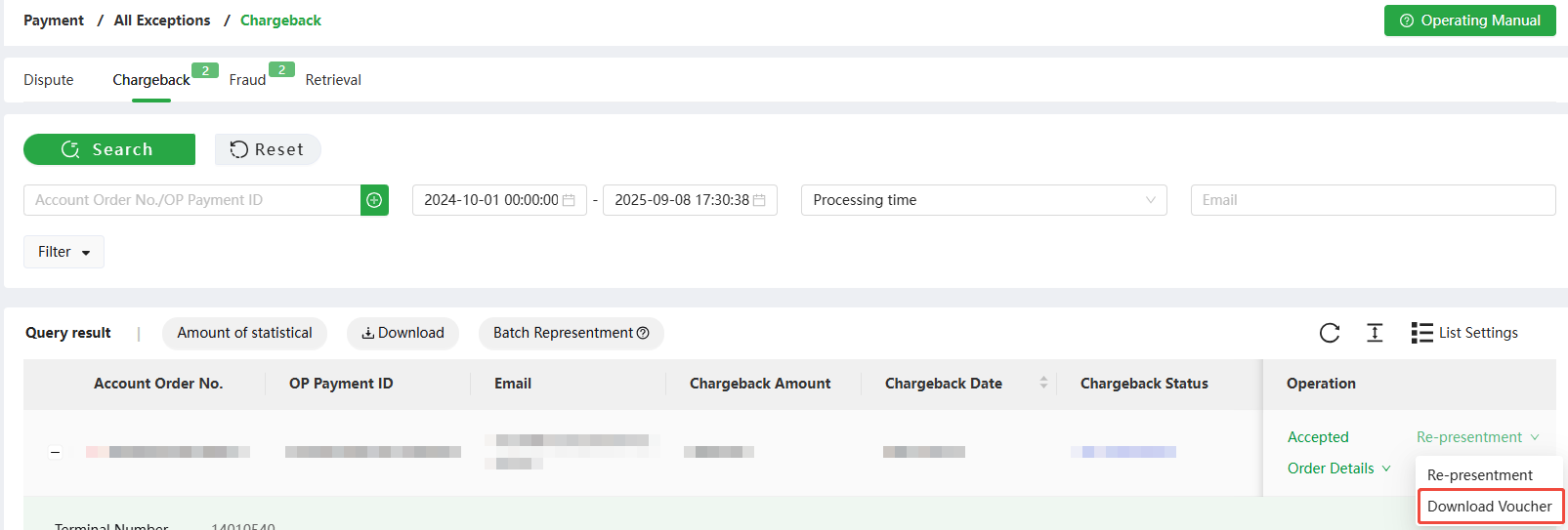
Navigate to ODPM > Payment > All Exceptions > Chargeback, then access the Chargeback Transactions section. The Batch Representment button is available on this page.
4. Batch Representment Guidelines
To ensure representment documents are accurately matched to the chargeback orders requiring representment, follow these requirements before submitting a batch request:
- Compress files in ZIP format before uploading.
- Use the compressed file naming format
Representment-YYYYMMDD.zip. - Name each representment document within the ZIP file using its payment ID, with a maximum of 1,000 characters.
- Duplicate payment ID representment submissions are not supported. If two payments with identical payment IDs require representment, only one submission is permitted.
- Refer to the sample document for document formatting requirements.
- After submission, a chargeback status change to Re-presentment for the corresponding payment ID indicates that the document upload was successful.
- After successful upload, click Download Voucher to preview the representment document.
5. Sample Document
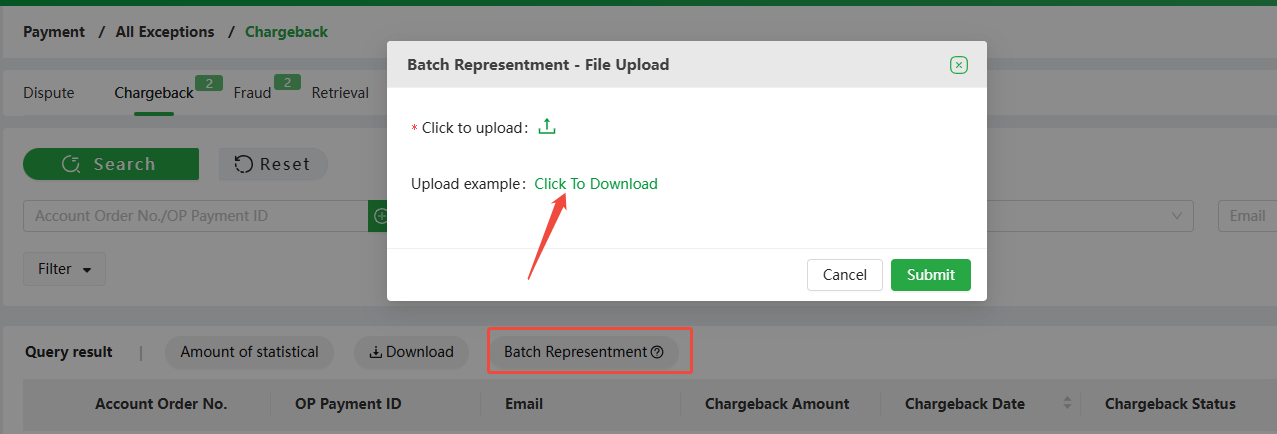
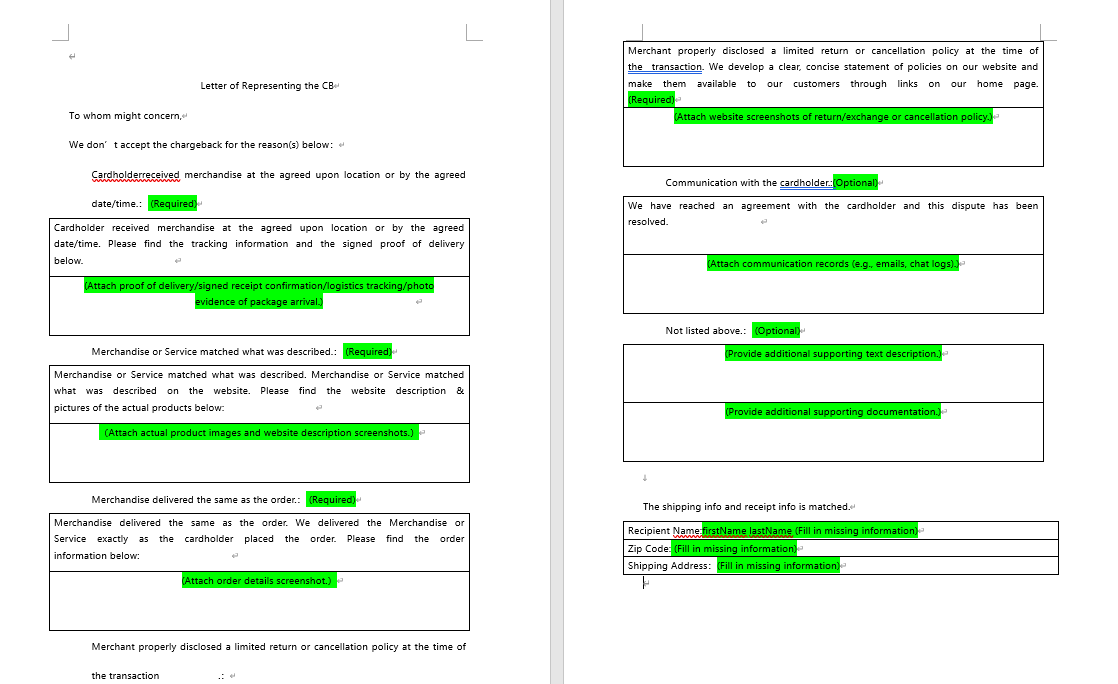
Click Batch Representment to open the pop-up page, where you can download sample documents for upload. Use these samples as a reference when preparing representment materials and supporting evidence.
Representment Format
- Text description plus supporting images.
- Text must be in English.
- Font: 10 pt Microsoft YaHei.
Representment Image
- Images must be clear and appropriately sized.
- Supported formats: JPG, JPEG, or PNG.
- Maximum size per image: 3 MB.
- Maximum dimensions: 1,800 px x 1,500 px.
Representment Document Restrictions
- The Word document must not exceed 20 pages.
- The file size must not exceed 15 MB.
- The final Word representment document must be named using the payment ID.
- Text in the required template fields is for reference. Optional sections may be supplemented or adjusted based on actual circumstances.
- Before submission, delete the Chinese text and supplementary highlighted content from the sample template.
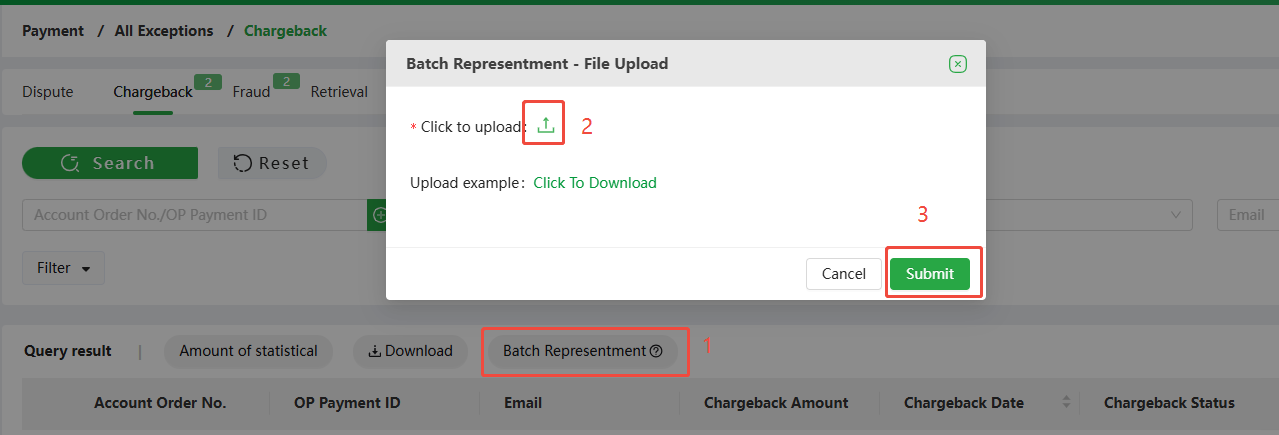
6. How to Submit Batch Representments
- Click Batch Representment.
- On the pop-up page, click the upload control and select the prepared ZIP file.
- Click Submit.
- After successful submission, click Download to review the materials.
7. Upload Button Restriction Rules
- Compressed file naming:
Representment-YYYYMMDD.zip, for exampleRepresentment-20250820.zip. - Maximum number of compressed packages: 1.
- Maximum number of files in a compressed package: 1,000.
- Maximum individual file size within the compressed package: 10 MB.
- Representment documents for duplicate payment IDs cannot be uploaded within the same ZIP file.
- For multiple chargebacks under the same payment ID, batch representment is not supported. Submit representment on a per-transaction basis.
- The payment ID must have a Chargeback status of Unresolved.
8. Frequently Asked Questions (FAQ)
Q: How many transactions can I dispute at one time?
A: A single ZIP file upload supports up to 1,000 files, or 1,000 payment IDs.
Q: After uploading a file, how can I confirm that the submission was successful?
A: Locate the payment ID for the representment you just submitted and check its Chargeback Status. If the status changes from Unresolved to Re-presentment, the document has been successfully received by the system.
Q: What should I do if I submitted the wrong file or need to provide additional materials?
A: Batch representment does not support resubmitting the same payment ID. If an error occurs or information must be added, click Re-presentment under the Operation column for the corresponding payment ID. On successful resubmission, the previous representment content is overwritten and the latest update time takes precedence.
Q: What is displayed when I click Download Voucher?
A: It is a confirmation receipt generated by the system for your submission, provided in PDF format for recordkeeping and verification.
Q: Can I upload documents in other formats such as PDF, JPG, or TIFF?
A: No. Currently, only .docx files are supported.